79
Chapter 12
Administrate Your Network
12. 9. Remote Management
By default, the remote devices are not allowed to manage the router from the internet.
Follow the steps below to allow remote devices to manage the router.
1. Visit http://tplinkmodem.net, and log in with the password or your TP-Link ID.
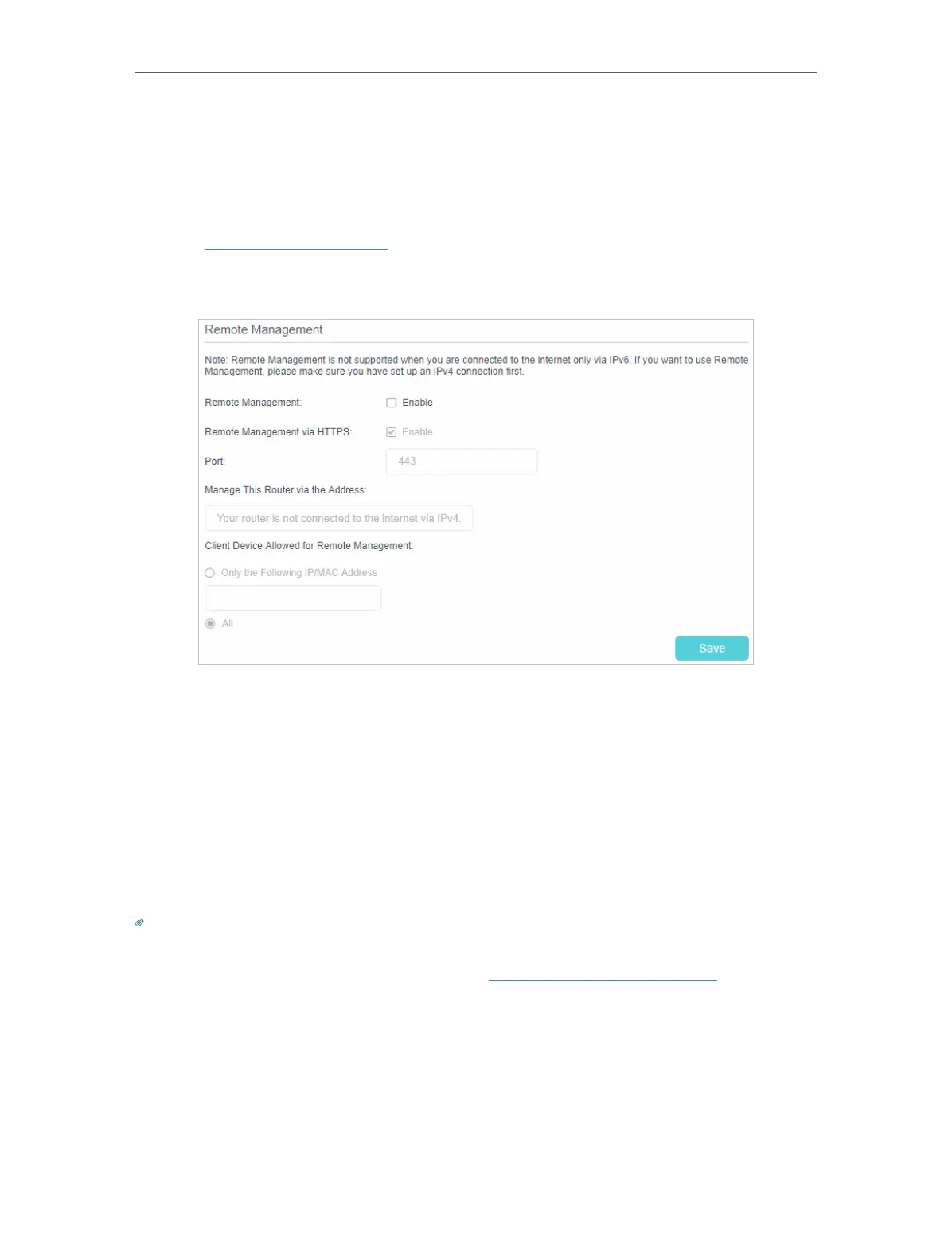
2. Go to Advanced > System Tools > Administration page. Locate the Remote
Management section.
3. Enable Remote Management if you want to allow Remote Management via HTTPS,
or enable Remote Management and then disable Remote Management via HTTPS
if you only want to allow Remote Management via HTTP.
4. Keep the Port as the default setting.
5. If you only want to allow one specific device to manage the router, select Only the
Following IP/MAC Address and then enter the IP Address or MAC Address. If you
want to allow all remote devices can access the router, select All.
6. Click Save to make the settings effective.
Tips:
1. You can find the WAN IP address of the router on Basic > Network Map > Internet.
2. The router’s WAN IP is usually a dynamic IP. Please refer to Set Up a Dynamic DNS Service Account if you want to log
in to the router through a domain name.










 To Next Page