55
Chapter 11
Specify Your Network Settings
2. The WPS function cannot be configured if the wireless function of the router is disabled. Please make sure the
wireless function is enabled before configuring the WPS.
11. 5. 3. Schedule Your Wireless Function
You can automatically turn off your wireless network at time when you do not need the
wireless connection.
1. Visit http://tplinkmodem.net, and log in with the password or your TP-Link ID.
2. Go to Advanced > Wireless > Wireless Schedule page.
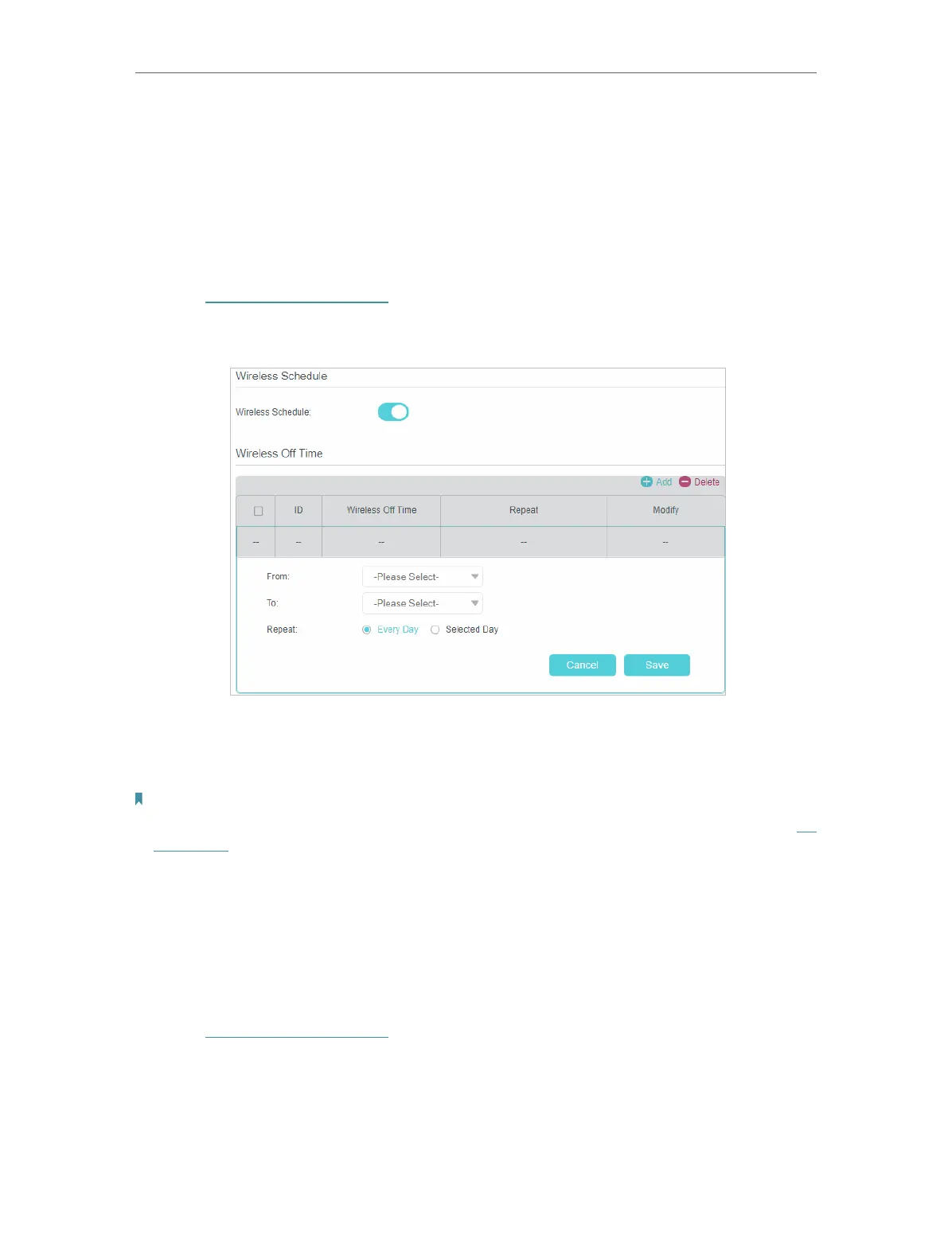
3. Toggle on the button to enable the Wireless Schedule feature.
4. Set the wireless off time. Select From and To time and click Save to make the
settings effective. You can repeat the schedule every day or just certain days in a
week.
Note:
1. Please make sure that the time of the router is correct before using this function. For more details, refer to Set
System Time.
2. The wireless LED will turn off if both wireless networks are disabled.
3. The wireless network will be automatically turned on after the time period you set.
11. 5. 4. View Wireless Information
• To view the detailed wireless network settings:
1. Visit http://tplinkmodem.net, and log in with the password or your TP-Link ID.
2. Go to Advanced > Status page. You can see the Wireless box.
3. Select 2.4GHz or 5GHz to view the wireless details.










 To Next Page