73
Chapter 12
Administrate Your Network
12. 2. Control LEDs
The router‘s LEDs indicate router’s activities and status. You can turn on or turn off the
LEDs as you need.
• To turn off LEDs:
1. Visit http://tplinkmodem.net, and log in with the password or your TP-Link ID.
2. Go to Advanced > System Tools > LED Control page.
3. Disable LED Status.
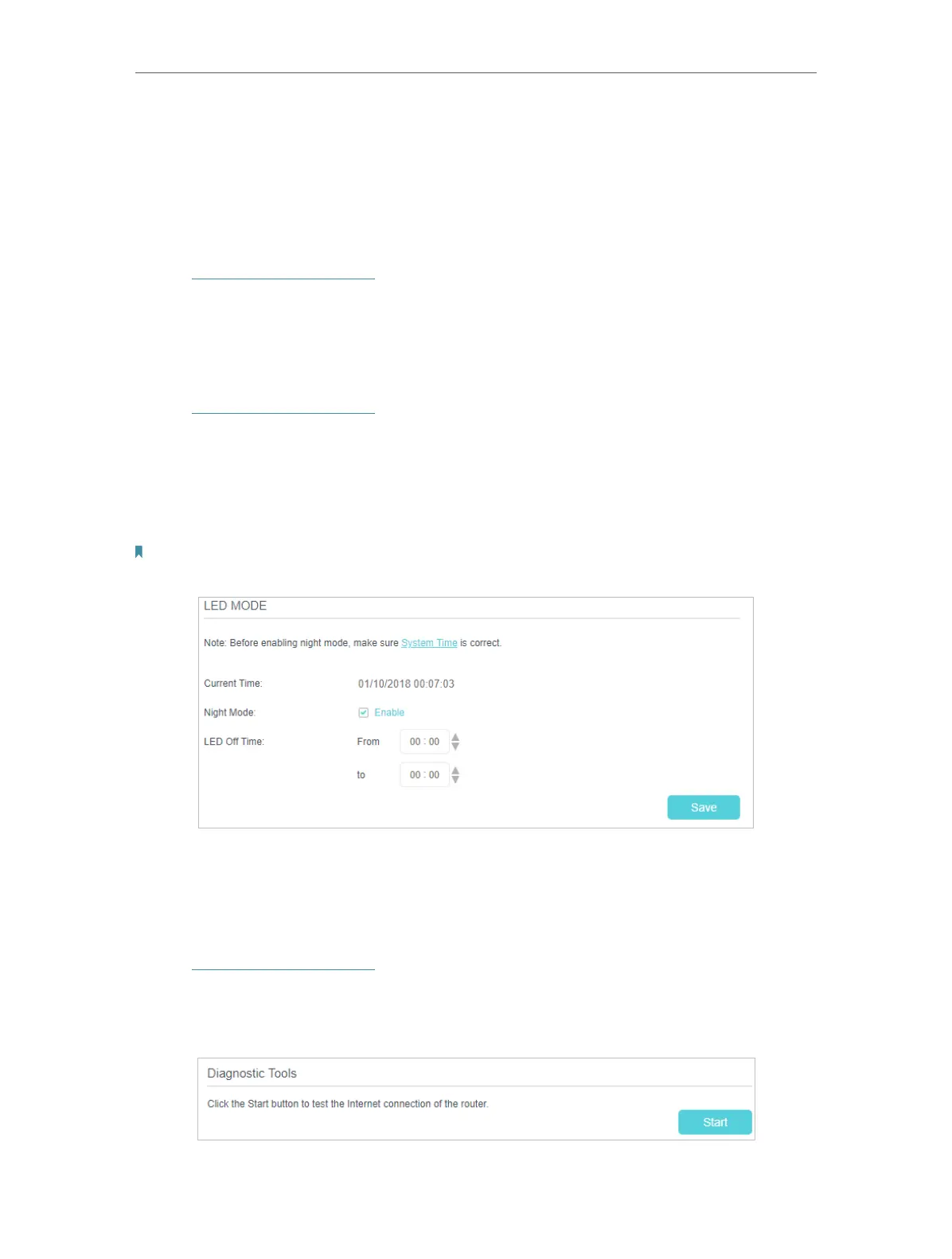
• To turn off LEDs during the specified period :
1. Visit http://tplinkmodem.net, and log in with the password or your TP-Link ID.
2. Go to Advanced > System Tools > LED Control page.
3. Tick the Night Mode checkbox.
4. Specify a time period in the LED Off Time as needed, and the LEDs will be off during
this period.
Note: Once Night Mode is enabled, the LEDs will be off during the specified period everyday without affecting the
router’s performance.
12. 3. Test the Network Connectivity
Diagnostics feature helps you run diagnostic test and troubleshoot your network
connectivity problems.
1. Visit http://tplinkmodem.net, and log in with the password or your TP-Link ID.
2. Go to Advanced > System Tools > Diagnostic page.
3. Click the Start button to test the Internet connection of the router.










 To Next Page