RECORD Mode︱
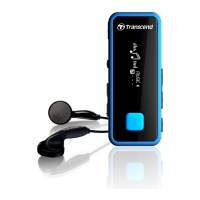
The MP850 can record from 2 different sources: FM Radio or the built-in microphone. The RECORD mode is
for creating voice recordings and playing back both FM and voice recordings. To record from the FM Radio,
please see the previous section on “Recording the Radio.”
Making Voice Recordings With the Built-In Microphone
1. Press and hold the
button for 2 seconds in any mode (except Radio) to activate the MP850‟s built-in
microphone and begin voice recording.
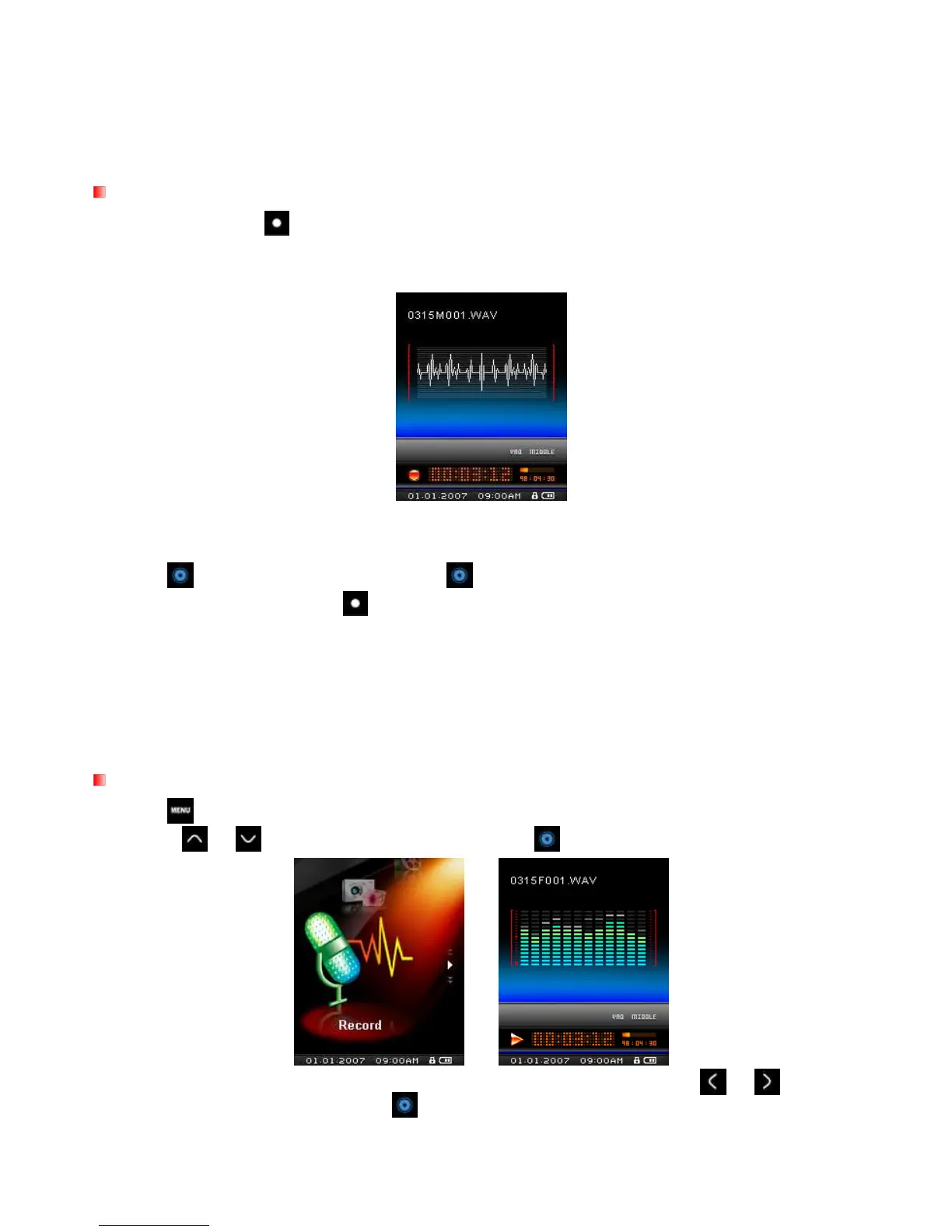
2. An automatically generated file name for your recording will appear at the top of the screen.
Voice recordings are named and numbered in this format: “MonthDayM###.WAV”
Ex: 1216M003.WAV represents the third voice recording made on December 16
th
3. Press to pause the recording, and press again to resume.
4. When finished, press and hold
again to save the recording and return to the RADIO mode.
Voice recordings are saved in the /MICIN.DIR/ folder
Voice recordings can be accessed by using the File Navigator in RECORD mode
To adjust the recording sample rate, please see the “Record Settings” section of this manual.
For best results, try to position the MP850’s Microphone as close as possible to the source of the
sound or voice you are recording.
Playing Voice or FM Recordings
1. Press to bring up the Main Menu.
2. Use the or buttons to select “Record”
and press .
3. All voice and FM radio recordings can be found in the RECORD mode. Use the or buttons to
find your desired recording and press
to listen to it.


 To Next Page