TEW-823DRU
44
© Copyright 2014 TRENDnet. All Rights Reserved.
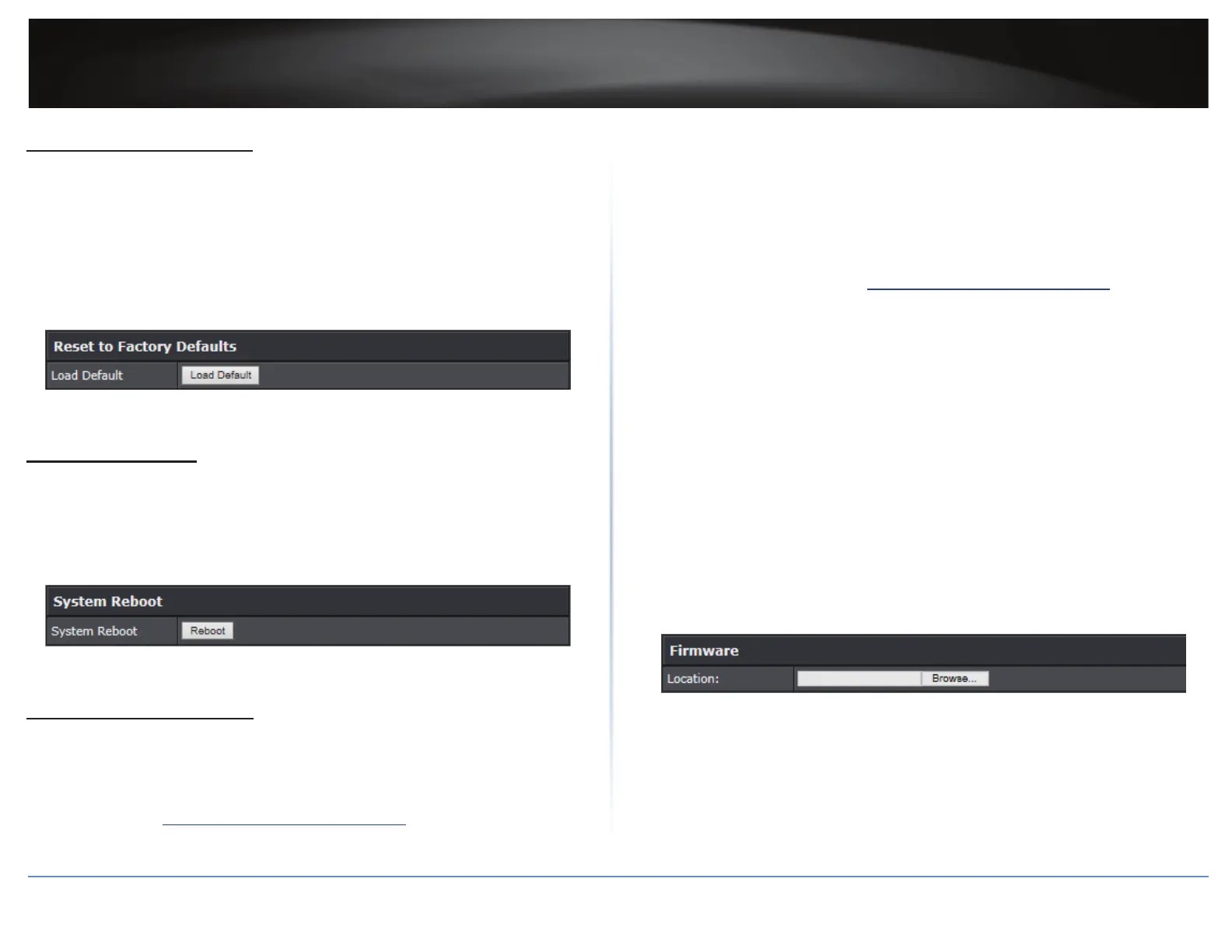
Reset to Factory Defaults
Advanced > Administrator > SengsManagement
You may want to reset your router to factory defaults if you are encountering dicules
with your router and have aempted all other troubleshoong. Before you reset your
router to defaults, if possible, you should backup your router conguraon rst, refer to
“Backup System Sengs” on page 43.
1 Log into your router management page (refer to “Log in to Management Page” on page 8).
2 Click on Advanced > Administrator > Sengs Management.
3 In Reset to Factory Defaults secon, click Load Default.
4 You are prompted to conrm to reset to factory default sengs. Click OK.
Reboot the System
Advanced > Administrator > SengsManagement
To reload the system parameters, you may need to reboot the router.
1 Log into your router management page (refer to “Log in to Management Page” on page 8).
2 Click on Advanced > Administrator > Sengs Management.
3 In System Reboot secon, click Reboot.
4 You are prompted to conrm to reboot the device. Click OK.
Update System Firmware
Advanced > Setup > Update Firmware
TRENDnet may periodically release rmware upgrades that may add features or x
problems associated with your TRENDnet router model and version. To check if there is
a rmware upgrade available for your device, please check your TRENDnet model and
version using the link hp://www.trendnet.com/downloads/.
In addion, it is also important to verify if the latest rmware version is newer than the
one your router is currently running. To idenfy the rmware that is currently loaded on
your router, log in to the router, click on the Administrator secon and then on the Status.
The rmware used by the router is listed at the top of this page. If there is a newer version
available, also review the release notes to check if there were any new features you may
want or if any problems were xed that you may have been experiencing.
To download the rmware, do the following:
1 Enter the web browser URL eld hp://www.trendnet.com/downloads/ and download
the rmware to your computer.
2 Unzip the le to a folder on your computer.
ÍNote:
ͳ Do not interrupt the rmware upgrade process.
ͳ Do not turn o the device during the upgrade.
ͳ If you are upgrading the rmware, using a laptop computer, ensure that the
laptop is connected to a power source or ensure that the baery is fully charged.
ͳ Disable sleep mode on your computer as this may interrupt the rmware upgrade
process.
IMPORTANT: Do not interrupt the rmware upgrade process as it may damage your device.
Please wait unl the rmware upload has fully completed and the device has
successfully rebooted.
To start the rmware upgrade, do the following:
1 Log into your router management page (refer to “Log in to Management Page” on page 8).
2 Click on Advanced > Setup > Update Firmware.
3 In Firmware secon, click Browse to load the upgrade le.
4 Navigate to the folder on your computer where the unzipped rmware le (*.bin) is
located and select it.
5 Click Apply. If prompted, click Yes or OK.
ÍNote: To discard the changes, click Cancel.


 To Next Page