TEW-823DRU
45
© Copyright 2014 TRENDnet. All Rights Reserved.
View Wireless Client List
Advanced > Wireless (2.4GHz or 5GHz) > StaonList
You can view the list of acve wireless devices currently connected to your router.
1 Log into your router management page (refer to “Log in to Management Page” on page 8).
2 Click on Advanced > Wireless (2.4GHz or 5GHz) > Staon List.
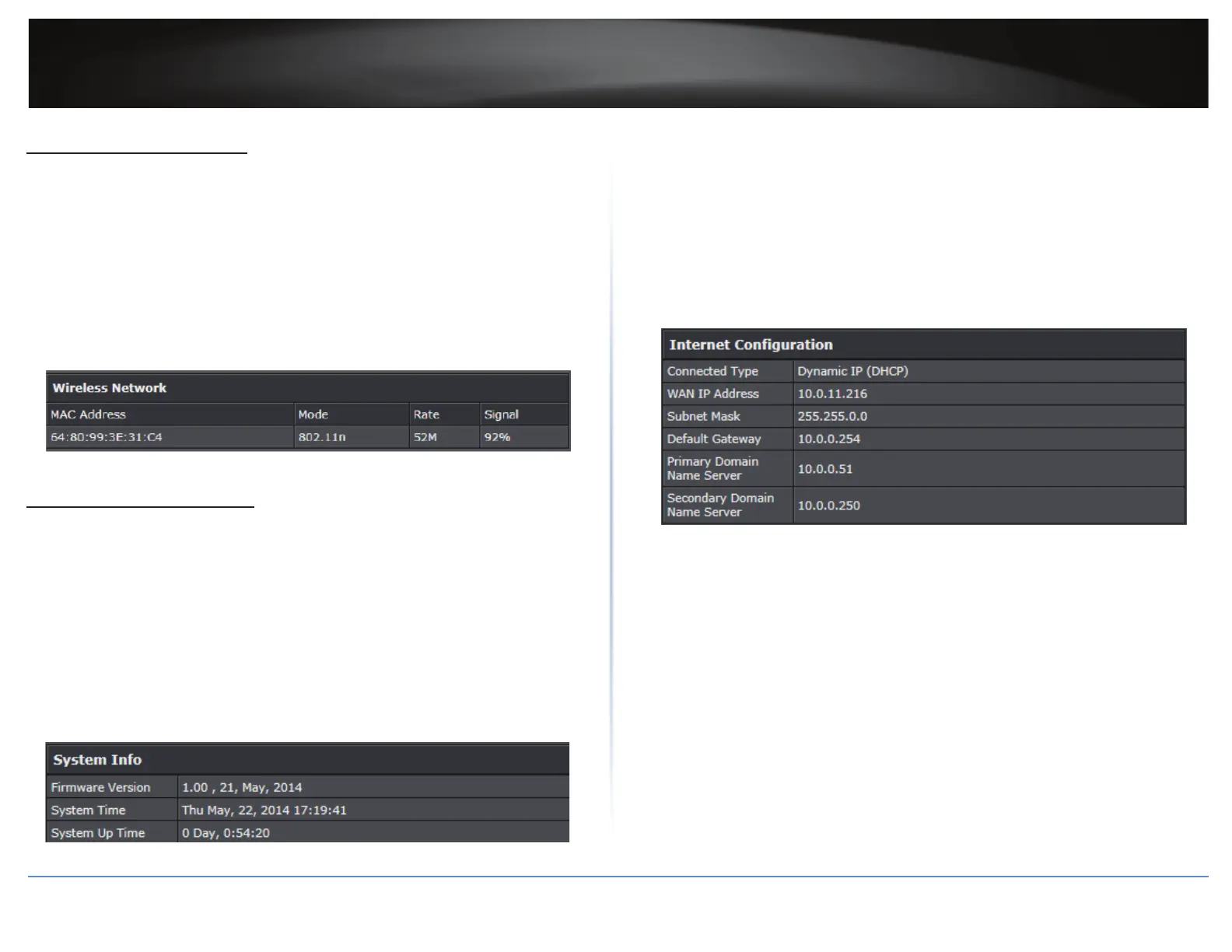
3 In Wireless Network secon, review the connected devices.
MAC Address: Display the current MAC address of your 2.4GHz or 5GHz wireless
client.
Mode: Display the 802.11 mode associated with the client.
Rate: Display the esmated data rate established with the client.
Signal: Display the esmated signal strength associated with the client.
View System Informaon
Advanced > Administrator > Status
You may want to check the system informaon of your router such as WAN (Internet)
connecvity, wireless and wired network sengs, router MAC address, and rmware
version.
1 Log into your router management page (refer to “Log in to Management Page” on page 8).
2 Click on Advanced > Administrator > Status.
3 In System Info secon, view the following values:
Firmware Version: Display the current rmware version your router is running.
System Time: Display the current me set on your router.
System Up Time: Display the duraon your router has been running connuously
without a restart/power cycle (hard or so reboot) or reset.
4 In Internet Conguraon secon, view the following values:
Connected Type: Display the current WAN connecon type applied.
WAN IP Address: Display the current IP address assigned to your router WAN port or
interface conguraon.
Subnet Mask: Display the current subnet mask assigned to your router WAN port or
interface conguraon.
Default Gateway: Display the current gateway assigned to your router WAN port or
interface conguraon.
Primary/Secondary DNS (Domain Name System) Server: Display the current DNS
address(es) assigned to your router port or interface conguraon.
ÍNote:
ͳ Renew/Release buons will be available only for DHCP WAN type. The
Renew buon allows to renew your WAN IP address and Release buon
allows you to release the WAN IP address of your router.
ͳ Connect/Disconnect buons will be available only for PPPoE DHCP WAN type.
The Connect buon allows the connecon to your DSL ISP and Disconnect
buon allows to disconnect from your DSL ISP.


 To Next Page