13
3.0 Add your camera to Wi-Fi Network
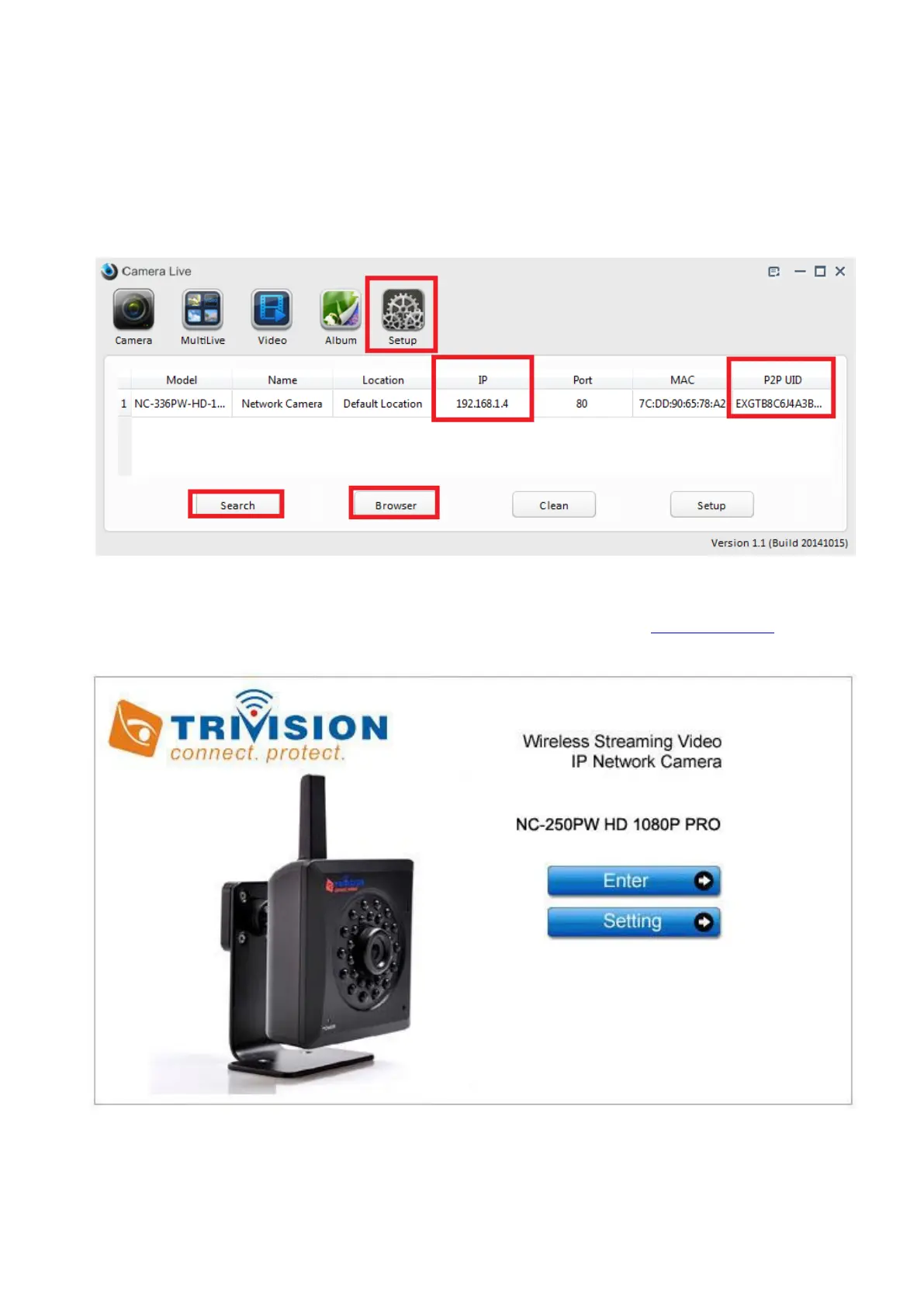
1. After adding your camera to Camera Live program, Click “Setup”->“Search”, you will get the camera information
(camera ip address, Mac address, UID code and more) on your home network (LAN). Warning: Ensure the camera is
plugged in to the same router/network switch that your computer and Smartphone are connected to.
The camera live program can only scan cameras that are on the same network when using the search tool.
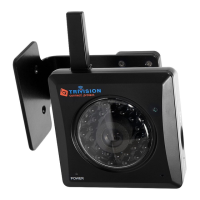
2. Select the camera and click “browser” tab, you will go to the main login screen in web browser on your PC or Mac. Or
directly add http:// in front of the camera ip address and open it in a browser, such as http://192.168.1.4. To see video,
click on “Enter”. To access the camera web setting interface, click on “setting”.
3. [Enter] Lets you view live video transmitted by the camera. To see video, click on “Enter”
[Setting] This section allows you to setup your camera with its various settings. To setup, click on “Setting”.
The default setting:
Username: admin
Password: admin


 To Next Page