52
7.6.4.6 Send files in storage to FTP server or Dropbox
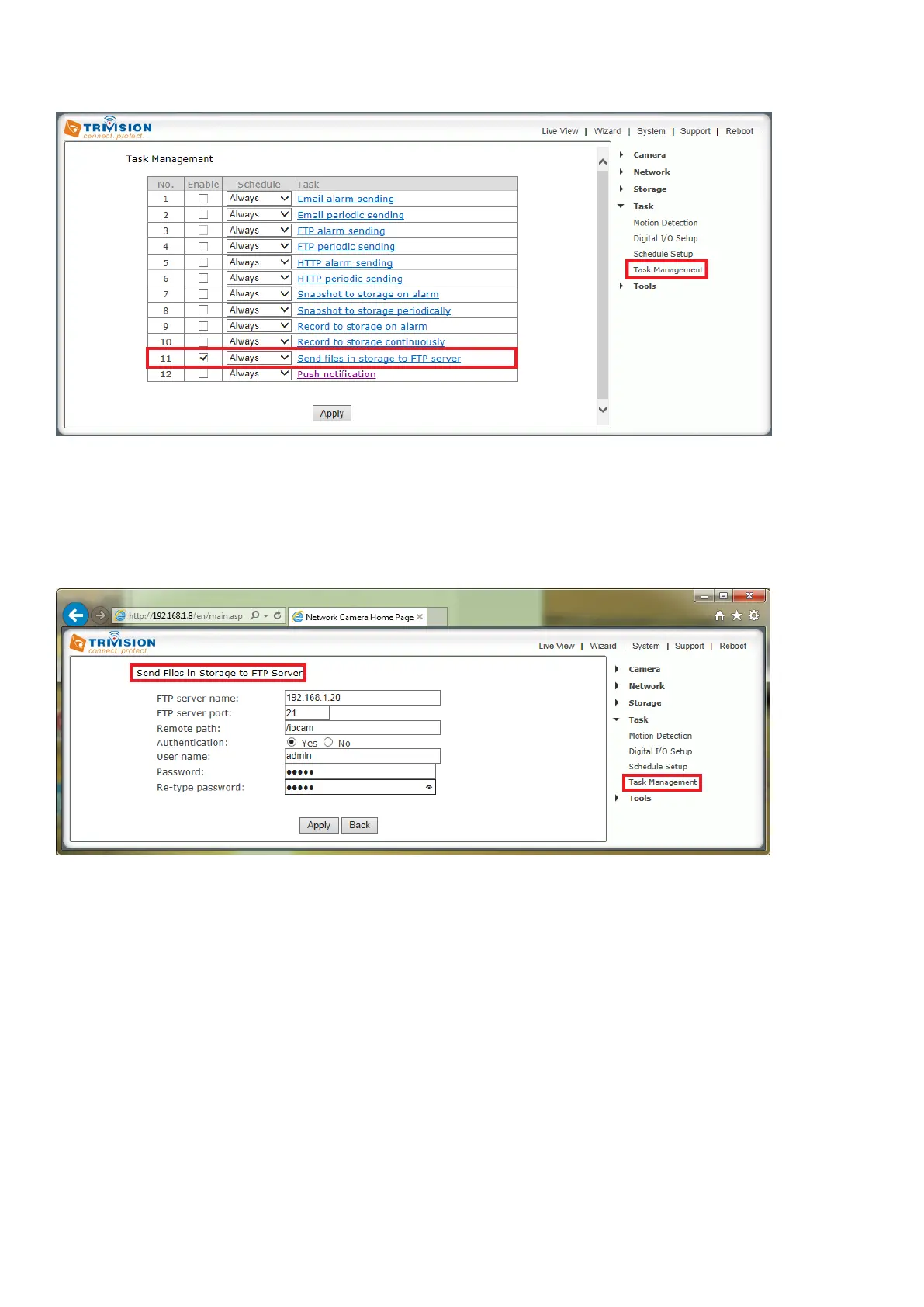
[Enable] Enable task.
[Schedule] Option to choose always or set a particular schedule. Check Schedule setup to select the right
schedule ID for your task.
[Task] Task function. Click on the task to login the task setting screen below.
Click Apply to confirm your setting
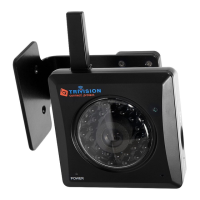
[FTP server name] Type the name or IP address of the FTP server. At a minimum you need the IP address
(FTP server name) for your FTP server. The port is almost always 21, and typical servers need a username
and password which means “Authentication” should be set to “Yes”.
[FTP server port] The port number of the FTP server (default is 21).
[Remote path] Input the file directory. It is an optional setting to specify a folder on the FTP server. If you
decide to use this feature, you have to make sure that the folder exists on the FTP server with the exact
same spelling.
[Authentication] Select whether authentication is required by the FTP server. Choose “No” for anonymous
access.
[User name] Type your FTP user name.
[Password] Type your FTP password.
[Re-type password] Re-type your password.
Click Apply to confirm your settings
Note: Once successfully transferred, each original file on the Micro SD card is deleted.


 To Next Page