6
1.3 What you’ll need
Windows PC or Mac OS or Linux computer with internet browser
A power outlet
A Philips screwdriver or power drill with Phillips driver bit
Wi-Fi and a networking broadband internet connection with at least 2Mbps upload speed. DSL may
not qualify
1.4 Do this first
Follow the instructions to add it to Camera Live program
Install the Camera Live program from installation CD or download the program from link below, then follow
the instructions to add the camera to the program and stream live video under wired condition.
See Add your camera to Camera Live program
Follow the instructions to add the camera to your Wi-Fi Network
See Add your camera to Wi-Fi network
Follow the instructions to setup Micro SD card recording
See Micro SD card alarm recording setup
Bring your camera to the spot
Once you’ve added the camera to your Wi-Fi network, unplug it and take it to the spot you’ve chose outdoors.
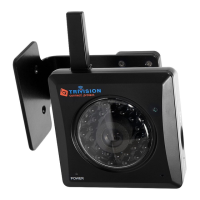
Plug it into the outlet you want to use and wait for the green light to turn on. The TriVision indoor camera
will reconnect to your Wi-Fi network automatically. This may take a minute or two. Keep the TriVision indoor
camera plugged in for the rest of the installation
See Choose a good spot
Make sure it’s streaming
Before you mount the camera, make sure it can get Wi-Fi in the spot you’ve picked.
Hold your TriVision indoor camera where you’d like to mount it and check to make sure it’s streaming video
to the Anyscene app. If you don’t see video, the Wi-Fi may not be strong enough there—you’ll need to find
a different spot or move your Wi-Fi router.
See Choose a good spot


 To Next Page