60
Appendix A: Resetting the Camera back to Factory Settings
Please note: Keep the login password safe. The only way to recover from a lost password is to reset the
camera back to its default settings, and this will wipe all other settings, including wireless setup and
login password setup.
If you ever forget your admin password or have any other reason to reset the camera to its factory settings,
please use the following procedure:
1. Connect the included blue Cat5 cable to the network jack on the camera and connection the other end
to one of the LAN jacks of your router, then connect the power supply to the camera and to a wall plug.
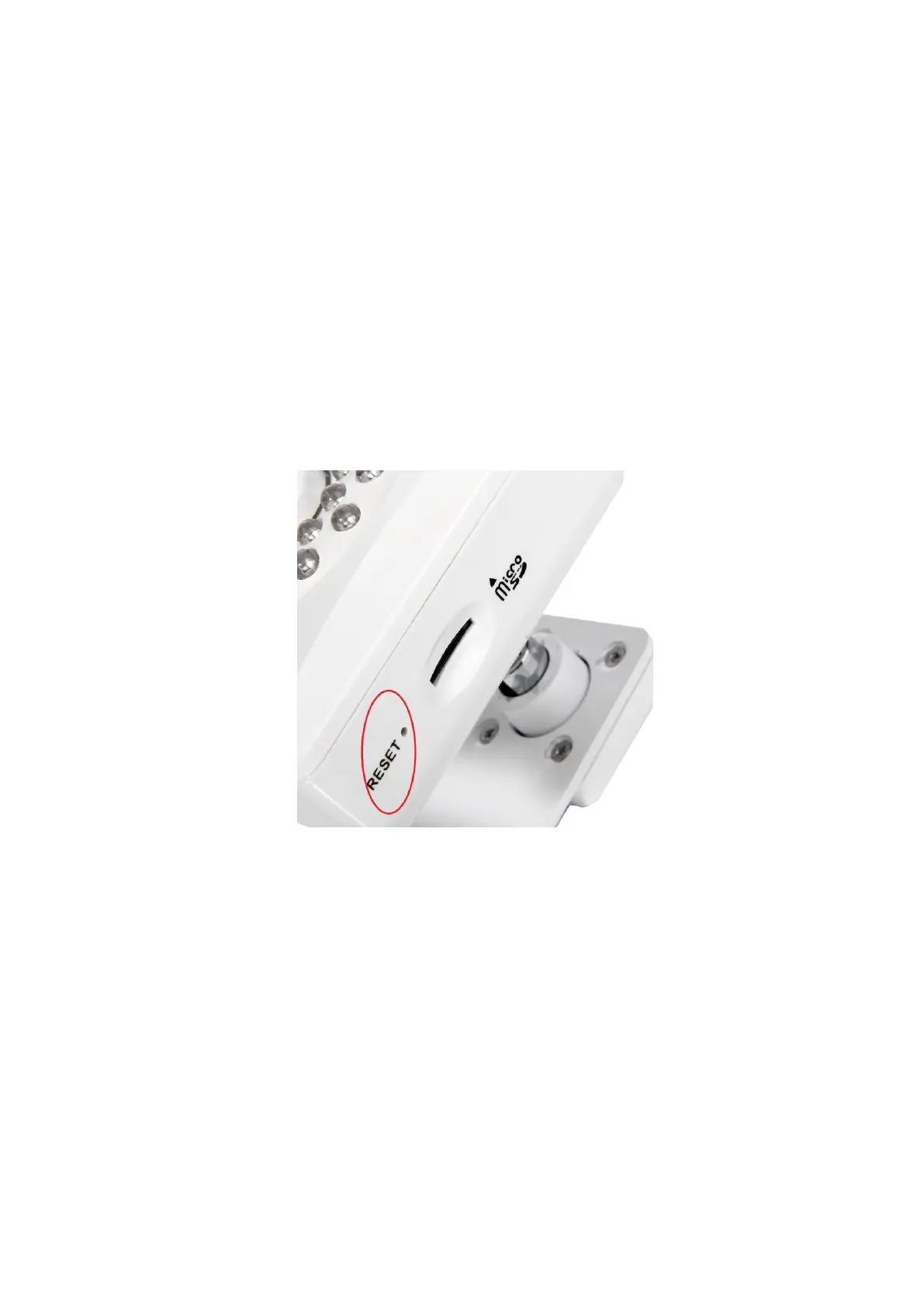
2. For indoor cameras NC-250W/PW HD 1080P, insert the tip of a paper clip in the hole at the side of the
camera to press the reset switch. You’ll feel the click when the switch engages. Hold the switch down
for at least 10 seconds, then let go. You’ll see the power light go off for a few seconds. This indicates
reset is in progress. A few seconds later the camera will restart and is now at factory settings. Of course,
after reset the user name and password will both be “admin” again (Without quotes)
3. After resetting the camera back to factory settings, you need to connect the camera directly to your
router or switch with a network cable for initial setup again. You cannot connect wirelessly to the
camera without first setting it up via a network cable
4. If you added the cameras to the app on smartphone and PC / Mac, and later changed the default
passwords, the cameras will show as disconnected in app after resetting - you need to specify the login
password update in the app on mobile and PC, otherwise It will be shown as “disconnected”.
After a full reset you may want to make sure the correct time and time is set. This can be done
automatically if the camera has internet access and the setting is enabled (Date and Time setup)


 To Next Page