40
7.6.2 Motion Detection
Motion Detection can trigger an alarm that sends images via e-mail or FTP (File Transfer Protocol). You can
set up to four different Motion Detection windows.
The camera refers to motion detection as an “alarm”. You can select what you want the camera to do once
the motion is detected. In general, motion detection works by comparing the current video frame with the
averages of the previous video frames. Any difference is considered to be motion, and the sensitivity and
threshold adjustment can be used to make the camera more aware or less aware of small amounts of motion.
Sliding the Sensitivity bar to the left or sliding the threshold bar to the right will decrease the sensitivity of
the motion detection i.e. ‘More’ movement is required to trigger the alarm. To reduce the chance of false
alarms you would increase the threshold (move threshold slider to right) or decrease sensitivity (move
sensitivity slider to left).
Except for refining the threshold and sensitivity, Motion Zone Select further fine-tunes what you want the
camera to pay attention to. If a driveway gate is your area of interest, simply draw a box around it on your
screen and the camera will alert you when someone comes or goes.
For the false alarms triggered by flies at night, we recommend you installing an external LED emitter
around the camera and turn off the camera IR LED control, then the flies will not be attracted the camera
LED at night and trigger the motion detection alarm. If there is ambient lighting (street lights, overhead
security light, infra-red light provided by other cameras or external IR emitter) it is possible to extend the
night time visible area.
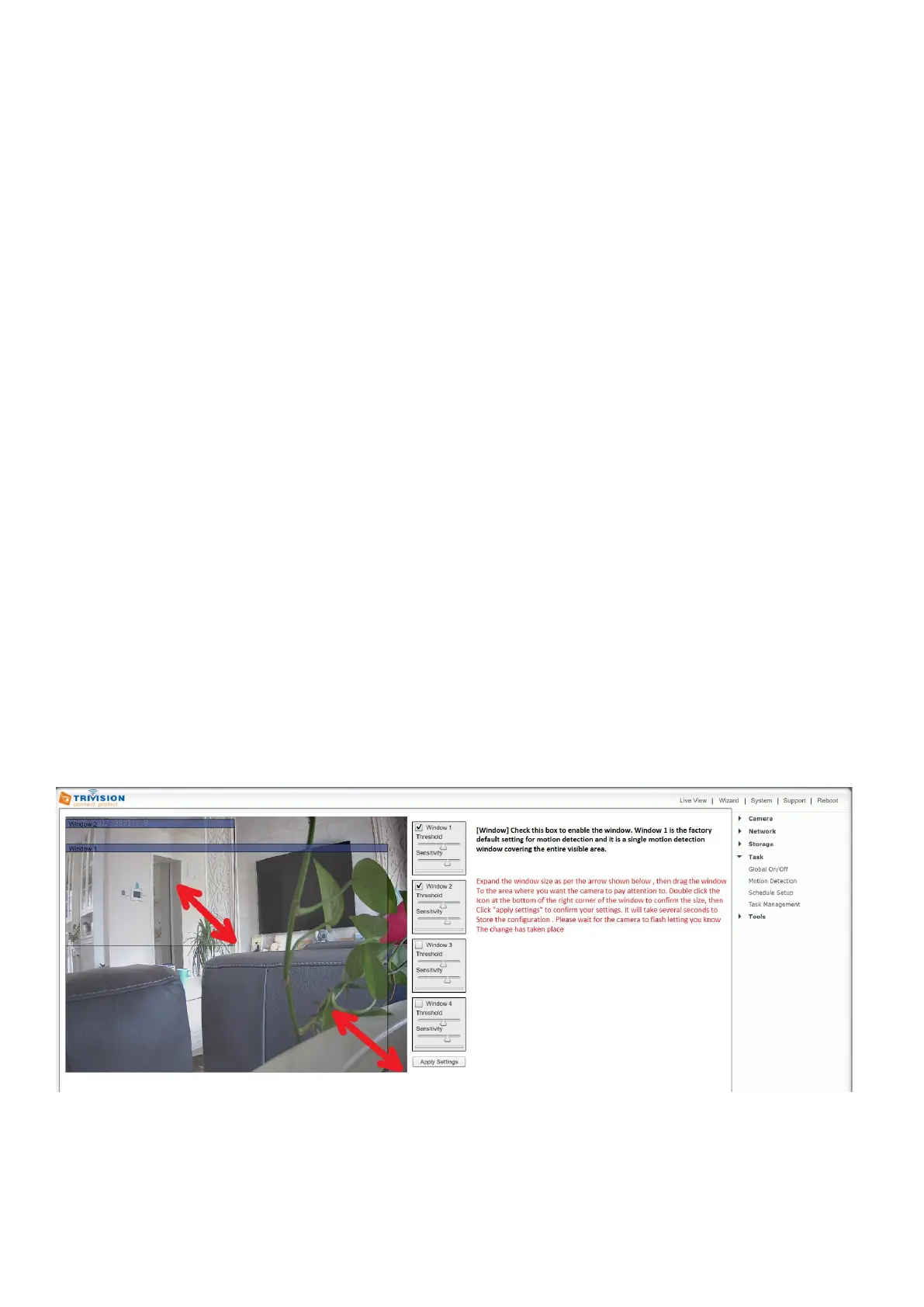
The factory default setting for motion detection is a single motion detection window covering the entire
visible area. The “Motion Detection” menu allows you to designate up to 4 separate windows with
individually adjustable sensitivity. Please note that this “Motion Detection” menu is entirely optional and
is generally not used unless you have very specific requirements to treat motion on some parts of the
screen different from other parts.
[Window] Check this box to enable the window. Window 1 is the factory default setting for motion detection
and it is a single motion detection window covering the entire visible area.
[Window 2-4] After selecting “motion detection window” from the main settings screen, you can see the
other three default individual motion detection windows. You may need to expand or decrease the size of


 To Next Page