50
7.6.4.4 Snapshot to Storage on Alarm/ Snapshot to Storage Periodically
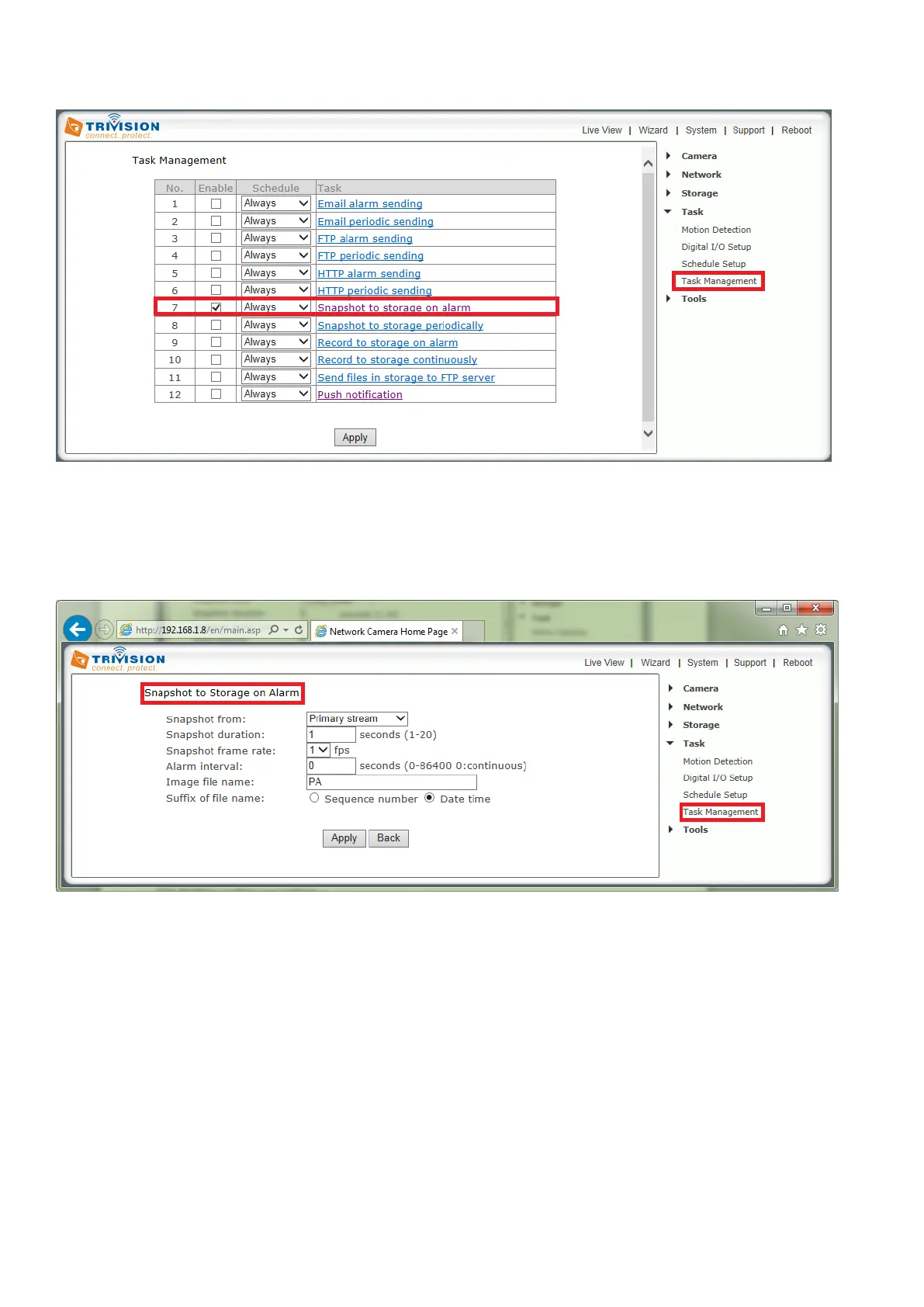
[Enable] Enable task.
[Schedule] Option to choose always or set a particular schedule. Check Schedule setup to select the right
schedule ID for your task.
[Task] Task function. Click on the task to login the task setting screen below.
Click Apply to confirm your setting
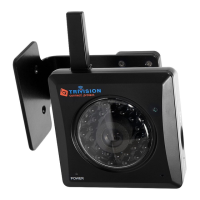
[Snapshot from] Select snapshot stream source.
[Snapshot duration] The number of seconds that the camera should keep sending images after motion
stops.
[Snapshot frame rate] The number of frames per seconds that the camera should keep sending images at
when an alarm is triggered.
[Alarm Interval]--Number of seconds for which the camera should stop sending e-mail alerts after the first
set. Setting the time to 0 disables this feature. It allows you to designate a time (in seconds) during which
new pictures are suppressed. For example, if you want to avoid a flood of pictures, you could set this time
to 3600 seconds so that after a motion detection event you wouldn’t get any new pictures for at least 1
hour.
[Image file name] Name of file image snap shots are saved to
[Suffix of file name] Choose between Sequence number and Date
Click Apply to confirm your settings.


 To Next Page