EasyManua.ls Logo

TSC TA310 - User Manual

TSC TA310
37 pages
Print Icon
To Next Page IconTo Next Page
Loading...
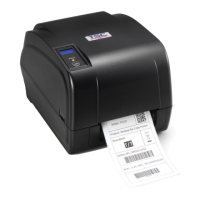
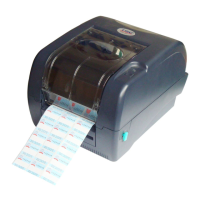
TA210/ TA310/ TA200/ TA300 Series
SERVICE
MANUAL
THERMAL TRANSFER / DIRECT THERMAL
BAR CODE PRINTER

Questions and Answers

  • J
    Jeffrey CollinsSep 2, 2025
    Why is my TSC TA310 not printing on the label?
    • C
      Charles MyersSep 2, 2025
      If your TSC printer is not printing on the label, it might be due to the label or ribbon not being loaded correctly. Follow the instructions for loading the media or loading the ribbon. Also, check if the ribbon has run out and reload it if necessary.
  • P
    powellcodyAug 31, 2025
    Why is my TSC Printer continuously feeding labels?
    • S
      Shane GeorgeAug 31, 2025
      If your TSC printer is continuously feeding labels, the printer setting may be incorrect. Please perform the initialization and gap/black mark calibration. It may also be caused by the gap/black mark sensor sensitivity not set properly, so calibrate the gap/black mark sensor. Ensure that the label size is set correctly to match the installed paper using the labeling software or program. Finally, check for and remove any labels stuck inside the printer mechanism near the sensor area.
  • M
    Monique WrightAug 29, 2025
    How to fix 'Memory full' error on TSC TA310 Printer?
    • D
      David NewtonAug 29, 2025
      If your TSC printer shows 'Memory full (FLASH / DRAM )', it means the space of FLASH/DRAM is full. Delete unused files in the FLASH/DRAM. Note that the maximum number of DRAM files is 256, with a maximum user addressable memory space of 256KB. For FLASH, the maximum number of files is 256, with a maximum user addressable memory space of 2560KB.
  • J
    Jessica PerezAug 28, 2025
    What to do if my TSC TA310 Printer shows an error?
    • D
      Denise RomeroAug 28, 2025
      If your TSC printer shows an 'Error', it may be due to being out of labels or ribbon, or incorrect printer settings. To resolve this: * Load a roll of labels or ribbon, following the loading instructions, and then press the FEED button to resume printing. * If the printer setting is not correct, initialize the printer by following the instructions in “Power on Utility” or “Diagnostic Tool”.
  • C
    Charles ClarkAug 26, 2025
    Why does my TSC TA310 skip labels when printing?
    • J
      johnsonmeghanAug 26, 2025
      If your TSC printer is skipping labels during printing, the label size may not be specified correctly. Ensure that the label size is set up accurately in your printer settings. Additionally, the sensor sensitivity might not be set properly. Calibrate the sensor using either Auto Gap or Manual Gap options. Also, the media sensor may be covered with dust. Clean the GAP/Black mark sensor using a blower.
  • A
    Alan SchmidtAug 25, 2025
    How to improve poor print quality on a TSC TA310 Printer?
    • T
      Teresa McmahonAug 25, 2025
      If your TSC printer is producing poor print quality, try reloading the ribbon and media to ensure they are correctly installed. Clean the print head to remove any dust or adhesive accumulation. Adjust the print density and print speed settings. Run a self-test to check the print head test pattern for any missing dots, which could indicate a damaged printhead element. Also, ensure that the ribbon and media are compatible.
  • B
    Brian KellyAug 22, 2025
    How to fix a TSC Printer with no response?
    • S
      Steven LangAug 22, 2025
      If your TSC printer shows 'No response', start by ensuring the power switch is turned on. Check if the green LED on the power supply is lit; if not, the power supply may be broken. Also, verify that both power connections—from the power cord to the power supply and from the power supply to the printer power jack—are securely connected.

Summary

Overview of TA210;TA310;TA200;TA300 Bar Code Printer

Front View of Printer

Describes the front view of the printer with labeled components.

Interior View of Printer

Details the interior components of the printer with labels.

Rear View of Printer

Illustrates the rear view of the printer and its interfaces.

Electronics and Board Connectors

Summary of Main Board Connectors

Lists and describes the connectors on the main board.

Interface Pin Configurations

Details pin configurations for RS-232C, USB, and Centronics interfaces.

Mechanism and Component Replacement

Replacing the Print Engine Mechanism

Step-by-step guide for removing and replacing the print engine mechanism.

Replacing the Main Board

Instructions for removing and replacing the printer's main board.

Replacing the Gap Sensor Module

Steps for removing and replacing the gap sensor module.

Replacing the Black-mark Sensor Module

Guide for replacing the black-mark sensor module.

Replacing the Stepping Motor

Procedure to remove and replace the stepping motor.

Replacing the Platen Roller Assembly

Steps for replacing the platen roller assembly.

Replacing the Print Head Module

Detailed instructions for replacing the print head module.

Replacing the Key Module (LCD Module;Option)

Guide to replacing the key or LCD module.

Replacing the DC Motor Module

Steps for removing and replacing the DC motor module.

Peel-off Module Installation (Option)

Instructions for installing the optional peel-off module.

Cutter Module Installation (Option)

Steps for installing the optional cutter module.

Troubleshooting Printer Issues

LED Status Indicators

Explains LED statuses, possible causes, and recovery procedures.

Print Quality Problems

Discusses common print quality problems and their solutions.

Printer Maintenance Procedures

Update History Log

TSC TA310 Specifications

General IconGeneral
BrandTSC
ModelTA310
CategoryPrinter
LanguageEnglish

Related product manuals