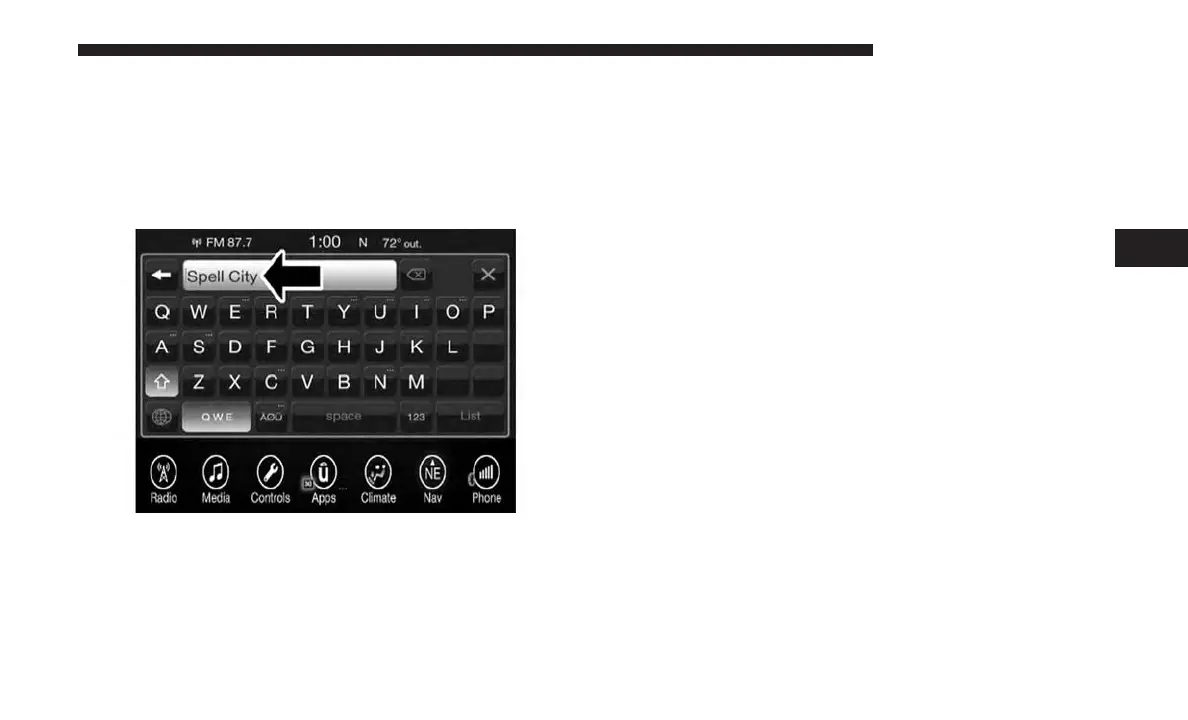
2. Press the “Enter City” button, to enter the desired city
name.
NOTE: If the system automatically recognizes the city it
will populate a list of recognized cities, if not press the
“List” button to select from the available options.
3. Once the correct City has been selected, you will be
asked to spell the desired street name, then enter the
intersecting street.
NOTE: If the system automatically recognizes the street it
will populate a list of recognized streets, if not press the
“List” button to select from the available options.
4. Press the “Yes” button on the touchscreen to confirm
your destination and begin your route.
If you are currently on a route guidance and you select a
Intersection, the system will ask you to choose one of the
following:
• Cancel previous route
• Add as first destination
• Add as last destination
NOTE: You can press the “back arrow” button on the
touchscreen to return to the previous screen or the “X”
button on the touchscreen to exit.
4
UCONNECT 8.4/8.4 NAV 131



 To Next Page