On Air
Press the “On-Air” tab at the top of the screen. The On-Air
list provides a list of Channels currently airing any of the
items in the Selections list, and pressing any of the items in
the list tunes the radio to that channel.
Select Teams
Press the “Select Teams” button on the touchscreen to
activate the League Scroll list. Press the chosen league and
a scroll list of all teams within the league will appear, then
you can select a team by pressing the corresponding box. A
check mark appears for all teams that are chosen.
Remove Selection
Press the “Remove Selection” tab at the top of the screen.
Press the “Delete All” button on the touchscreen to delete
all of the Selections or press the “Trash Can Icon” next to
the Selection to be deleted.
Alert Settings
Press the “Alert Setting” tab at the top of the screen. The
Alert Settings menu allows you to choose from “Alert me
to on-air games upon start” or “Alert upon score update”
or both when one or more of your selections is airing on
any of the SiriusXM channels.
Audio
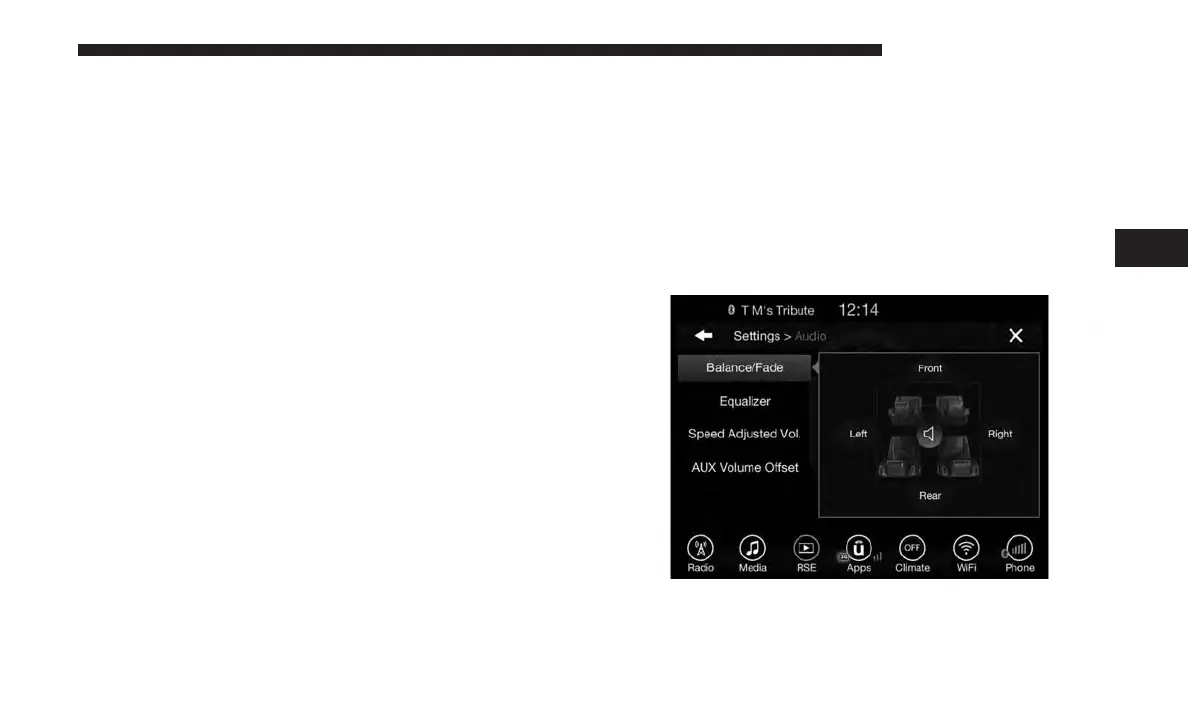
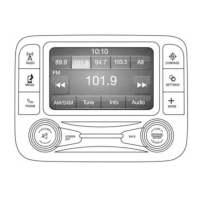
Press the “Audio” button on the touchscreen to activate the
Audio settings screen to adjust Balance/Fade, Equalizer,
Speed Adjusted Volume, Aux volume Offset, and Surround
Sound.
You can return to the Radio screen by pressing the “X”
located at the top right.
Balance/Fade
Press the “Balance/Fade” button on the touchscreen to
Balance audio between the front speakers or fade the audio
between the rear and front speakers.
4
UCONNECT 8.4/8.4 NAV 85



 To Next Page