• If remote is ever non-operational, try pairing remote.
When watching a video source, pushing “Settings”
icon
on the touchscreen activates the Settings menu. These
settings control the appearance of the video on the
screen. The factory default settings are already set for
optimum viewing, so there is no need to change these
settings under normal circumstances.
To change the settings, use one of the touchscreens. To reset
all values back to the original settings, select the “Reset to
Defaults” then select “YES.”
Pairing The Remote
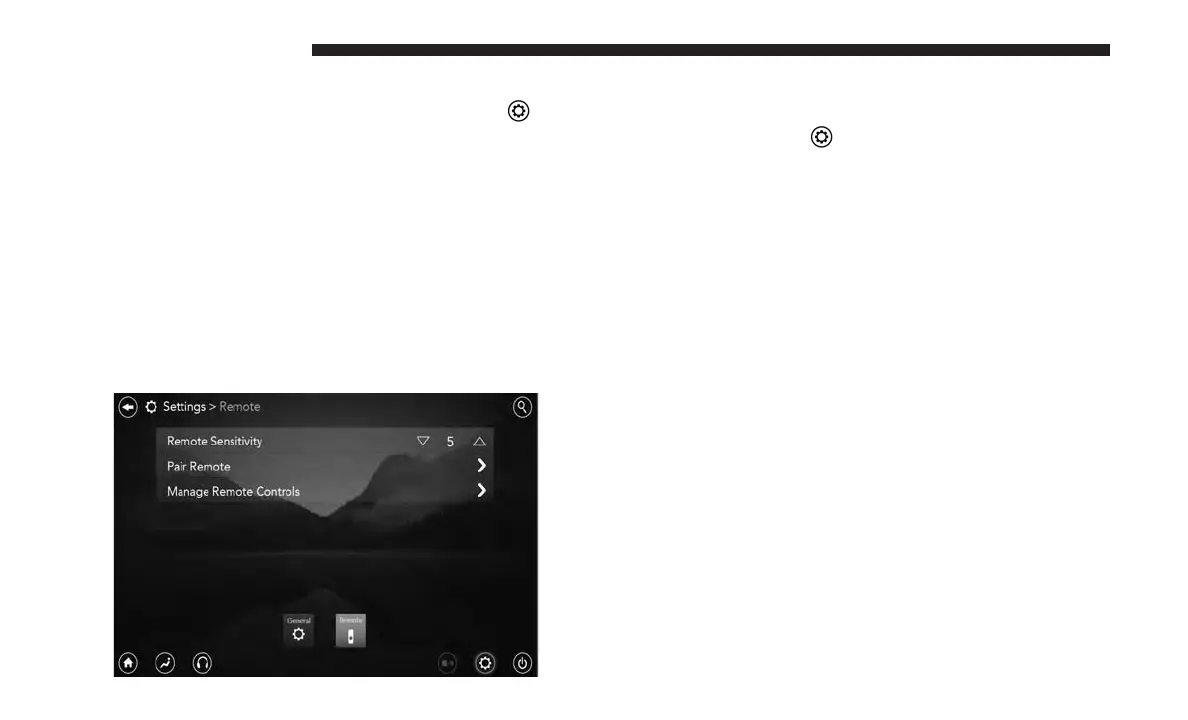
If the remote needs to be paired to your Uconnect Theater
system, follow the procedure below:
1. Press the “Settings”
icon on the touchscreen.
2. Press the “Remote” button on the touchscreen in the
settings menu.
3. Select “Pair Remote” and follow the on screen instruc-
tions to complete the pairing process.
NOTE:
• There will be a touchscreen notification message when
pairing is successful/unsuccessful. Repeat the above
steps to pair the second remote.
• Test to make sure the remote is successfully paired by
dragging your finger across the gesture pad. If you do
not see the on screen arrow, try using the “Screen”
button to switch between screen one and screen two to
make sure the remote is controlling the intended screen.
• If remote is ever non-operational, try pairing remote.
• The system can accommodate up to 10 paired remote
controls.
162 UCONNECT 8.4/8.4 NAV



 To Next Page