Unpairing The Remote
In events such as updating the Uconnect Theater software,
or taking a remote to another vehicle, the remote will need
to be unpaired from your Uconnect Theater system. To
unpair the remote, follow the procedure below:
1. Select “Manage Remote Controls” from the Remote
section of ⬙Settings” and follow the on screen instruc-
tions to complete the unpairing process.
2. Push and hold the “Screen”, “Down Arrow”, and
“Play/Pause” buttons for 5 seconds, or until the remote
screen indicator light flashes.
3. Once complete, the remote will be ready to pair again.
NOTE: There will be a touchscreen notification message
when unpairing is successful. Repeat the above steps to
unpair a second remote.
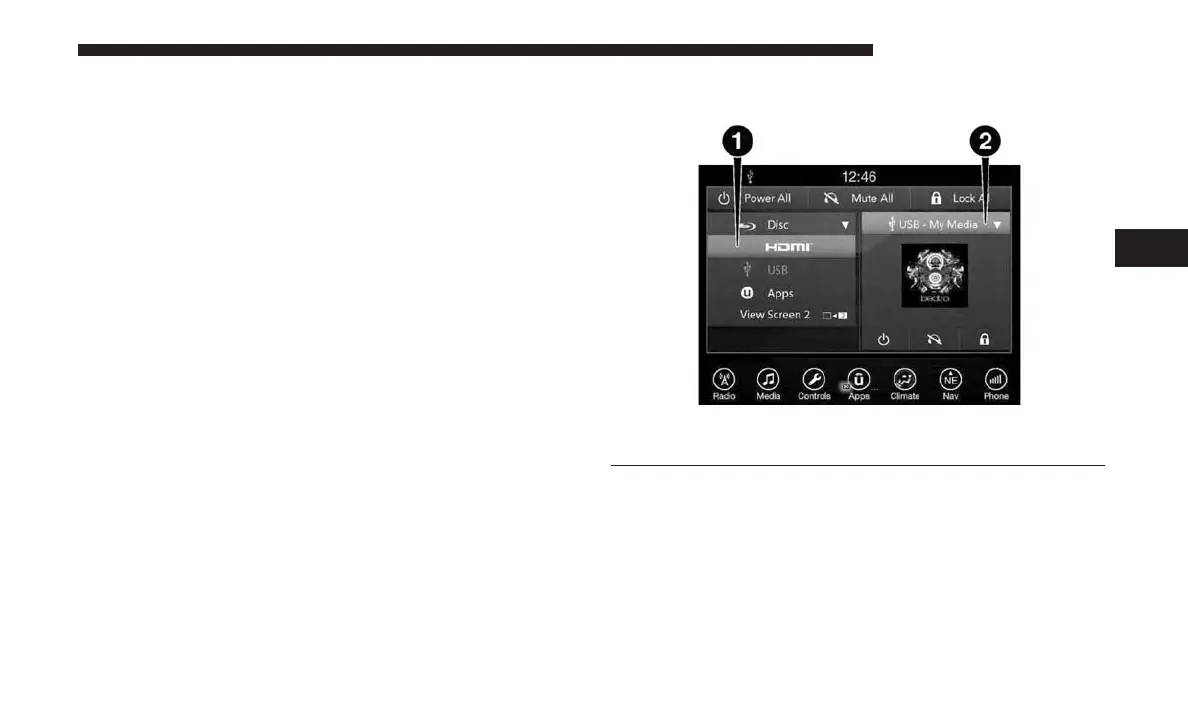
Media Sources
Users can select content for each screen from the radio by
choosing desired content from drop down menu.
NOTE: Use the “View Screen” function to pull content
from one screen to the other in a single press of a button.
Doing this however will disable and gray out certain
player controls on the screen viewing the other screen’s
content.
1 – Available Sources Screen 1
2 – USB Source Playing Screen 2
4
UCONNECT 8.4/8.4 NAV 163



 To Next Page