4. Press the “Save” button on the touchscreen to save the
location in your Favorites.
NOTE: You can press the “back arrow” button on the
touchscreen to return to the previous screen or the “X”
button on the touchscreen to exit.
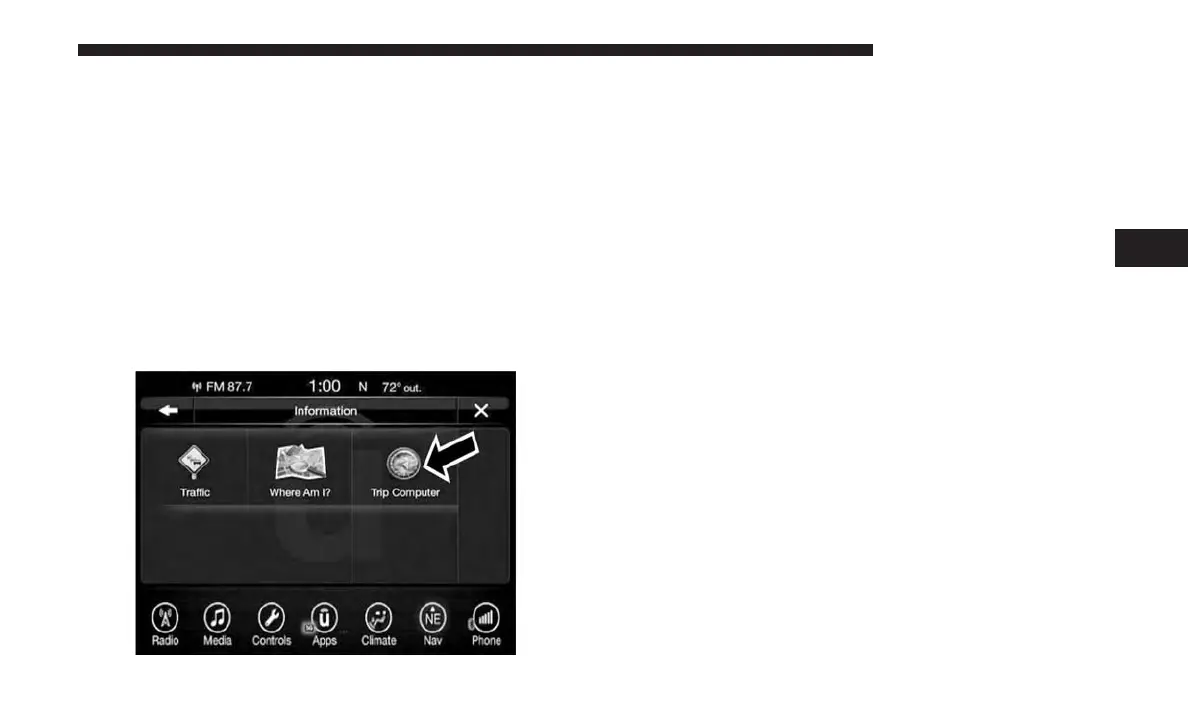
Information — Trip Computer
To select “Trip Computer” information, follow these steps:
1. While in the Nav Main Menu, press the “Information”
button on the touchscreen.
2. Press the “Trip Computer” button on the touchscreen.
Trip Computer displays the following trip information
from your last trip:
• Travel Direction
• Distance to final Destination
• Vehicle Speed
• Distance Traveled
• Overall average speed
• Moving average speed
• Maximum speed reached
• Total time traveled
• Travel time spent moving
• Travel time spent stopped
NOTE: You can press the “back arrow” button on the
touchscreen to return to the previous screen or the “X”
button on the touchscreen to exit.
Emergency
Emergency — Main Menu
From the Nav Main Menu, press the “Emergency” button
on the touchscreen and press one of the following options
to search and route to a specific location.
• Hospital – Search and route to a Hospital close to your
current location
4
UCONNECT 8.4/8.4 NAV 153



 To Next Page