How It Works
Set Up Your Device To Work With Voice Texting
After pairing your device to the vehicle using Bluetooth see
(
UconnectPhone.com
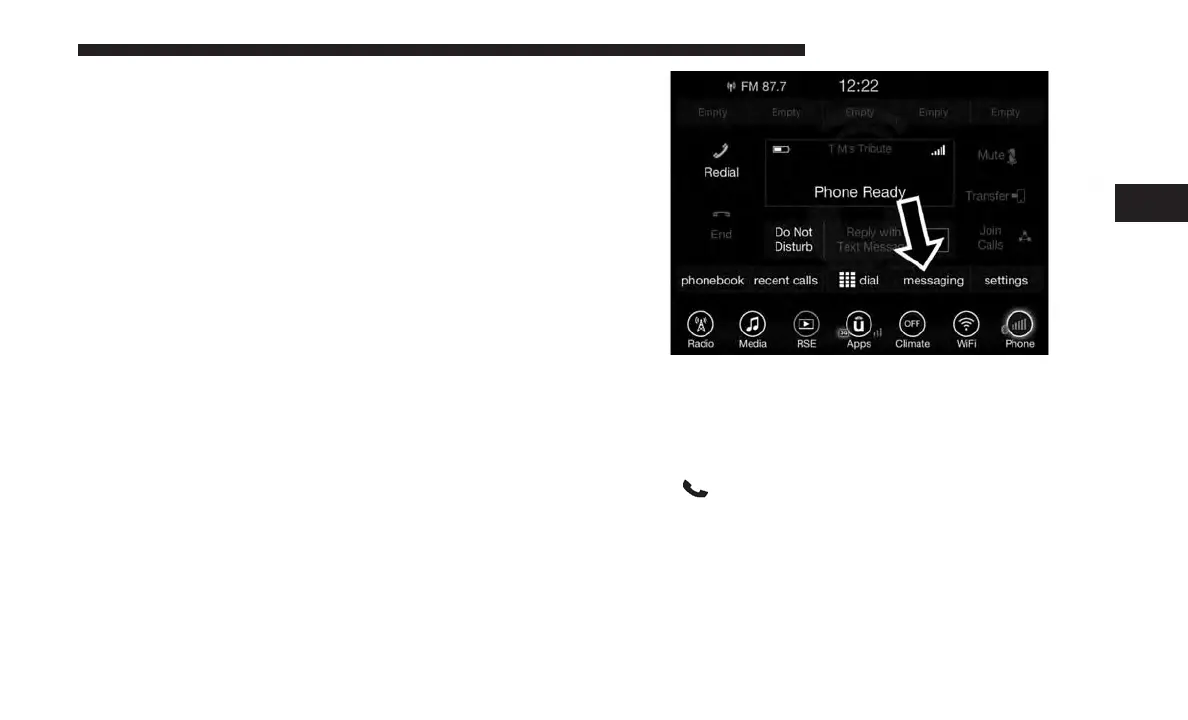
), push the “phone” button on the
menu bar of the radio to see the main Phone screen. A
minute or so after a compatible MAP enabled device has
been Bluetooth connected to the vehicle; the “messaging”
button on the touchscreen will change from gray to white.
This is an indicator that Voice Texting will work with your
device. Outgoing voice texts may not be possible. The
device may allow incoming texts only.
Determine if your device has been tested to support
Bluetooth “Message Access Profile” (MAP) - at
UconnectPhone.com
. (Your device may support Voice
Texting even if not found on this website. Check with your
device manufacturer to see if it supports MAP protocol.)
NOTE: If your device supports MAP, then ensure MAP is
on and incoming message notification is enabled, (see
UconnectPhone.com
for device specific instructions).
Follow the steps below to see if your device can set up to
work with Voice Texting.
If a Bluetooth authorization window appears showing
your device requesting permissions, check the box for
Always and press Accept.
Sending A New Text Message From Radio
1. Push
on the steering wheel.
2. Say “Send text message.”
3. The system will respond “Say the phone number or the
full name and the phone type of the contact that you
want to send a message to.”
4. Dictate message (“I will be home at eight.”)
3
ALL ABOUT UCONNECT ACCESS 39



 To Next Page