ULEAD DVD MOVIEFACTORY USER GUIDE 33
Edit Media
After importing the media files into your project, you can now edit
the content using DVD MovieFactory’s edit tools.
Trimming a video
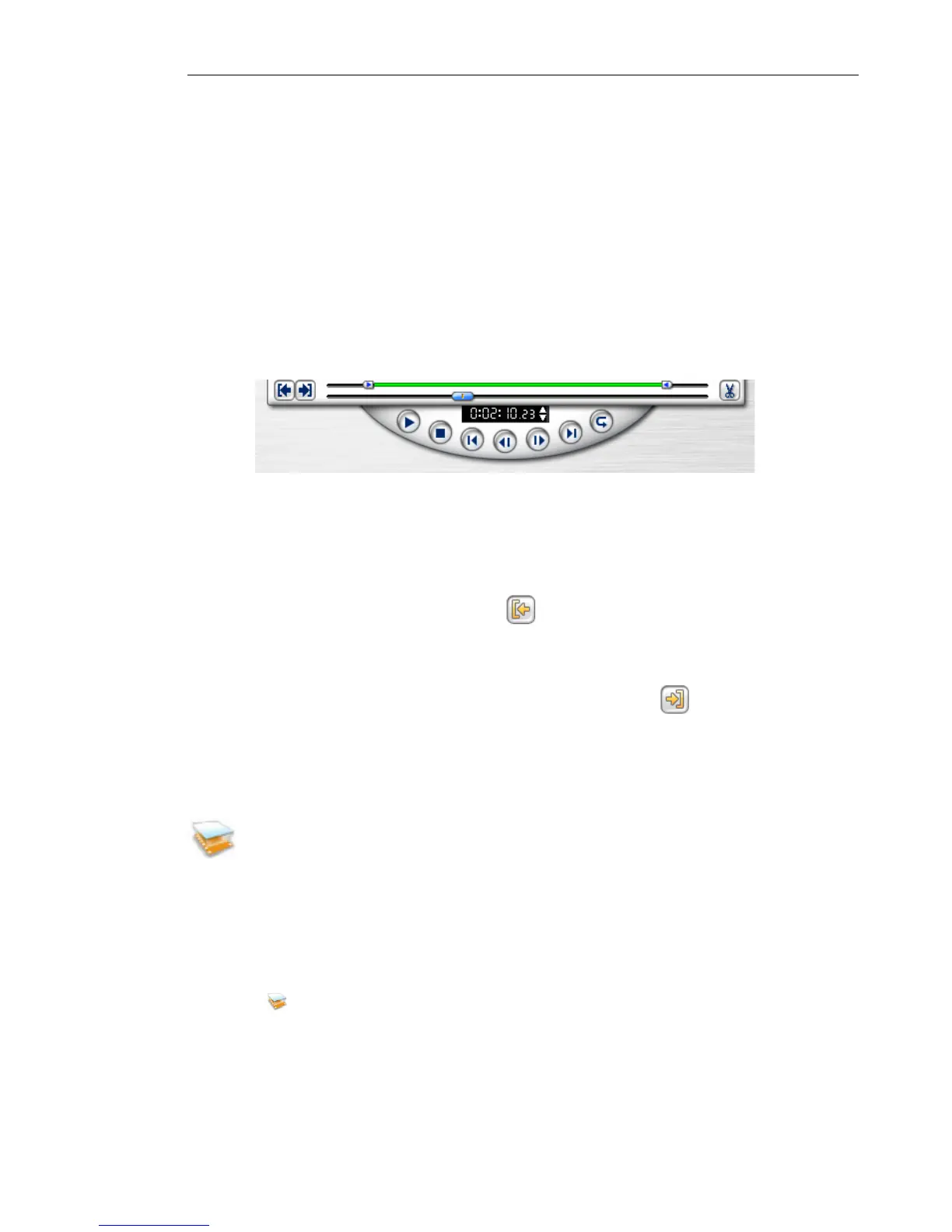
You can trim a video using the Jog Bar, mark-in/out, and
navigation controls. Trimming allows you to modify the length of
the video according to your needs.
To trim video:
1. Select a video thumbnail in the Media Clip list.
2. Use the navigation controls or drag the Jog Bar to where you
want the clip to start and click or press [F3]. Alternatively,
simply drag Mark-in to the starting point.
3. Use the navigation controls or drag the Jog Bar to move to the
point where you want the clip to end then click or press
[F4].
4. Hold down [Shift] and click Play (or press the Space bar) to
view the trimmed video.
Multi-trimming a video
Multi-trim lets you select multiple segments from a video and
extract these segments to the Media Clip list.
To use Multi-trim:
1. Select the video to be trimmed in Media Clip.
2. Click to open the Multi-trim Video dialog box.
3. Click Mode and select a trim mode.
• Retain Selections Select to retain marked video segments.



 To Next Page