EasyManua.ls Logo

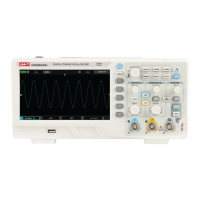
UNI-T UTD2102CEX-II - User Manual

UNI-T UTD2102CEX-II
47 pages
Print Icon
To Next Page IconTo Next Page
Loading...
UTD2000CEX-II Series
Digital oscilloscope
User Manual

Table of Contents

Questions and Answers

  • R
    Rebecca JonesAug 7, 2025
    What to do if the UNI-T UTD2102CEX-II oscilloscope screen is black after pressing the power button?
    • W
      Willie HowardAug 7, 2025
      If your UNI-T Test Equipment oscilloscope screen remains black after pressing the power button, try the following: * Ensure the power supply is properly connected. * Verify the power switch on the back of the oscilloscope is on, then press the front panel power key to check for a green light. * If you hear a sound, press the DEFAULT key, followed by the F1 key. If the device returns to normal, the backlight brightness was likely too low. * Restart the oscilloscope after completing these steps.
  • J
    justin57Aug 12, 2025
    Why is the waveform not stable on my UNI-T UTD2102CEX-II oscilloscope?
    • A
      Alexander WilsonAug 12, 2025
      If the waveform on your UNI-T Test Equipment oscilloscope isn't stable, consider these possible solutions: * Check the trigger source in the trigger menu to ensure it matches the signal and channel you are using. * Verify the trigger type. Normal signals should use edge trigger mode. Setting the correct trigger mode is essential for a stable waveform. * Adjust the trigger coupling to high or low frequency to suppress or eliminate noise caused by interference.
  • D
    Debra WeberAug 17, 2025
    What to do if pressing RUN/STOP key on UNI-T UTD2102CEX-II displays no waveform?
    • C
      Christopher HenryAug 17, 2025
      If pressing the RUN/STOP key on your UNI-T Test Equipment results in no waveform being displayed, check the following: * Verify that the trigger method in the trigger menu is not set to normal and that the trigger level does not exceed the waveform range. If it does, center the trigger level or set the trigger mode to auto using the AUTO key. * Press the AUTO button to apply the above settings.
  • C
    Christine JonesAug 22, 2025
    What to do if waveform doesn't appear on UNI-T UTD2102CEX-II Test Equipment display after signal acquisition?
    • G
      grantericAug 22, 2025
      If a waveform does not appear on the display of your UNI-T Test Equipment after signal acquisition, check the following: * Ensure the probe is correctly connected to the signal test point. * Verify the signal line is connected to the analog channel input. * Confirm the input signal of the analog channel and ensure that the channel is open. * Make sure the probe is connected to the compensation piece and that the probe itself is working correctly. * Check for the presence of a signal to be detected. * Press the AUTO button to re-acquire the signal.
  • K
    Kenneth JimenezAug 27, 2025
    Why is the measured amplitude on my UNI-T UTD2102CEX-II 10 times larger or smaller than expected?
    • M
      morrisjenniferAug 27, 2025
      If the measured amplitude value on your UNI-T Test Equipment is 10 times larger or smaller than the actual value, ensure that the probe attenuation coefficient matches the attenuation of the probe being used.
  • G
    George LambSep 1, 2025
    How to fix a slow waveform refresh rate on UNI-T Test Equipment?
    • L
      Lisa MooreSep 1, 2025
      To address a slow waveform refresh rate on your UNI-T Test Equipment, check if the acquisition mode is set to average and if the number of averages is too high. You can increase the refresh rate by reducing the average times or selecting other methods such as normal sampling.

Summary

General Safety Overview

Safety Precautions

Lists crucial safety measures for operating the oscilloscope correctly.

Introduction Guide

Vertical Channel Setting

Open;Activate;Close Analog Channel

How to manage analog channels for display and activation.

Trigger System Setting

Trigger System Interpretation

Understanding trigger sources and modes for data acquisition.

Edge Trigger

How to configure trigger based on rising or falling signal edges.

Pulse Width Trigger

Setting trigger conditions based on the duration of pulses.

Horizontal System Setting

Mathematical Operation

Mathematical Function

Performing basic arithmetic operations on waveforms.

FFT

Performing Fast Fourier Transform to analyze frequency spectrum.

Sampling System Setting

Sampling Rate

Understanding sampling rate and its effects on waveform acquisition.

Acquisition Mode

Different modes like normal, peak, high resolution, and average sampling.

Display System Setting

Automatic Measurement

Automatic Measurement Menu

Accessing and configuring automatic measurement parameters.

All Parameters Measurement

Measuring all 34 available waveform parameters.

Cursor Measurement

Time Measurement

Using cursors to measure time intervals on waveforms.

Voltage Measurement

Using cursors to measure voltage levels on waveforms.

Auxiliary Function Setting

Pass Test

Performing pass/fail tests using templates to verify input signals.

System prompt and Troubleshooting

Trouble Shooting

Common problems and solutions for oscilloscope operation.

Technical Specification

Input Specifications

Details on input coupling, impedance, and voltage limits.

Vertical Specifications

Vertical scale, resolution, bandwidth limit, and accuracy.

Horizontal Specifications

Horizontal timebase, scaling, and accuracy details.

UNI-T UTD2102CEX-II Specifications

General IconGeneral
Bandwidth100 MHz
Sample Rate1 GSa/s
Channels2
Memory Depth40 Mpts
Vertical Sensitivity2 mV/div to 10 V/div
Trigger ModesEdge, Pulse, Video, Slope, Alternate
Display Resolution800 x 480
Power Supply100-240VAC, 50/60Hz
Display7 inch LCD
Input Impedance1 MΩ ± 2%
InterfacesUSB Host, USB Device
Math+, -, *, /, FFT

Related product manuals