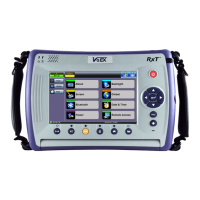
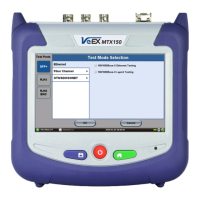
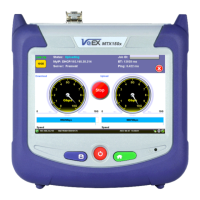
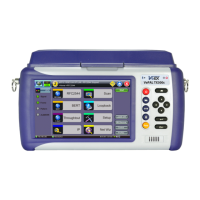
Connect to the Remote Test Set from a Computer
Establish a Remote Access Connection
EZ Remote provides two types of services:
Remote Control (screen and mouse/touch mirroring) to operate a test set from a different location
Remote Platform Access to access information stored in the remote test set, such as Test Results, Profiles, User Manual,
Screen Captures (screen shots), information about the test set (Home) and its local IP address
Although multiple users could simultaneously log-in to the same test set, they would be sharing the same mirrored GUI image
and mouse control. This is not recommended since it is equivalent to having multiple users trying to operate one test set at the same
time (also known as “mouse fight”). Nonetheless, it may be effective for training purposes with one or two extra users.
1. From a PC, Mac, Tablet or Smartphone
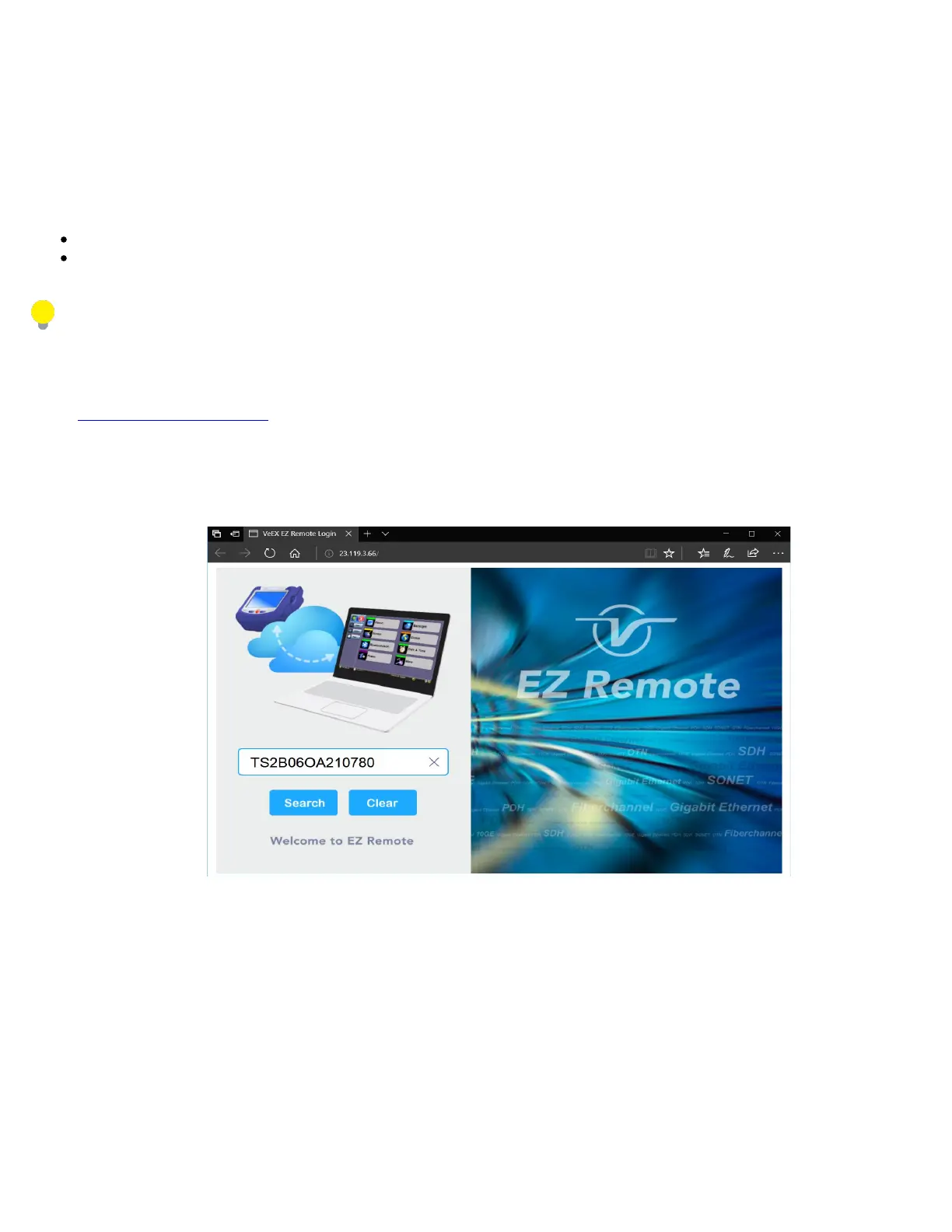
launch an industry-standard Web Browser application and enter the URL
http://ezremonte.veexinc.net. (without the www.). Enable pop-ups for your browswe and be sure to authorize access to the
site, if confirmation is requested by the browser or OS.
2. Enter the >Session ID provided, making sure not to confuse zeroes (0) with Os. Click on Search to find the target test set
and stablish a peer-to-peer connection.
3. Once verified and connected, wait for the remote user interface to refresh. This may take a few seconds.
TX300s_Platform_Manual_RevB00


 To Next Page