176 Firmware Version 5.4
Note: Prior to making a new product template, it is recommended to add the individual products to the list in
the units recommended by the chemical label.
It is recommended to create product templates that contain the products applied for a crop type or time of the
season. Examples are:
- Pre-Emerge Burndown
- Post-Emerge Corn
- Post-Emerge Beans
- Insecticide
- Fungicide
In each template the products can be checked on/off for the mix when loaded at the run screen.
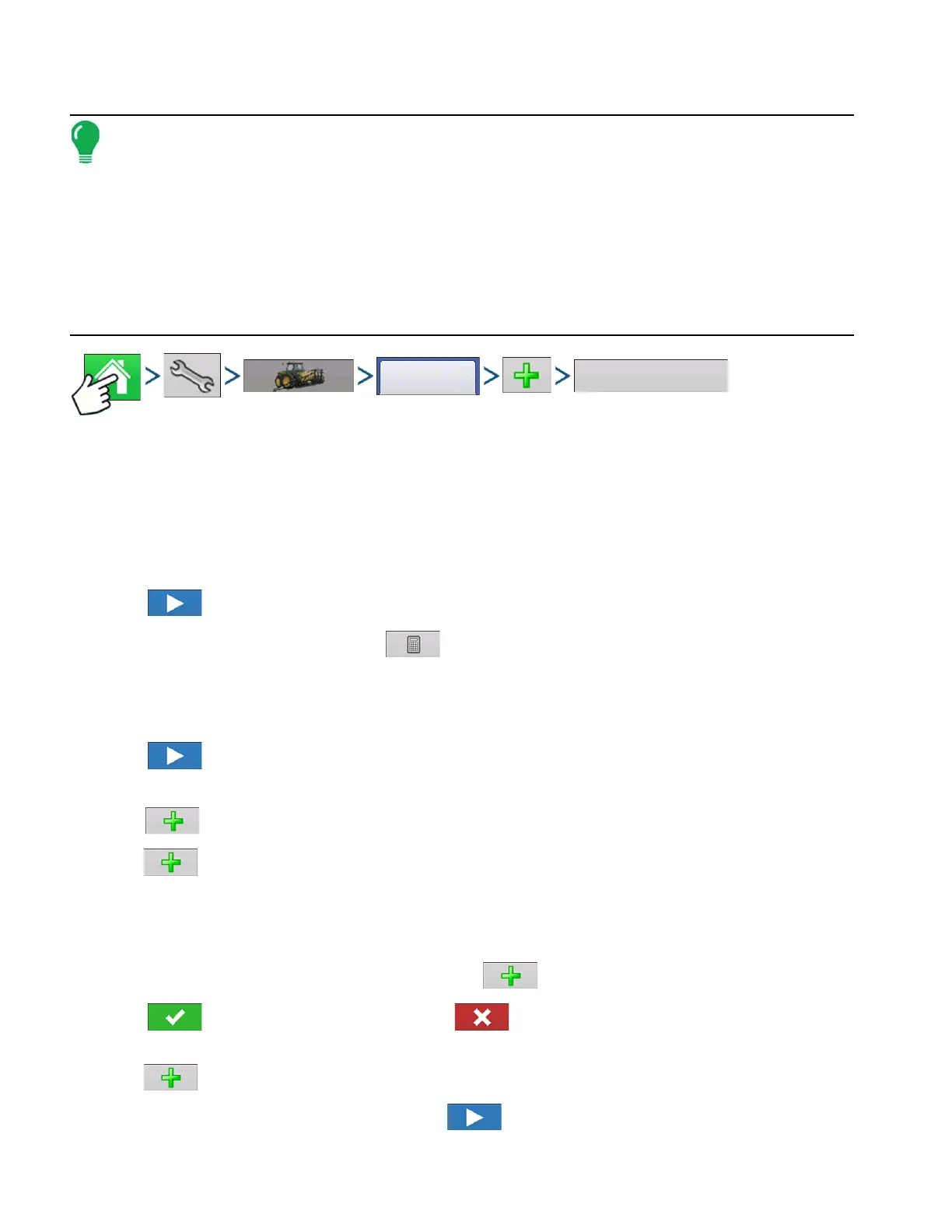
1. Press: Home button > Setup (wrench) button > Configuration (tractor) button > Product tab > Add (+)
button > Mix/Blend button
2. From the Type drop-down menu select Tank Mix
From the Define By drop-down menu select:
• Total amounts - mix/blend defined by amounts added to the tank (total of each product in tank)
• Rate/acre - mix/blend defined by the amounts applied per acre (rate of each product applied/area)
Press to continue.
3. Set Base Amount or Rate by pressing to enter amount.
4. Enter a Base Amount and Units.
- Total Amounts - Tank/Bin Size
- Rate/Acre - For Rate Applied per Acre
Press to continue.
5. Select Carrier from drop-down menu.
Press to create a new carrier.
6. Press by the Add Mix/Blend Contents box to start the process of adding components to the
mix.
7. Select the desired component from the drop-down menu.
More than 7 products can be part of a template but 7 or fewer can be active at the same time.
A new product can be set up at this time by
pressing and following the Product Setup Wizard.
Press to add selected product or p
ress to return to Add Mix/Blend screen without adding
a product.
8. Press to add an additional component.
9. When all components have been added press .



 To Next Page