67
Installing USB drivers
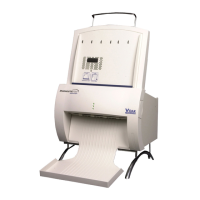
Note: VIDAR digitizers with serial numbers 310000 and higher
have USB 2.0 functionality. Some older models have USB
ports, but require factory hardware upgrades to operate as USB
devices. Contact VIDAR for details.
Note: Do not connect the digitizer to the computer until you are
prompted during the driver installation process.
USB interface requirements
The computer must have a USB 2.0 port. If yo
u are not certain that
the computer has a USB 2.0 port, contact its manufacturer. Be aware
that the manufacturer may tell you that a USB 2.0 peripheral can be
used with a USB 1.1 port. That combination may be possible for
other devices, but the operating system will not recognize the VIDAR
digitizer if it is connected to a USB 1.1 port.
If the computer does not have a USB 2.0 port, you may install a USB
2.0 adapter. Adaptec™ (
www.adaptec.com) offers several USB 2.0
adapters; however, VIDAR has only tested Adaptec Model
USB2Connect, part number AUA-2000.
The computer’s operating system must be upgraded to the following
level:
Windows™ XP: Service Pack 1 or higher.
Windows™ 2000: Service Pack 4 or higher.
Microsoft does not support USB 2.0 on earlier service packs.
The digitizer must be connected to the computer with a USB 2.0
cable. VIDAR provides an approved USB 2.0 cable (part num
ber
4618) with all USB digitizer orders; this cable has been tested and
approved for EMI radiated emissions.
VIDAR Advantage Series Installation and Operation Guide



 To Next Page