74
13.
InstallShield will indicate that installation is complete. However,
drivers are not ye
t installed.
In
the ...Installation Complete window (not shown),
activate No, I
will r
estart my computer later, then click Finish
.
14.
Connect the digitizer to the computer’s USB 2.0 p
ort with a USB 2.0
cable.
15.
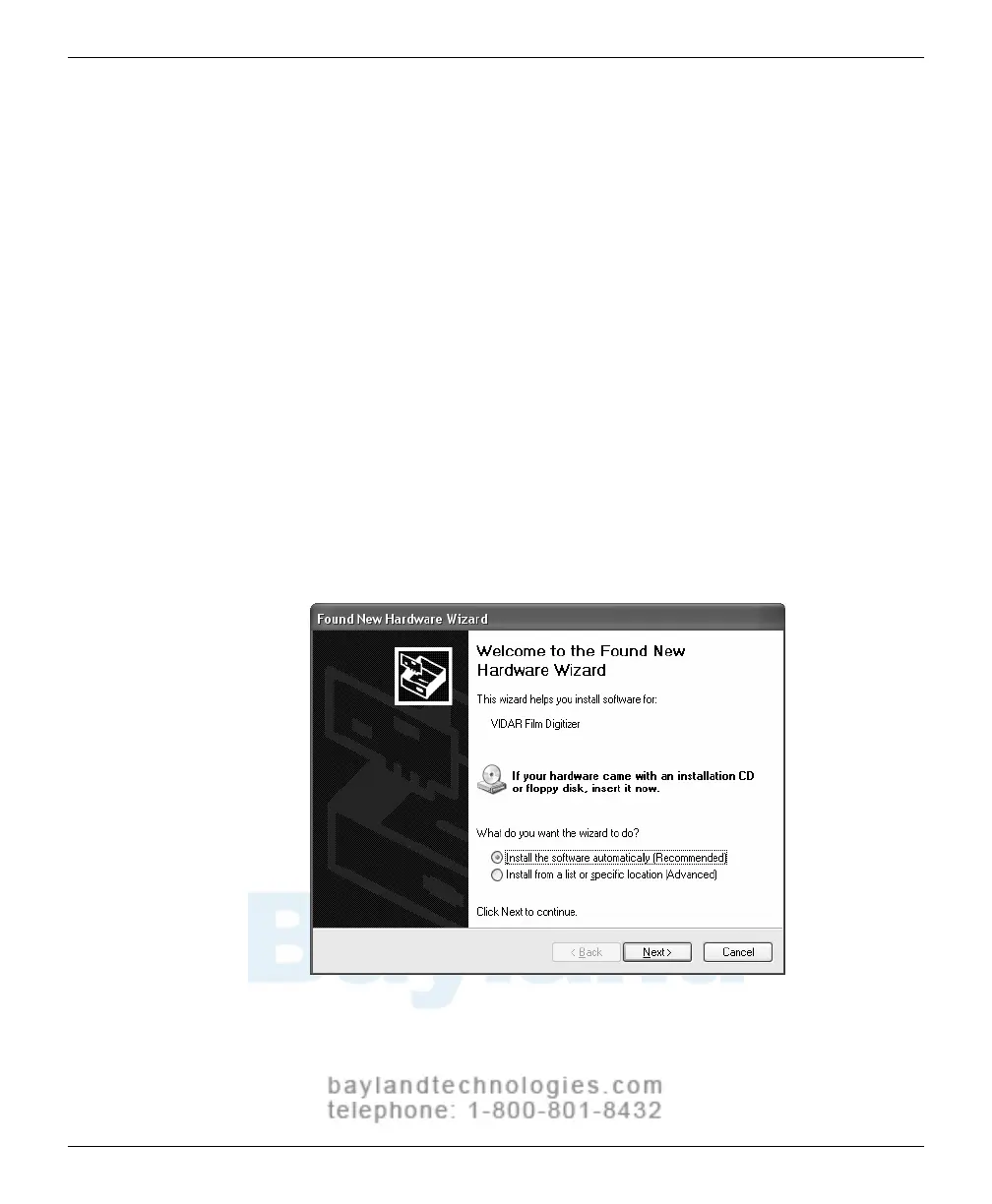
Shortly after connecting the digitizer to the computer, the
New
Hardwar
e
F
o
und Wizard window will appear
.
If the computer is running Windows™ XP, activate the Install the
software automatically option,
then click Next.
If the computer is running Windows™ 2000, activate the Install
from a list or specific location opti
on, then click Next. In the
next screen (not shown), select the CD drive.
VIDAR Advantage Series Installation and Operation Guide


 To Next Page
 Loading...