81
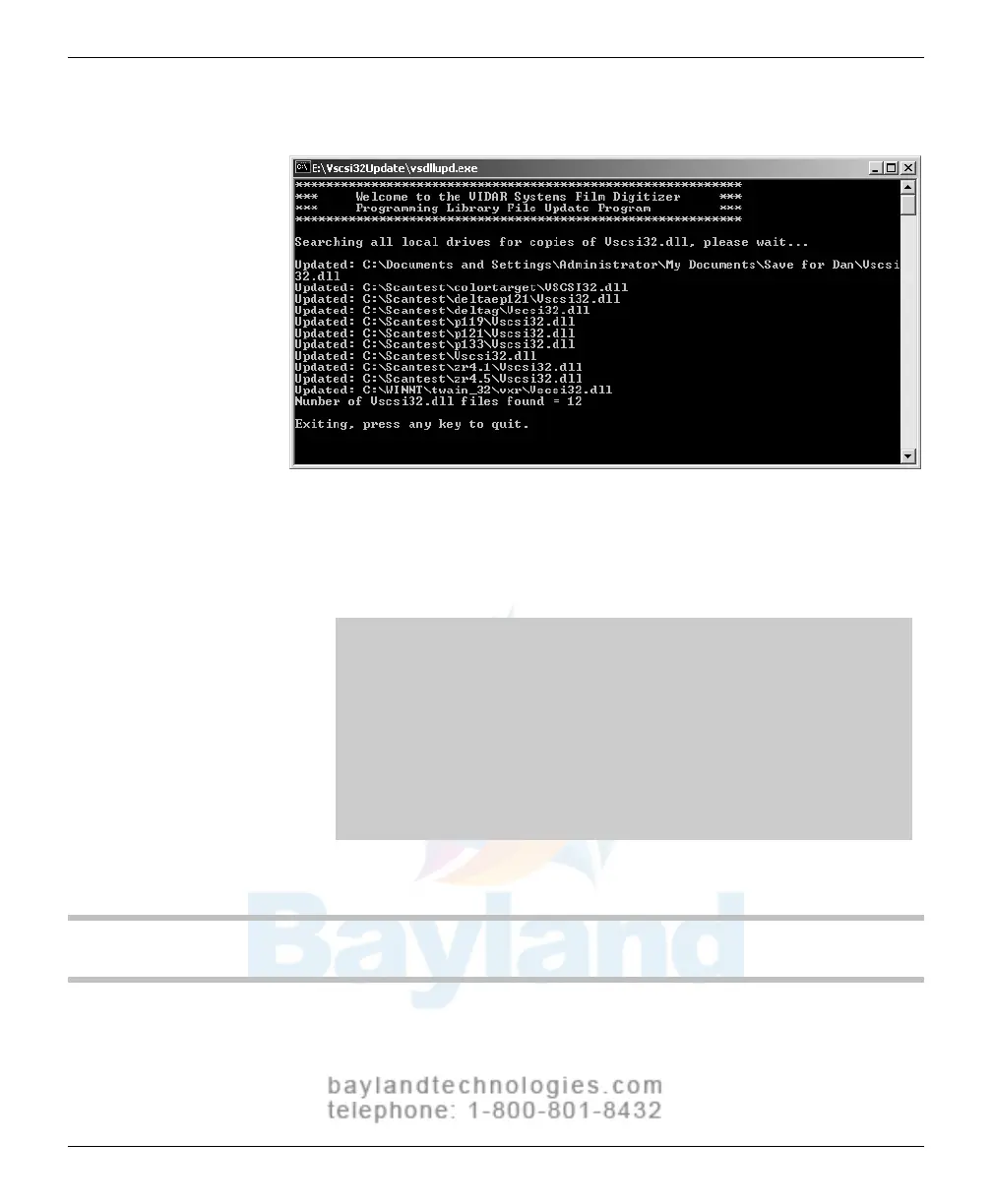
4. A DOS window will open. Wait while the files are updated.
5.
When you see the message “Exiting,
press any key
to quit,” press any
key or close the window by clicking the X in the upper right corner
.
6.
Remove the VIDAR Drivers and Toolkit Installation
CD.
IMPORTANT: You will need to update the tookit DLL if you:
Uninstall or reinstall the drivers.
Upgrade the digitizer firmware.
Replace the digitizer with another one having different
firmware.
Reinstall the scanning application.
Install the digitizer and scanning application on another
computer.
NEXT: Go to the operating chapter for your digitizer
VIDAR Advantage Series Installation and Operation Guide



 To Next Page