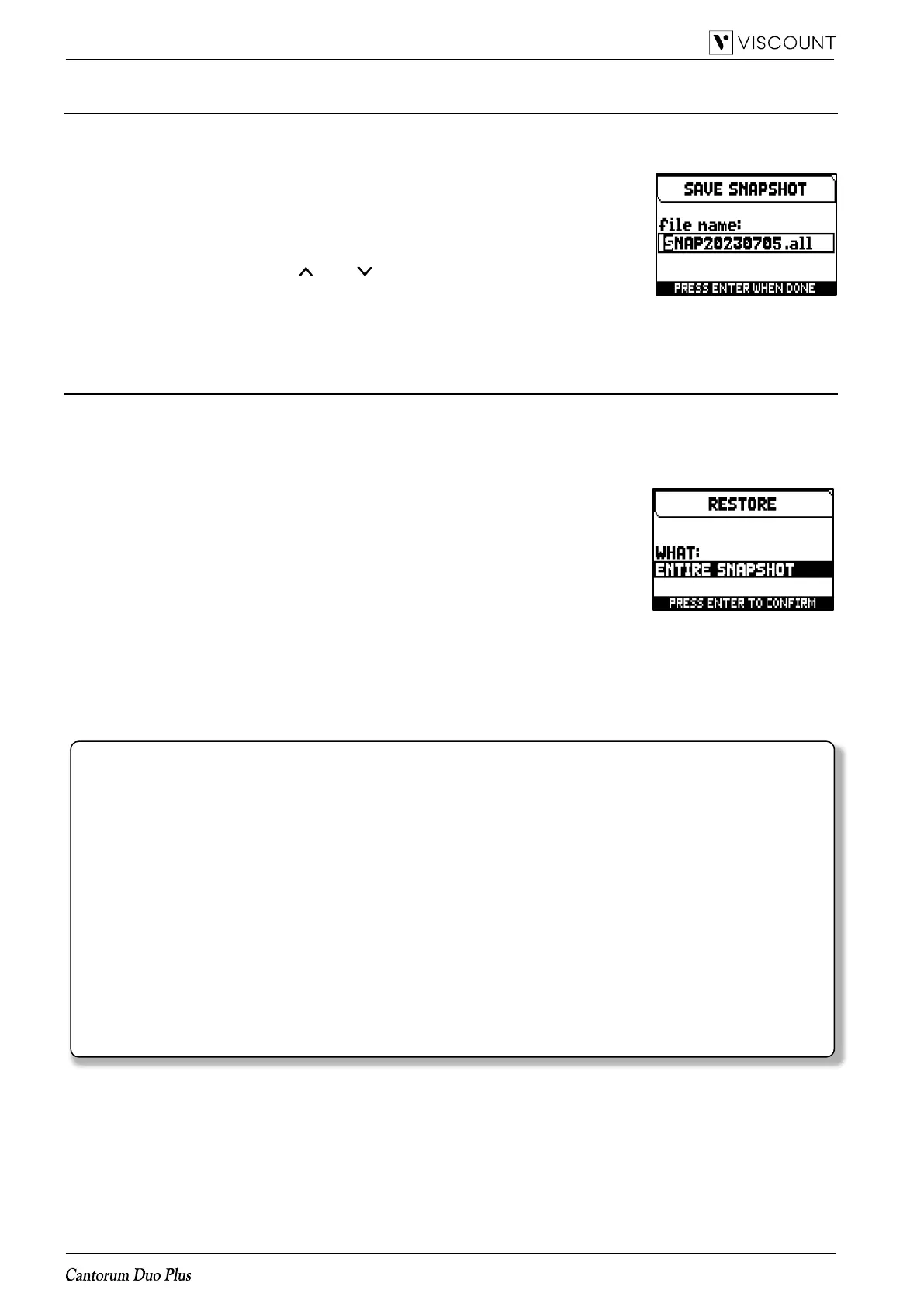
Save the organ configuration in a USB flash drive (SAVE SNAPSHOT function)
To save the entire organ configuration (Pipe Sets, combinations, settings) in a USB flash drive as a .ALL file, follow this
procedure:
1. insert a USB flash drive in the USB [TO DEVICE] connector on the rear panel,
2. in the main video page press the [MENU/ENTER] button,
3. select the BACKUP/RESTORE field,
4. select the SAVE SNAPSHOT field,
5. assign a name to the file that will be saved in the USB flash drive. The system
proposes a name as “SNAP” and the date actually setted in the organ (see
page X), to modify it use the [ ] and [ ] buttons to move the cursor, [+] and
[-] to select the character.
6. press [MENU/ENTER] to save (or [EXIT] to quit) and wait the “FILE SAVED”
message. A .ALL file will be saved in the “v_settings” folder of the USB flash drive.
Load an organ configuration from a USB flash drive (LOAD SNAPSHOT function)
To load an entire organ configuration or single sections (Pipe Sets, combinations, settings) from a USB flash drive
saved as a .ALL file using the SAVE SNAPSHOT function (see above), follow this procedure:
1. insert the USB flash drive with the .ALL file(s) in the USB [TO DEVICE] connector on the rear panel,
2. in the main video page press the [MENU/ENTER] button,
3. select the BACKUP/RESTORE field,
4. select the LOAD SNAPSHOT field,
5. select the .ALL file of the organ configuration you want to load and press the
[MENU/ENTER] button,
6. select what you want to load of the .ALL file into the organ:
- Entire Snapshot: the entire organ configuration
- Only Combinations: all the combinations of the all Combinations Set
- Only Pipe Sets: all the Pipe Sets
- Only Settings: all the organ settings
Refer to the table above in “What a Snapshot contains” to know in detail what
a Snapshot section contains.
7. press [MENU/ENTER] button to confirm the load and wait the reboot of the organ (if ENTIRE SNAPSHOT,
ONLY COMBINATIONS or ONLY PIPESETS option was selected) or the “SNAPSHOT RESTORED”
message, or [EXIT] to quit.



 To Next Page