28
5. Press the button.
Pressing the
/
buttons during playback allows fast forward play / fast reverse play.
To pause video playback, press the button.
To cancel pause, press the button again.
To stop video playback, press the button. This stops playback and returns to the start of the video clip.
Note:
To playback the video clips or audio on your computer, we recommend that you to use Windows Media Player 9.0 (WMP
9.0) or the Included software applications. You can download WMP from the Microsoft website at www.microsoft.com.
To adjust the sound level, toggle the zoom lever in the T / direction to increase the volume, toggle the zoom lever to
the W /
direction will decrease the volume.
Playing back still images/video clips on a TV
You can also playback your images and audio on a TV monitor. Before connecting to any devices, make sure to select
NTSC / PAL system to match the broadcast standard of the video equipment to which you are going to connect your
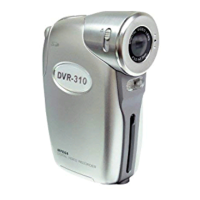
DVR-310, then turn all connected devices off.
1. Connect one end of the A/V cable to the A/V terminal of the DVR-310.
2. Connect the other end to an A/V input socket on your TV set.
3. Turn the TV and DVR-310 on.
4. Playback the still images / video clips.
The method of operation is the same as playing back still images and video clips on the DVR-310.


 To Next Page