49
Step 2: Connecting the DVR-310 to your computer
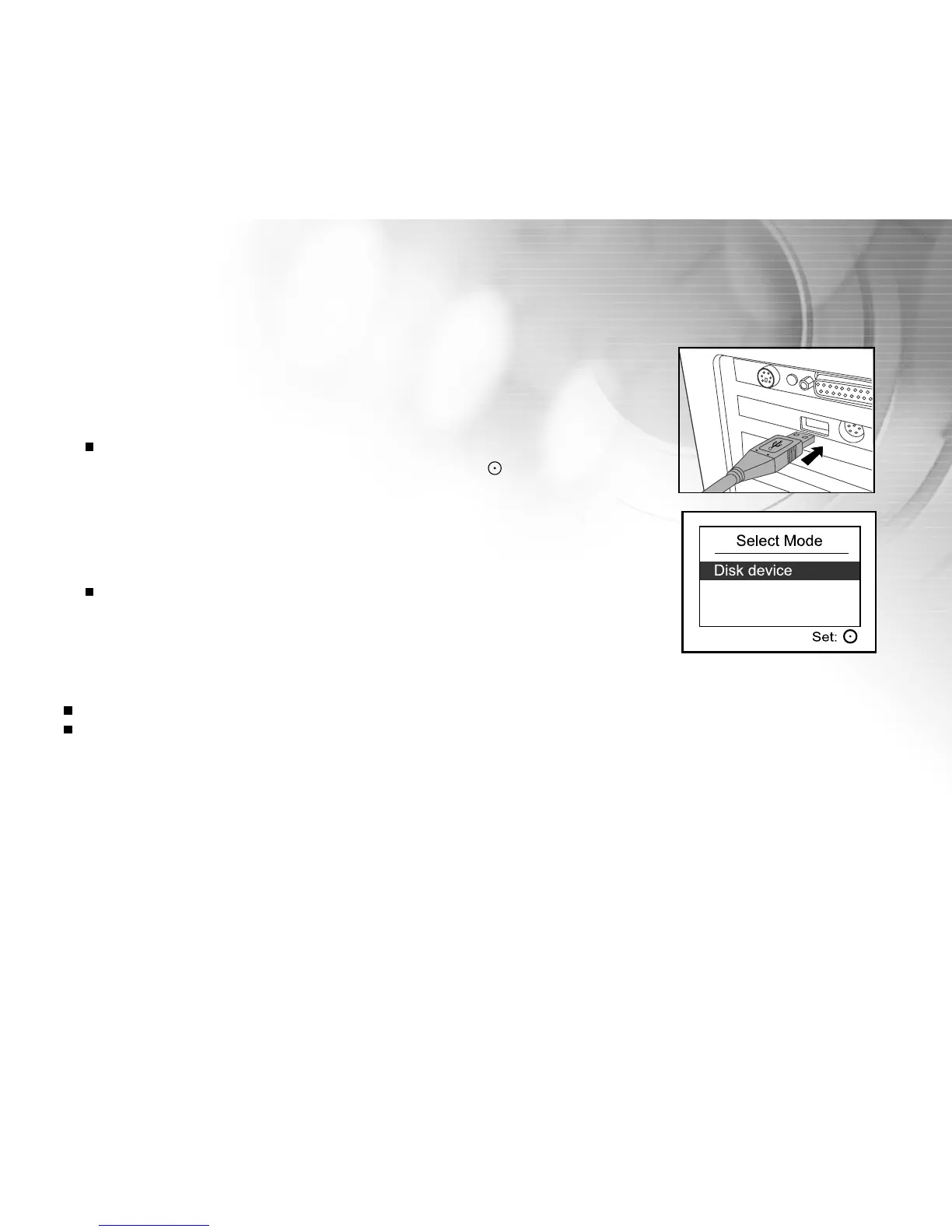
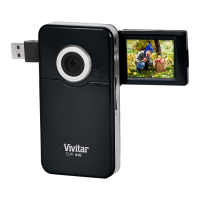
1. Connect one end of the USB cable to the USB connector on the DVR-310.
2. Connect the other end of the USB cable to an available USB port on your
computer.
3. Turn on the power.
[Select Mode] menu appears on the screen.
4. Select [Disk device] with the zoom lever, and press the button.
5. From the Windows desktop, double click on "My Computer".
6. Look for a new "Removable disk" icon. This "Removable disk" is actually
the memory or memory card in your DVR-310.
7. Double click on the removable disk and locate the DCIM, MP3 and VOICE
folders.
If a memory card is not inserted in the DVR-310, double click on the
removable disk and locate the CAMERA, MP3 and VOICE folders.
Note:
When connecting to your computer, there is no need to have batteries in the DVR-310. It will use USB power.
Whenever the DVR-310 is connected to your computer by USB, the buttons on the DVR-310 are temporarily disabled.


 To Next Page