33
Scheduled Programming
The generator must already be in Guided Mode before Scheduled Programming
can be used. Use Scheduled Programming to automatically change parameter
steps according to a preset schedule. Scheduled programming may be useful to
patients who live far from their healthcare provider.
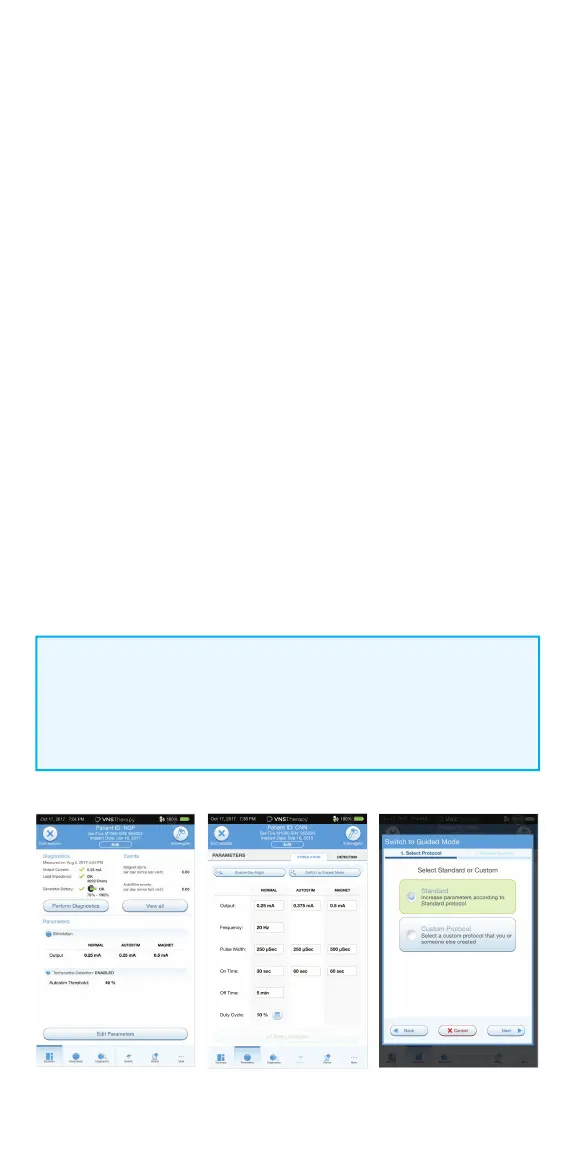
To enable Guided Programming:
1. From the Summary Screen, tap on the EDIT PARAMETERS button, or tap on
PARAMETERS in the Navigation Bar at the bottom of the screen
2. On the Parameters Screen, tap on SWITCH TO GUIDED MODE button at
top of screen
3. On the Switch to Guided Mode Screen, select either STANDARD or CUSTOM
protocol and tap NEXT
4. Tap APPLY CHANGES to enable Guided Mode
To turn on Scheduled Programming:
1. In Guided Mode View, tap the SCHEDULED-APPLY button
2. On the Scheduled-Apply Screen, tap on ENABLE NOW at the center
of the screen
3. On the next Scheduled-Apply screen, select the time interval between step
increases, then tap GENERATE SCHEDULE at the center of the screen.
Once a schedule has been generated you can follow the on-screen prompts
to make adjustments to the schedule
4. Tap APPLY CHANGES to program your changes
NOTE:
At the end of each o ce visit, the generator must be interrogated by
tapping the INTERROGATE button followed by tapping the END SESSION
button to ensure creation and accuracy of the session reports.


 To Next Page