EasyManua.ls Logo

VTech Kidizoom - User Manual

VTech Kidizoom
39 pages
Print Icon
To Next Page IconTo Next Page
Loading...
Users Manual
© 2015 VTech
Printed in China
91-003007-005
US

Questions and Answers

  • T
    Tony LarsenSep 10, 2025
    What to do if can't save files on VTech Digital Camera?
    • R
      reedryanSep 12, 2025
      If you cannot save files on your VTech Digital Camera, check the memory status of both the internal Kidizoom[®] memory and the SD memory card (not included) if one is inserted. Also, verify your memory default setting. If set to use an SD memory card (not included), ensure it is not write-protected.
  • E
    Edgar HuffSep 9, 2025
    How to fix image taken is not clean VTech Digital Camera?
    • J
      Jane MclaughlinSep 9, 2025
      If the image taken with your VTech Digital Camera is not clean, check to see if the camera lens protection window is clear.
  • R
    Rhonda LivingstonSep 7, 2025
    How to fix rolling picture on VTech Digital Camera TV?
    • K
      Kyle JacksonSep 8, 2025
      If the picture is rolling or has bars or lines on the TV when using your VTech Digital Camera, try adjusting the vertical or horizontal hold controls (if available) on your TV.
  • J
    Jason MccallAug 23, 2025
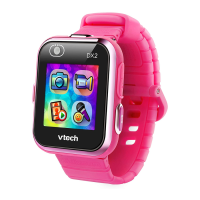
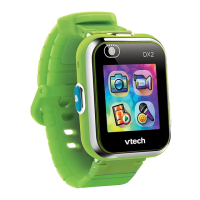
    How to fix VTech Kidizoom Watch that has stopped working?
    • L
      Luis HessAug 23, 2025
      If your VTech Watch has stopped working, try the following: 1. Turn the battery switch off for a few minutes. 2. Turn the battery switch on again, and then press the home button to turn it on. It should now work properly. 3. If it still doesn't work, try recharging the battery and try again.
  • A
    Ashley OconnellSep 5, 2025
    Why is there no sound on my VTech Digital Camera TV?
    • J
      James PrinceSep 5, 2025
      If you see a picture but hear no sound from your VTech Digital Camera on the TV, check these: * TV setting: Raise the TV volume and make sure it is not muted. * Cable connection problem: Ensure the white and/or red plug is firmly connected to the audio input of the TV.
  • E
    Emily JenningsSep 4, 2025
    How to fix black and white picture on VTech Digital Camera TV?
    • X
      xcollinsSep 4, 2025
      If the TV picture is black and white when using your VTech Digital Camera, it might be due to: * A non-matching color system: Ensure your TV is set to the correct TV system (e.g., PAL or Auto). * A cable connection problem: Verify the video cable is firmly connected to the video input of the TV.
  • B
    benjaminkleinSep 3, 2025
    Why is there no picture on my VTech Digital Camera TV screen?
    • J
      Justin TuckerSep 3, 2025
      If there is no picture on the TV screen when using your VTech Digital Camera, ensure the following: 1. The camera, TV, and VCR (if using) have batteries and are plugged into power outlets. 2. The camera, TV, and VCR (if using) are turned ON. 3. The A/V cable connections between the camera and the TV (or VCR) are correctly connected. 4. All cable plugs are securely inserted into the appropriate ports. 5. The TV is tuned to the correct input channel.
  • D
    Donna ScottSep 2, 2025
    What to do if VTech Digital Camera program stops?
    • E
      Elizabeth MoraSep 2, 2025
      If your VTech Digital Camera program stops, try the following: 1. Press the Reset Button with a paper clip. 2. Ensure the camera is OFF. 3. Remove the batteries to interrupt the power supply. 4. Let the camera sit for a few minutes without batteries, then replace them and press the Reset Button again. 5. Turn the unit ON. It should now be ready to use. 6. If it still doesn't work, replace the batteries with a new set.
  • M
    Micheal PatrickSep 1, 2025
    Why is the image not clear on my VTech Watch?
    • R
      robertjohnsonSep 1, 2025
      If the image on your VTech Watch is not clear: 1. Ensure the lighting conditions of the shooting environment are adequate. 2. Check if the camera lens is clean. If there is dust or dirt, refer to the Care and Maintenance section for instructions on cleaning the lens.
  • W
    williamrothAug 30, 2025
    What to do if the VTech Kidizoom Watch screen display is abnormal?
    • A
      Anthony FloresAug 30, 2025
      If the screen display on your VTech Watch is abnormal: 1. Turn the battery switch off for a few minutes. 2. Turn the battery switch on again, and then press the home button to turn it on. The screen display should return to normal.

Summary

PRODUCT LAYOUT AND BUTTONS

GETTING STARTED

BATTERY RECHARGING

MEMORY CARD INSTALLATION

QUICK OPERATION GUIDE

Take Photos and Record Videos

Instructions on how to capture photos and start/stop video recordings using the camera buttons.

Home menu

Computer Connection

Steps for connecting the Kidizoom Action Cam to a computer for file transfer via USB cable.

ACTIVITIES

SETTINGS

CARE & MAINTENANCE

TROUBLESHOOTING

Common Issues

Solutions for common problems like camera not working, abnormal display, or unclear images.

TECHNICAL SUPPORT

FREQUENTLY ASKED QUESTIONS

SAFETY AND BATTERY REMOVAL

MOUNTING ACCESSORIES

VTech Kidizoom Specifications

General IconGeneral
BatteryRechargeable lithium-ion battery
ConnectivityUSB
FeaturesPhoto effects, video recording, games
Water ResistanceSplash-proof
CompatibilityPC and Mac
Age Range4 to 9 years

Related product manuals