Page 64 of 102 Page 65 of 102Doc: DRX Installation
Version: 7.1 January 2021
Doc: DRX Installation
Version: 7.1 January 2021
wassp.com wassp.com
DRX INSTALLATION MANUAL DRX INSTALLATION MANUAL
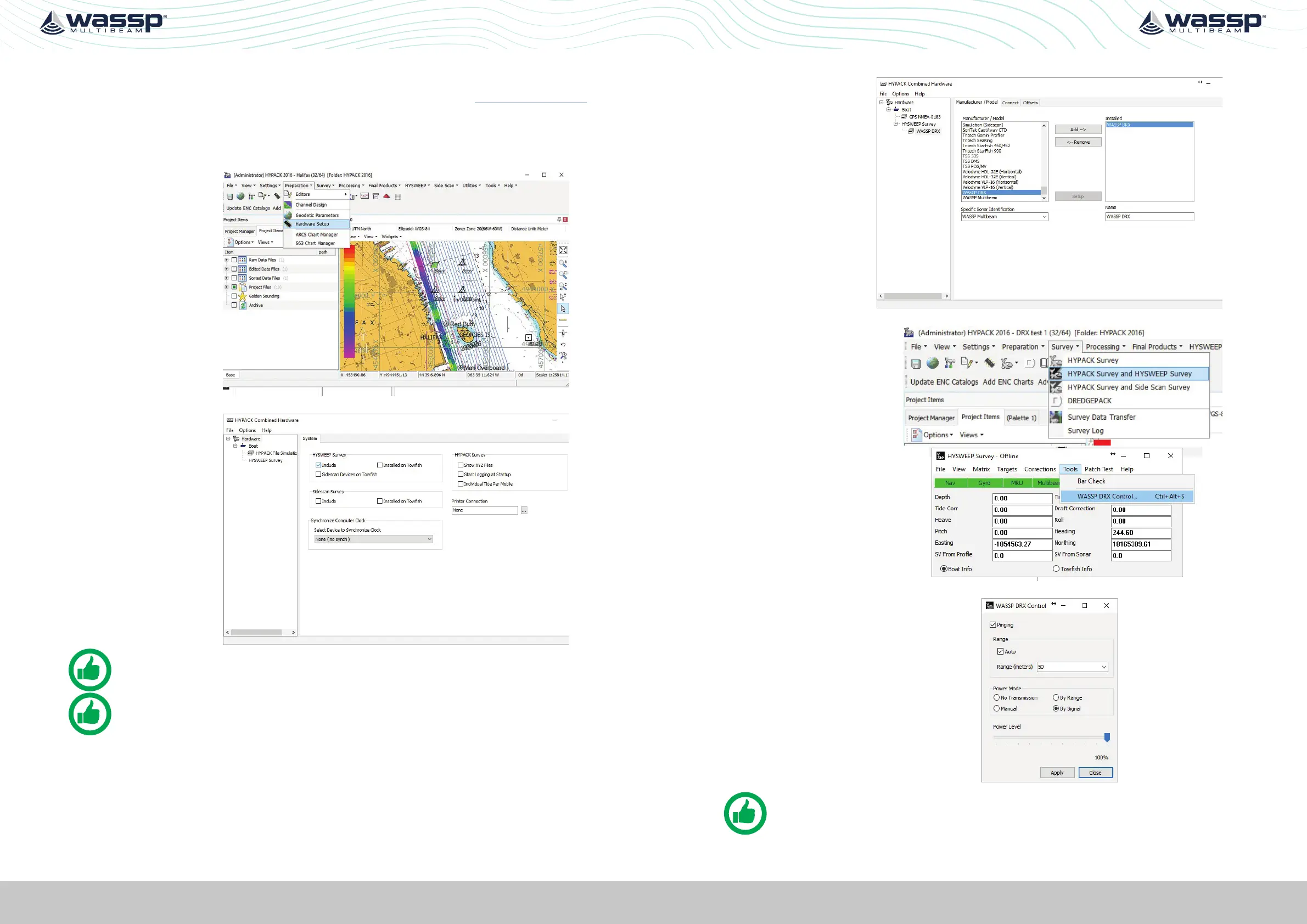
7.3. CONNECTING HYPACK TO THE DRX
HYPACK needs to be purchased from your local HYPACK dealer. See www.hypack.com
for details.
Install HYPACK 2016A or later. Refer to HYPACK manual for details.
1. Go to
PREPARATION and
select HARDWARE
SETUP
.
2. INCLUDE
HYSWEEP Survey.
NOTE: All GPS and sensor data should be connected to the DRX.
DRX supplies all required data to HYPACK over the ethernet link.
NOTE: Refer to Knowledge Base for guidelines on system configuration
with HYPACK. See “Appendix I - Product Registration, Support and
Resources” on page 101.
3. Select HYSWEEP
SURVEY in the tree
on the left.
4. Then select WASSP
DRX.
5. Select ADD
(WASSP DRX will
now be in the
list of Installed
devices).
6. Close HYPACK
Combined
Hardware and save
changes.
7. Select SURVEY in
the menu.
8. Select HYPACK
SURVEY AND
HYSWEEP SURVEY.
9. Once connection
is established DRX
control can be
performed through
the WASSP
DRX CONTROL
accessed from
HYSWEEP TOOLS
menu.
NOTE: Osets recorded under “5.1. Commissioning Step 1: Ship
Measurements” on page 34 need to be applied in HYPACK directly.



 To Next Page