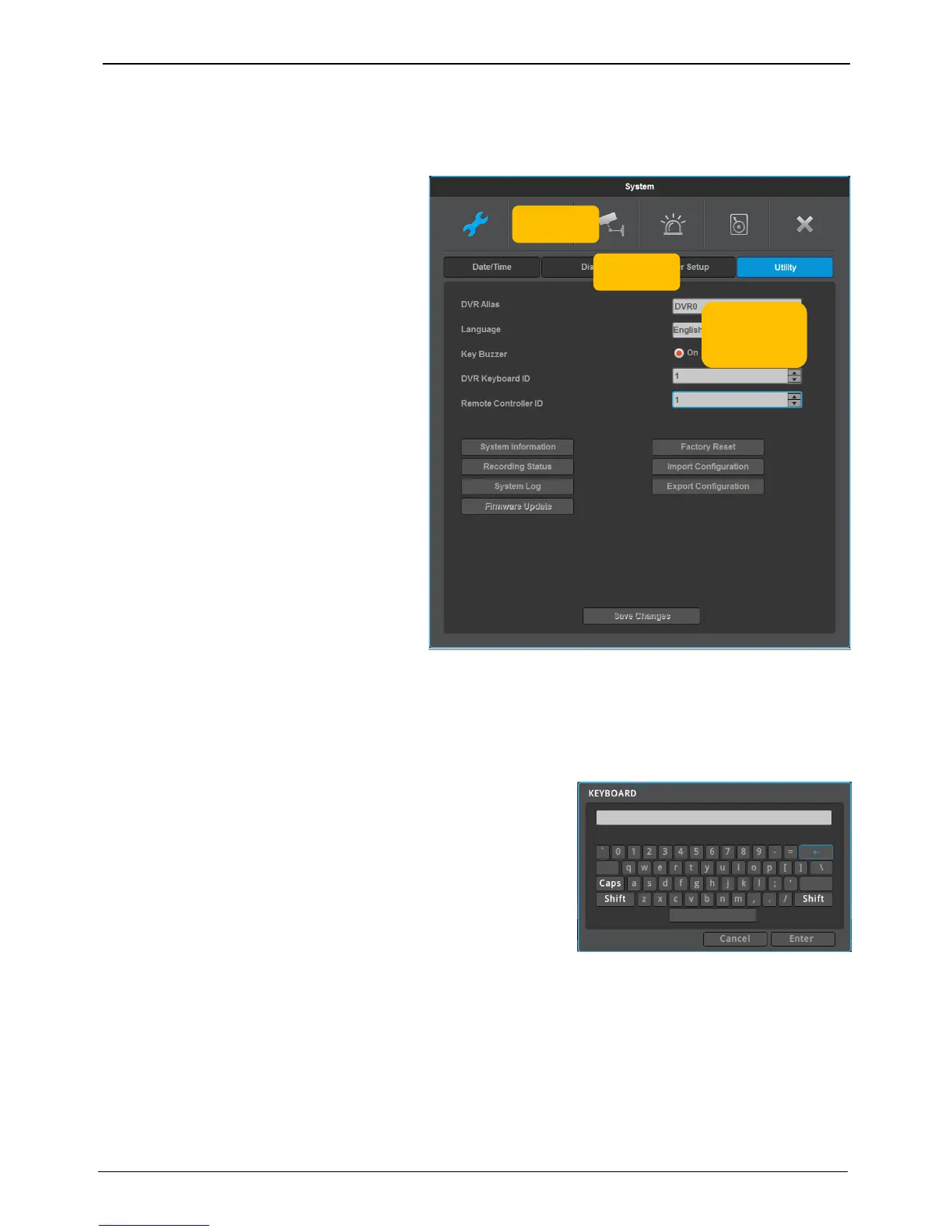
Press [MENU] key on front panel or click
[Main Menu] button under FUNC menu to
enter the setup menu. To exit menu, press “X”.
Main menu
The selected tab is shown in bright color and
the sub-menu box will show the chosen To
move to the previous/next tab, use the [◀/▶]
arrow buttons. To move to a chosen sub-
menu press the [Enter] key or click on the
menu you want to view if you’re using a
mouse.
Sub-me
Selected sub-menu will disply the chosen
item and the related setting will be shown. To
move to the previous/next tab, use the
[◀/▶▲/▼] arrow buttons. To move to the
related setting press [Enter] or click the
mouse. To move to the upper main menu,
click the [Save Changes] at the bottom of
menu, or press [ESC] button.
Set-up dialogue box
The selected tab is shown as orange, and To move to the previous/next tab, use the [◀/▶] or or click the
mouse. To modify the configuration values, click the mouse or use the [◀/▶]
Dialogue box for string input
Dialogue box for string input is shown as follows. User can enter
words or numbers using a mouse or direction buttons.
Use [▲/▼], [◀/▶] to move to select a letter and press [Enter] or
click a mouse to enter it. To delete the entered letter, press []
button, and to enter a space, press [SPACE] button. To exit the
dialogue, press [ENTER] button to save string and exit or press
[CANCEL] button to cancel the string.



 To Next Page