Default setting
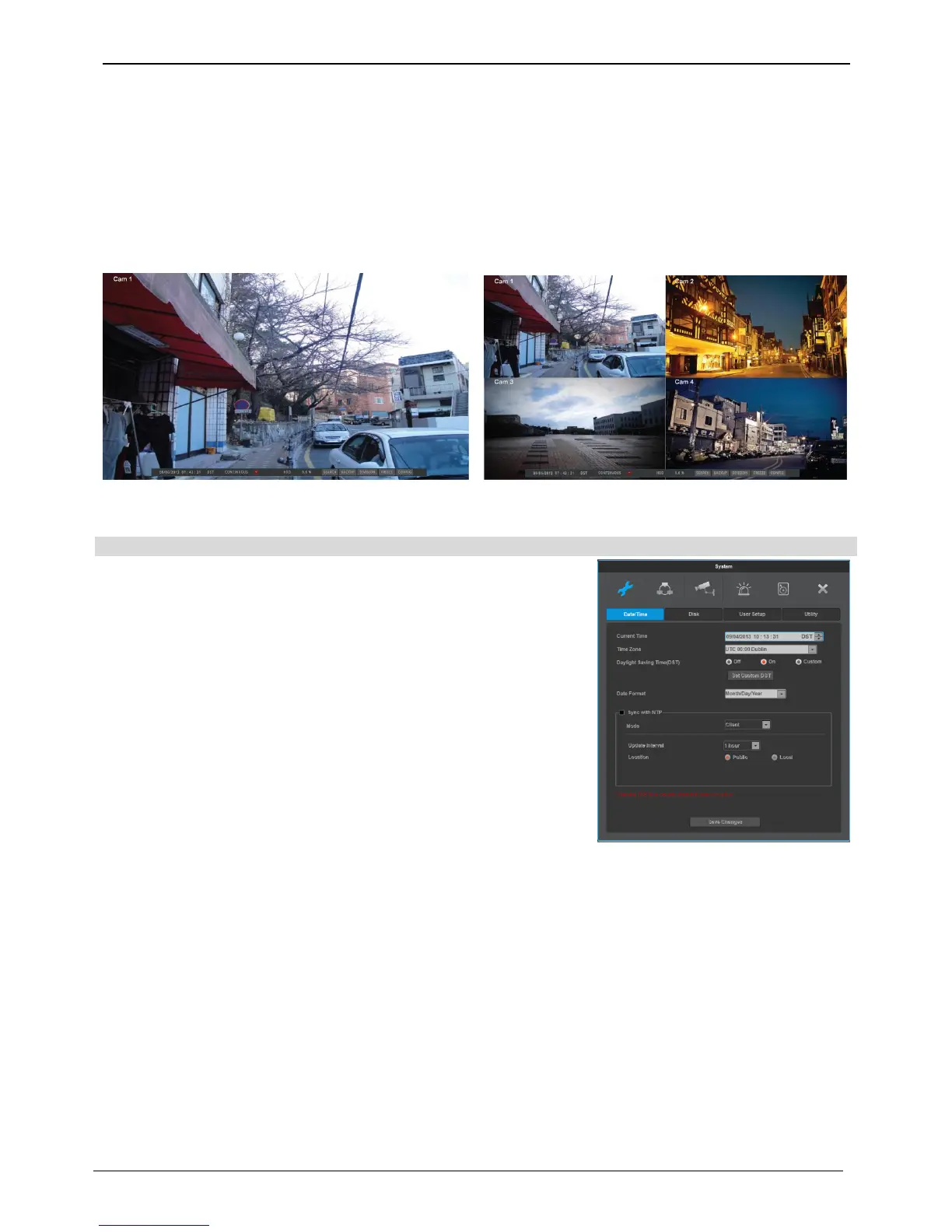
Check video
When turned on, DVR starts booting automatically and shows screen after the booting.
<reference>
Auto login “ON” means login set without any login dialogue box, “OFF” means there will be dialogue box
requiring password. (default – auto login ON, admin)
Date & Time settings
Standard time zone
Use the left or right arrow key on the front or the mouse wheel to
select your time zone. (To go to the previous menu, press the [ESC]
button on the front or click “X” with a mouse. This is the same for all
OSD menus.)
Daylight Saving Time (DST)
On the “time zone” setting, “on” will be chosen when users click on
regions where daylight saving time applies and “off” will be chsoen
when regions without daylight saving time are chosen.
Users can check “off” if they don’t need daylight saving time function
for region where daylight saving time applies.
Please select “custom” if users want to set their own daylight saving
time preferences. Select “custom” and DST setting will appear.
“month/day” will set DST start/end at month/day/hour and
“month/week/day” will set DST start/end at month/week/day/hour.
NTP function
Please set NTP ‘On’ then select ‘Public’ in Client Mode for DVR to set time automatically via internet
connection
Date Notation
Please select “Date Format” and select one of ‘YYYY/MM/DD, MM/DD/YYYY or DD/MM/YYYY



 To Next Page