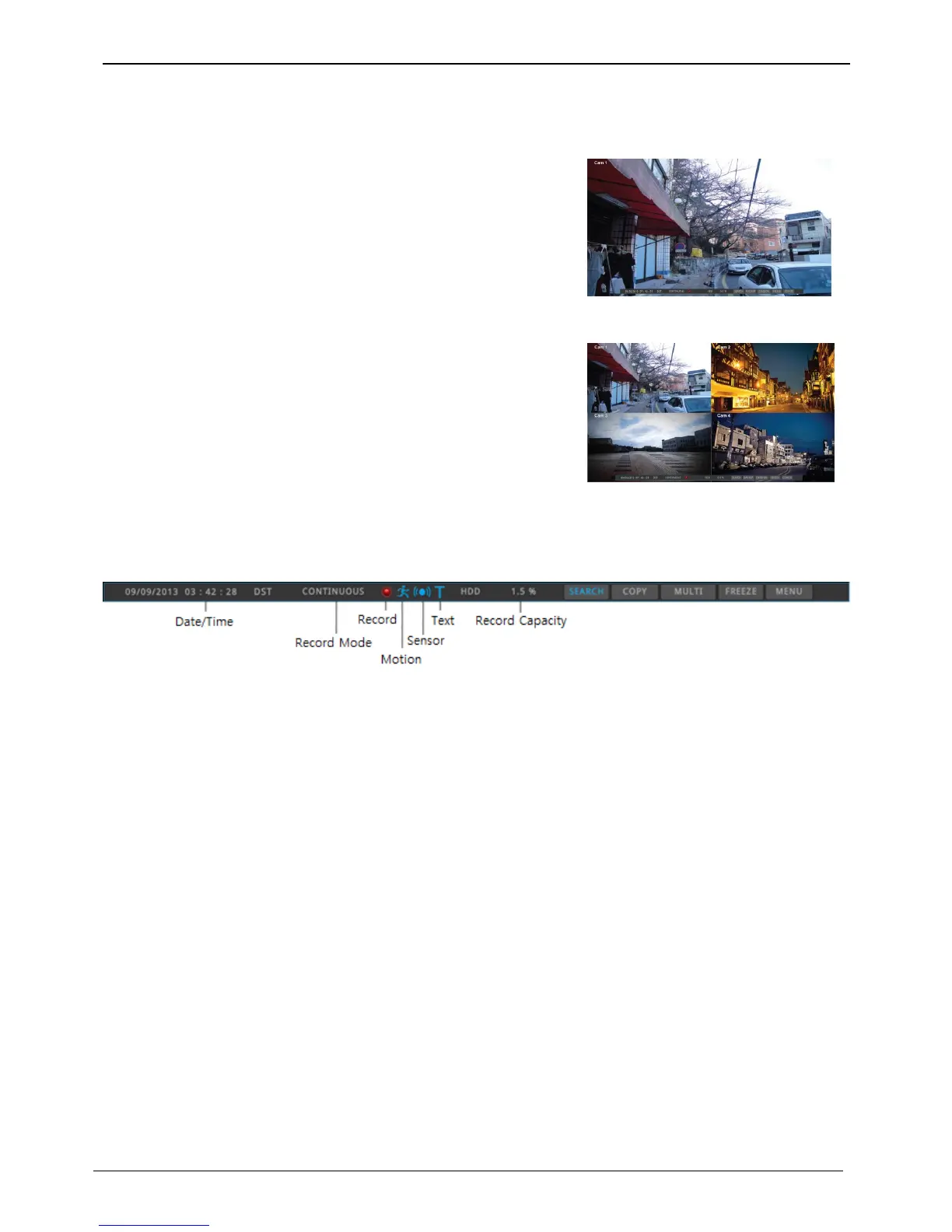
Screen description
The status bar from monitoring screen shows DVR’s current status which includes the following: Date/Time,
Record status, Motion Detection, sensor input status, text input, Manual Record.
auto switch mode(Sequence)
Auto switch screen mode is a feature in which the selected channel or multi screen division switches in
sequence with the time interval of 1 – 60 seconds.
(Please refer to “Monitor setup” for further configuration method).
Auto Switch mode can be set in every division mode by pressing the [SEQ] button.
Press [SEQ] button once more to leave from Auto Switch mode..
event screen
It is available to set the selected screen pop-up automatically when an event is triggered
Users can choose events for pop-up from event source. Event source supports 3 types of events: Sensor,
Motion Detection & Text.
If multiple events are triggered, the corresponding screens will pop up automatically.
For example, if events are triggered in 3 Channels, they will be displayed in 4 screen division automatically. To
return to the original channel, press the button of one of the poped up channels.
Press [ESC] to return to original channel.
<warning>
If Alarm pop-up is “Off”, Event pop-up will not be enabled.
If event screen switch is set “Keep”, it keeps showing pop-up image until users press a button. To return to the previous
screen, please press any button.



 To Next Page