Scanning from One Touch
36 DocuMate 765 Scanner User’s Guide
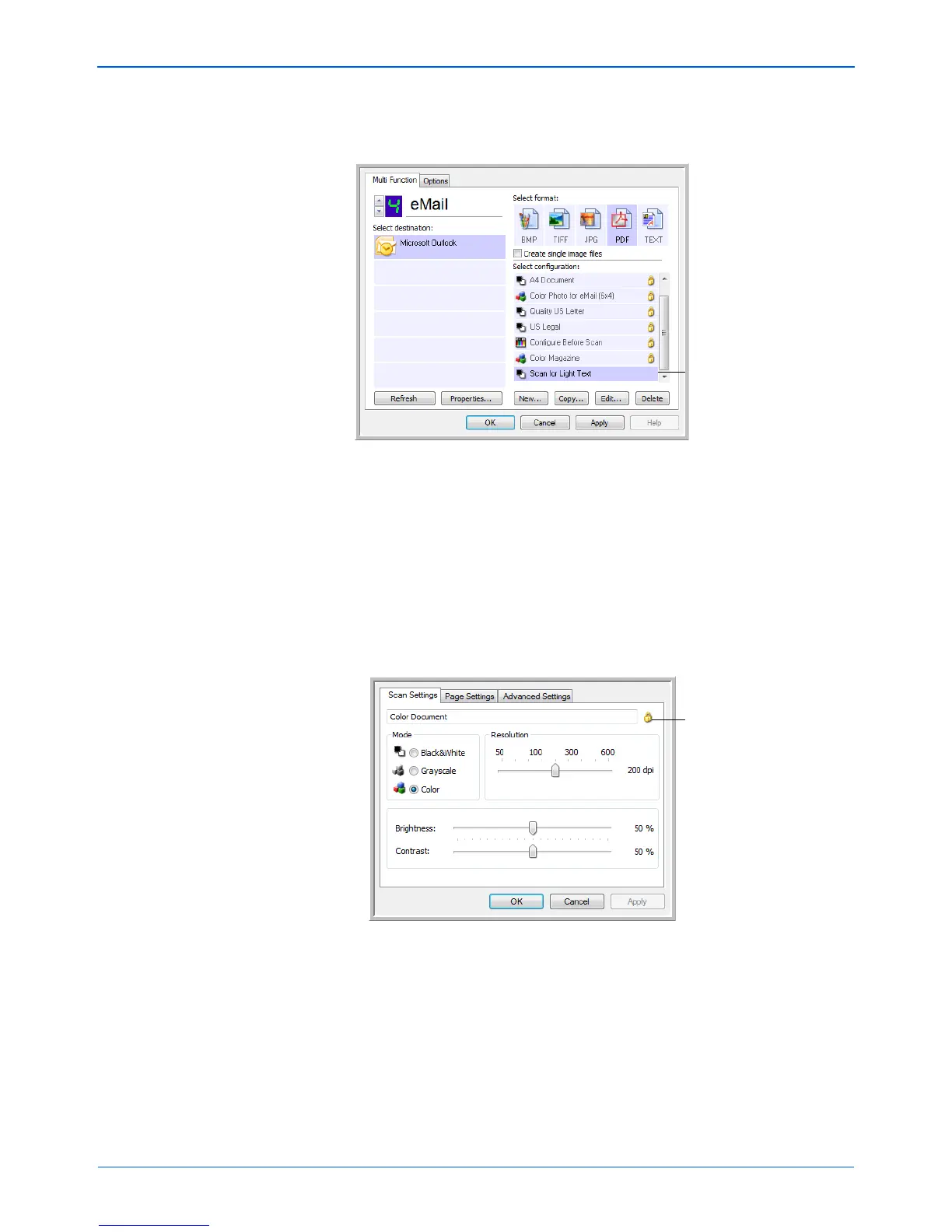
1. Open the One Touch Properties window.
2. Select the scan configuration you want to edit or delete.
3. To delete the configuration, click the Delete button.
4. To edit the configuration, click the Edit button.
The Scan Configuration Properties dialog box opens for that
configuration.
You can make changes to a configuration, but for the changes to be
saved, the configuration must first be unlocked. Click the Lock icon to
unlock the configuration. Clicking it toggles between locking and
unlocking the configuration. The key icon indicates the configuration
is unlocked.
5. Edit the settings and click OK.
6. Click OK to close the dialog box.
Select the scan
configuration to edit or
delete. It must be unlocked,
as indicated by not having a
lock displayed here.
Click the Key/Lock icon to
toggle between locked
and unlocked.


 To Next Page
 Loading...