EasyManua.ls Logo

Xerox WorkCentre XD100 - User Manual

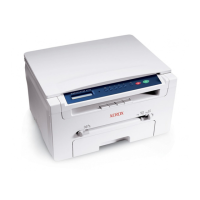
Xerox WorkCentre XD100
63 pages
Print Icon
To Next Page IconTo Next Page
Loading...
P.O. Box 9604-7994
Webster, N.Y. 14580-7994
2/2000
701P33177
User Guide
WorkCentre XD Series

Table of Contents

Questions and Answers

  • C
    Crystal LongJul 29, 2025
    What to do if Xerox WorkCentre XD100 displays J1 error?
    • L
      Larry WoodJul 29, 2025
      If the J1 status code appears on your Xerox All in One Printer, it means the toner is low. While you can make about 10 more copies, you should replace the toner cartridge soon. The printer will stop working until you replace it.
  • M
    Michelle StewartAug 2, 2025
    What to do if Xerox WorkCentre XD100 All in One Printer displays C1 error?
    • S
      Sean BowersAug 2, 2025
      If your Xerox All in One Printer is showing the C1 error, it means the front or side cover is open. Make sure to close the cover properly.
  • D
    Deborah AlexanderAug 6, 2025
    What to do if Xerox WorkCentre XD100 displays J2 error?
    • A
      Ashley WalshAug 6, 2025
      If your Xerox All in One Printer displays the J2 status code, it indicates that the drum is near the end of its life. You can make approximately 1,000 more copies. Replace the drum cartridge to continue printing.
  • A
    Amanda ThomasAug 11, 2025
    What to do if Xerox WorkCentre XD100 displays E7 H2 – H4 L3 – L5 U2 – U5 error?
    • J
      Jeffrey DanielsAug 11, 2025
      If your Xerox All in One Printer displays error codes E7, H2 – H4, L3 – L5, or U2 – U5, switch OFF the Main Power, wait approximately 5 seconds, and then switch ON the Main Power again. If the status code continues, call for service.
  • F
    fromeroAug 15, 2025
    What to do if Xerox WorkCentre XD100 All in One Printer displays CH error?
    • J
      Julie PerryAug 15, 2025
      If your Xerox All in One Printer displays the CH error, install the toner cartridge.
  • C
    carlos13Aug 19, 2025
    What to do if Xerox All in One Printer displays A1 – A2 error?
    • M
      michaelbrownAug 19, 2025
      If your Xerox All in One Printer displays the A1 or A2 error, remove the misfed paper from the Single Pass Feeder.
  • W
    woodedwardAug 25, 2025
    How to fix L1 error on Xerox WorkCentre XD100?
    • G
      gbutlerAug 25, 2025
      To resolve the L1 error on your Xerox All in One Printer, make sure that the shipping screw is removed.

Summary

Regulatory Compliance and Support

FCC Compliance Statement

Details the WorkCentre's compliance with FCC Class B digital device limits.

ENERGY STAR Program Compliance

States that the product meets ENERGY STAR guidelines for energy efficiency.

Support Lines and General Information

Contact numbers for questions, warranty, and installation assistance.

Ordering Supplies

Information on how to order toner and drum cartridges.

Essential Safety Precautions

General Safety Warnings

Critical safety warnings and operating instructions for the WorkCentre.

Safety Symbols and Electrical Grounding

Explains safety symbols and the importance of proper electrical grounding.

Helpful Hints and WorkCentre Location

Tips for care, maintenance, and optimal placement of the WorkCentre.

WorkCentre Component Identification

Diagram labeling the main parts of the WorkCentre for user familiarity.

Installation and Initial Setup

WorkCentre Installation Guide

Step-by-step instructions for unpacking and setting up the WorkCentre.

Installing Toner Cartridge

Detailed procedure for removing the old and installing the new toner cartridge.

Core Copying Functions

Understanding the Control Panel

Identifies and explains the function of each key and indicator on the control panel.

Copying Procedures Overview

Guides on making copies using the document glass and feeders.

Image Quality and Reduction Settings

How to adjust copy quality, contrast, and perform reduction/enlargement.

Paper Handling and Special Copying

Techniques for oversized documents, book mode, bypass, and alternate trays.

Maintenance and Troubleshooting

WorkCentre Maintenance and Cleaning

Procedures for cleaning key components like the document glass and corotron wire.

Clearing Paper Jams and Misfeeds

Instructions for resolving misfeeds in feeders and the paper path.

Replacing Consumables

Step-by-step guide for replacing the toner and drum cartridges.

Problem Solving and Status Codes

Charts for diagnosing and resolving common issues using problem and status codes.

Software and Technical Information

Printer Driver Installation Guide

System requirements and steps for installing the printer driver software.

Technical Specifications

Detailed technical data including dimensions, weight, and power consumption.

Xerox WorkCentre XD100 Specifications

General IconGeneral
BrandXerox
ModelWorkCentre XD100
CategoryAll in One Printer
LanguageEnglish

Related product manuals