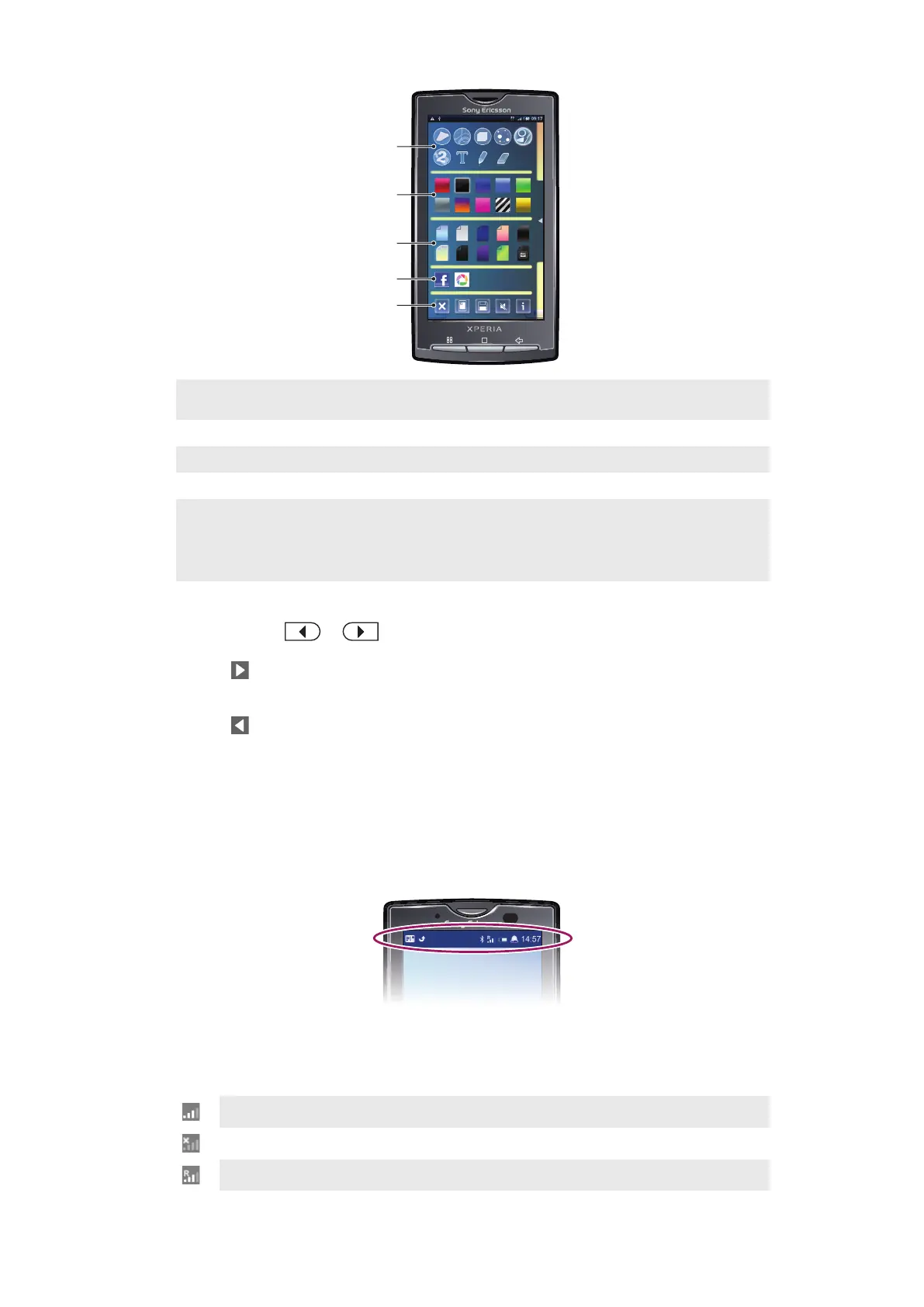
1 Select different shapes, numbers, text, or the free-hand paintbrush. You can also select the eraser if you
want to correct something
2 Select which color scheme you want to use when creating your wallpaper
3 Set a background by choosing a photo from your camera album, or select a preset color
4 Upload your wallpaper to Facebook™ or Picasa™
5
•
Clear the workspace area
•
Set the current design as wallpaper
•
Save the current wallpaper to your memory card
•
Mute the sound
•
View information about Creatouch™
To add shapes and text to your wallpaper
1
Touch and hold or to scroll to the left or right, and choose which home
screen pane you want to start working on.
2
Tap the icon to open the menu.
3
Choose which shape or text you want to add to your wallpaper. If you tap the text
icon, you also need to tap the text input field and enter the desired text.
4
Tap the icon to go back to the workspace.
5
Tap the screen to apply the shapes or text to the current pane. You can also hold
and drag your finger across the screen to scatter the shapes or text.
Status bar
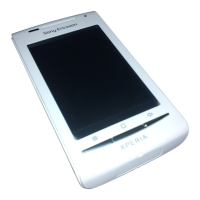
A status bar at the top of the screen displays phone status information and notifications.
Notification icons appear on the left side of the status bar. Phone status icons appear on
the right side. From the status bar you can access the notification panel.
Phone status icons
The following status icons may appear on your screen:
Signal strength
No signal
Roaming
14
This is an Internet version of this publication. © Print only for private use.


 To Next Page