1
From the Home screen, tap , then tap Phonebook.
2
Press , then tap Import contacts > SIM card.
3
If you have synchronised your contacts with an account, select if you want to use
this contact for the account, or if you want to use it only in the phone.
4
To import one contact, tap the contact. To import all contacts, press , then tap
Import all.
To import contacts from the memory card
If you want to transfer contacts from your old phone to your phone using this method, you need
to export your old phone contacts to the memory card first. See the User guide of your old phone.
1
From the Home screen, tap , then tap Phonebook.
2
Press , then tap Import contacts > Memory card.
3
If you have synchronised your contacts with an account, select if you want to use
these contacts with the account, or if you want to use it only in the phone.
4
A list appears showing different batches of phone contacts, with the corresponding
dates for when they were created. Select the desired batch.
To receive contact data sent using Bluetooth™ technology
To receive data from other devices using Bluetooth™ technology, you need to have the
Bluetooth™ function turned on and your phone set to visible. If you want to use this method for
transferring contact data from your old phone using Bluetooth™ technology, see the User guide
of your old phone.
1
When you are asked to allow a Bluetooth™ connection to your phone, tap OK.
2
When you are asked to save the contacts, tap OK.
To receive contacts sent using a messaging service
If you want to use this method for transferring contact data from your old phone, see the User
guide of your old phone.
1
When you receive a new text message, multimedia message, or email message,
open the message.
2
The received contact data appears as a vCard attachment. Tap, or touch and hold,
the vCard file to open a menu so you can save the contact data.
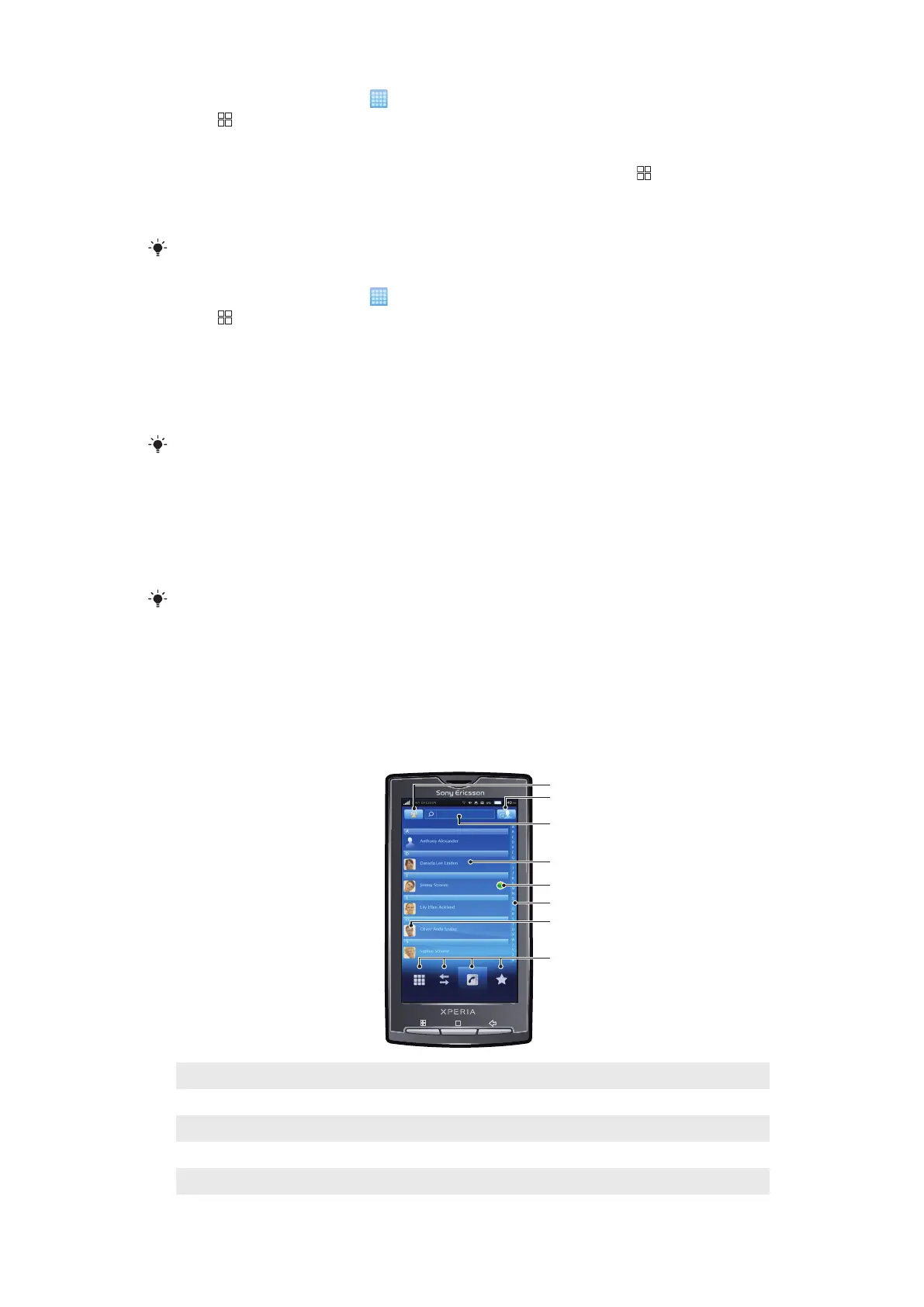
Phonebook screen overview
1
Select which contacts to display
2 Add contact button
3 Search contact field
4 A contact. If added, the contact thumbnail picture and web service status are shown
5 Contact presence status on an instant messaging service
31
This is an Internet version of this publication. © Print only for private use.


 To Next Page