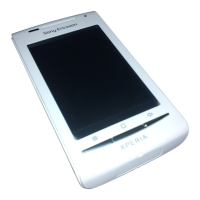
Notification LED
The Notification LED (Light-emitting diode) is located at the top of the phone. It provides
information on the phone status and on pending notifications.
LED status
Green The battery is fully charged
Flashing red The battery level is low
Orange The battery is charging. The battery level is between low and full
Flashing green There is a pending message or you have missed a call
While the phone is charging but the battery level is still low, pending notifications (flashing green)
are not indicated by the LED.
Sensors
Your phone includes a light sensor and a proximity sensor. The light sensor detects the
ambient light level and adjusts the brightness of the screen accordingly. The proximity
sensor turns the touch screen off when your face touches the screen. This prevents you
from unintentionally activating phone functions when you are engaged in a call.
Using the touch screen
To open or highlight an item
•
Tap the item.
To mark or unmark options
•
Tap the relevant checkbox or in some cases the right side of the list option, to mark
or unmark an option.
Marked checkbox
Unmarked checkbox
Marked list option
Unmarked list option
To pan
•
When this option is available, drag the screen to pan.
Zooming
There are two ways to zoom. The zoom alternative depends on the application you are
using. For example, the Web browser uses
and , while the Camera album uses
the touch, hold and drag alternative.
To zoom
•
When available, tap or to zoom in or out.
•
Touch, hold and drag upwards or downwards to zoom in or out.
You may have to drag your finger on the screen (in any direction) to make the zoom icons appear.
17
This is an Internet version of this publication. © Print only for private use.



 To Next Page