Sony Ericsson Timescape™
Sony Ericsson Timescape™ revolutionises your social experience by collecting all your
communications into one view. Every event - text, multimedia and email messages, web
service updates - appears as a tile in a chronological flow on the screen. You can see a
snack-size preview of an event before choosing to view the full content. With the infinite
button, you can view all communications for a contact.
To make best use of Timescape™, you can set up your email and web service accounts in your
phone. See Web service setup in Timescape™ on page 45.
To start Timescape™
1
From the Home screen, tap .
2
Find and tap Timescape™.
To set up Timescape™
The first time you start Timescape™, a setup wizard will guide you through the necessary steps.
1
From the Home screen, tap
.
2
Find and tap Timescape™.
3
If you want, tap Set up services and enter your web service account information,
then press
repeatedly until you can proceed to set up Timescape™.
4
If you have not already set up an email account in the Email application, you can tap
Set up email account and enter your email account information, then press
repeatedly until you can proceed to set up Timescape™.
5
When you are finished, tap Done.
You can only set up one email account, and one account for each web service, to work with
Timescape™.
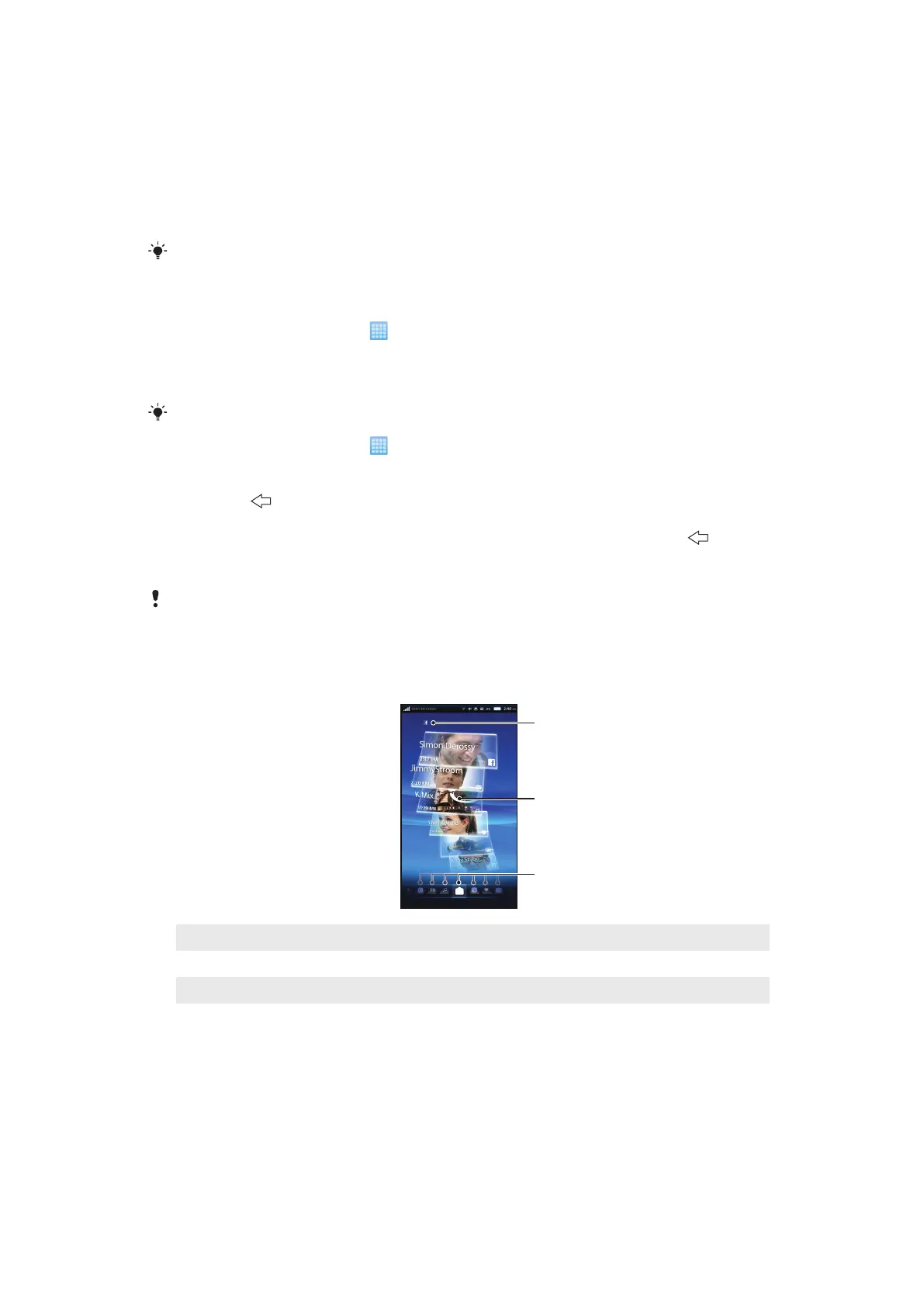
The Timescape™ start screen
1
Your status on the web services you have selected
2 Timescape™ tiles, in chronological order
3 Timescape™ tile filter
Timescape™ navigation
To scroll through tiles in Timescape™
•
Flick up or down to scroll through the tiles.
To preview a tile in Timescape™
•
Tap the tile.
42
This is an Internet version of this publication. © Print only for private use.


 To Next Page