Photos in Sony Ericsson Mediascape
You can browse and view your pictures and camera photos using Sony Ericsson
Mediascape. Use the Media Go™ application to transfer content to and from the memory
card in your phone. For more information, see Connecting your phone to a computer on
page 64.
To browse your photos
1
From the Home screen, tap Mediascape.
2
If the photo home screen is not shown, tap Photo .
3
In the upper part of the screen, tap More.
4
Flick left or right to view photos by category.
Setting up accounts for online services
You can share your photos with social networking and photo sharing services when using
Sony Ericsson Mediascape. You first have to register with the available services that you
want to use.
To enable photo online services
1
From the Home screen, tap Mediascape.
2
If the photo home screen is not shown, tap Photo .
3
Press .
4
Tap Photo Home settings.
5
Tap Show online services.
6
Tap Online service accounts and register with services you want to use.
To select which online photo service to show
1
From the Home screen, tap Mediascape.
2
If the photo home screen is not shown, tap Photo
.
3
Press .
4
Tap Photo Home settings.
5
Tap Select services and select one or two services.
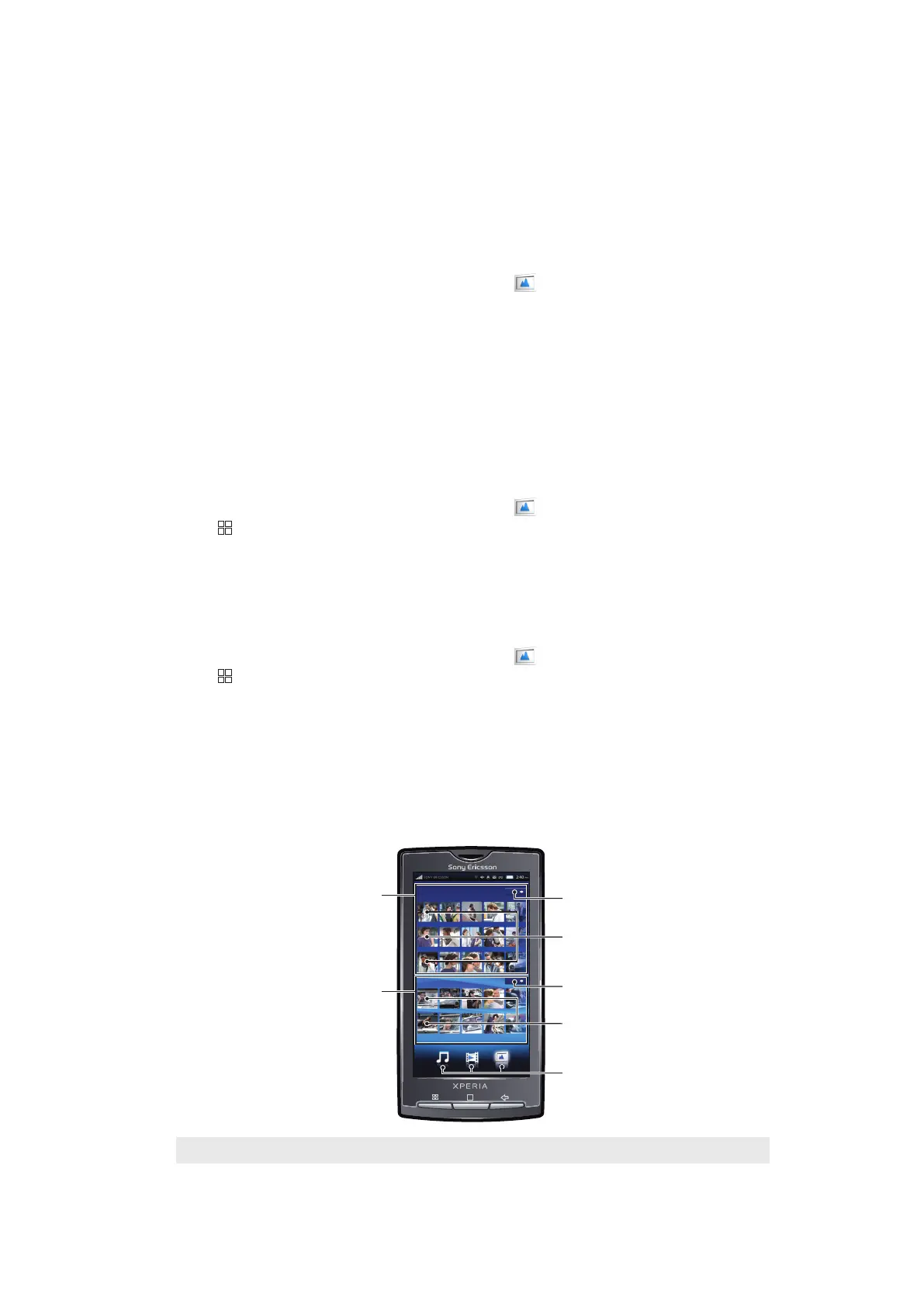
Photo home screen
The photo home screen has two parts, the upper part contains locally stored photos, and
the lower part shows online photo content. When online content is not available, the lower
part shows local content.
1
Locally stored photos
2 Online photo content
78
This is an Internet version of this publication. © Print only for private use.


 To Next Page