Web browser
You can use the web browser to view and navigate different web pages, add them as
bookmarks or create shortcuts from the applications screen. You can open several browser
windows at the same time and use the zoom function when navigating a web page.
To open the web browser
1
From the Home screen, tap .
2
Find and tap Browser .
Toolbar
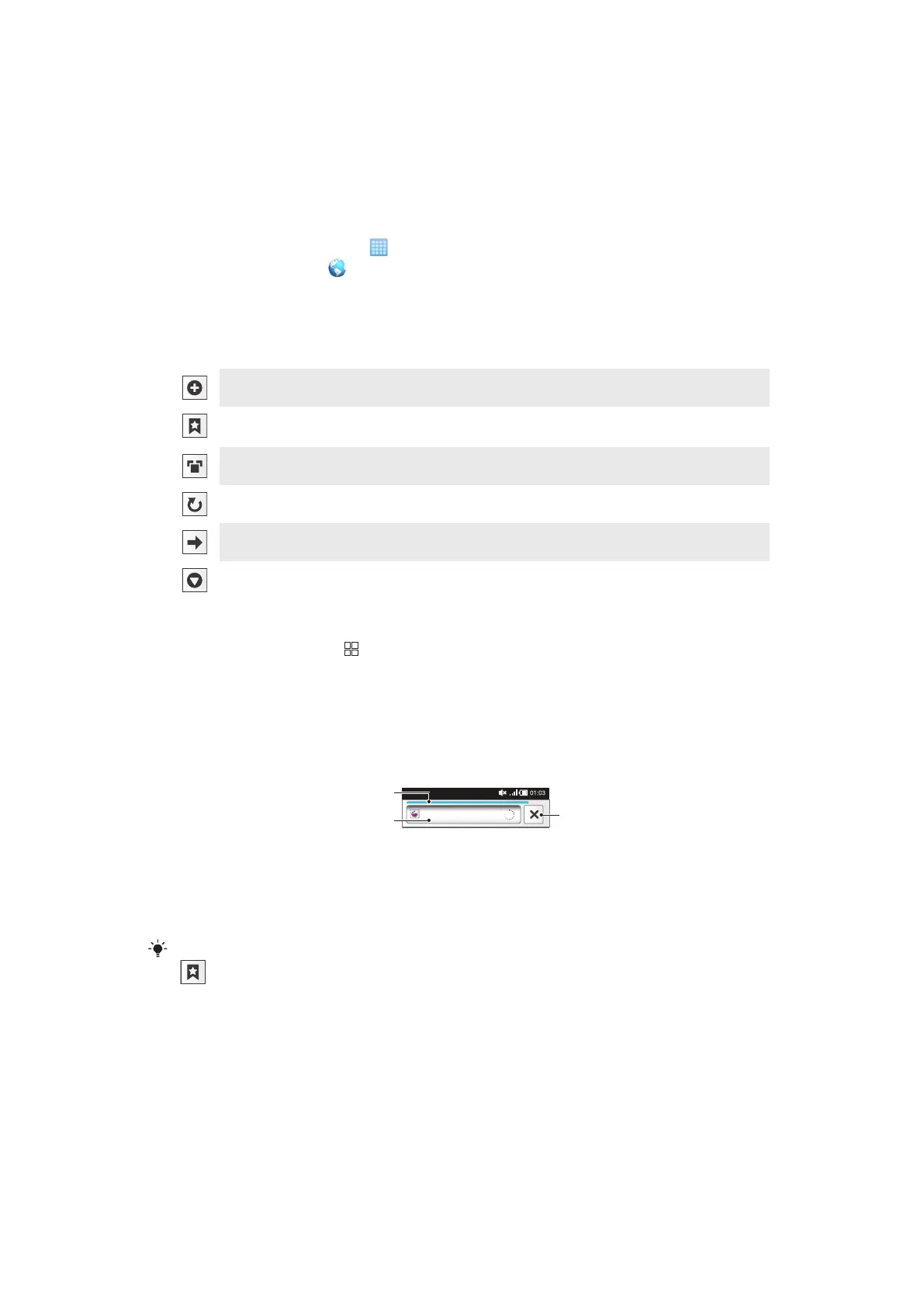
The toolbar options make browsing easy:
Open a new browser window
Add, open or edit a bookmark. View your most visited web pages or open web pages from the browser
history
View open windows
Refresh the current web page. This option is only visible in landscape mode
Go forward one page in the browsing history
Open a menu to see more options
To open the toolbar
•
From the browser, press
.
Browsing the web
Search and address bar
Use the search and address bar to browse the web:
1
View the download progress of the current web page
2 Enter a search word to search for a web page, or enter a web page address to load a web page
3 Cancel the download of the current web page
When a page has finished downloading, you can bookmark it by tapping the bookmark icon
next to the search and address bar.
To go to a web page
1
Tap the search and address text field to activate the keypad.
2
Enter a web address.
3
Tap Go.
To search a web page
1
Tap the search and address text field to activate the keypad.
2
Enter a search word.
3
Tap Go.
60
This is an Internet version of this publication. © Print only for private use.



 To Next Page