Why don't some button operations work on my Yamaha Stereo System?
- Hhayley22Sep 4, 2025
If some button operations aren't working on your Yamaha Stereo System, the disc loaded into the unit might not be compatible. Use a disc supported by the unit.
Why don't some button operations work on my Yamaha Stereo System?
If some button operations aren't working on your Yamaha Stereo System, the disc loaded into the unit might not be compatible. Use a disc supported by the unit.
Why does my Yamaha Stereo System suddenly turn off?
Your Yamaha Stereo System might be turning off suddenly due to a few reasons: * The automatic system off function may have turned the unit off after 60 minutes of inactivity with USB or CD playback stopped. * The sleep timer might be set. Turn the system back on and play the source again. * The AUTO POWER OFF function might be enabled. To play continuously, set AUTO POWER OFF to TIME OFF.
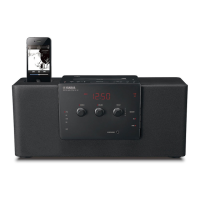
What to do if Yamaha TSX-112 does not operate properly?
If your Yamaha Stereo System isn't operating correctly, it might have experienced a strong electrical shock or a drop in power supply. To resolve this, turn the system off, disconnect the power cable, wait about 30 seconds, reconnect the power cable, and then turn the system back on.
Why is there a delay when I press play on my Yamaha TSX-112 Stereo System?
If playback doesn't start immediately after pressing play on your Yamaha Stereo System, the disc might be dirty; try wiping it clean. Alternatively, the disc may not be compatible, so use a supported disc. If the unit was moved from a cold to warm place, condensation may have formed on the lens; wait an hour or two for the unit to adjust to room temperature and try again.
Why is there no sound from my Yamaha Media Player when using iPod?
First, ensure the iPod is firmly set in the iPod dock. Also, check if headphones are connected and remove them. Finally, make sure your iPod software is up to date by downloading the latest iTunes software.
Why does my Yamaha Stereo System make noise near other equipment?
If your Yamaha Stereo System is producing noises when near digital or high-frequency equipment, it's likely due to the unit being placed too close to that equipment. Try placing the unit farther away.
How to stop digital equipment from producing noises on Yamaha TSX-112 Stereo System?
If your Yamaha Stereo System is picking up noise from digital or high-frequency equipment, it might be placed too close to the equipment. Try placing the unit farther away.
What does “USB time out” mean on my Yamaha Media Player?
The number of files or folders on your USB device exceeds the limit. Reduce the number of files and folders.
What to do if Yamaha TSX-112 displays 'Over Current'?
If the system displays 'Over Current', the USB device may be connected at an angle. Disconnect the USB device, turn the system off and on again, and then reconnect the USB device.
What does 'Unknown USB' mean on my Yamaha Stereo System?
The 'Unknown USB' message indicates that the connected USB device is either not playable on the unit or the file name is too long. Use a compatible USB device, and ensure file names are no more than 250 characters.
Important safety instructions and precautions for operating the unit.
Instructions on how to connect and set up an iPod in the unit's dock.
How to select and play music from a connected iPod.
Guidance on playing music from CDs and USB devices.
Initial scan procedure required before tuning into DAB stations.
Steps to tune into DAB radio stations using manual or automatic methods.
How to save and select favorite DAB radio stations using presets.
Steps to tune into FM radio stations using automatic or manual methods.
How to save and select favorite FM radio stations using presets.
Explains the alarm types, including SRC+BEEP, SOURCE, and BEEP.
Step-by-step guide to setting the alarm time, sound, and source.
Important safety instructions and precautions for operating the unit.
Instructions on how to connect and set up an iPod in the unit's dock.
How to select and play music from a connected iPod.
Guidance on playing music from CDs and USB devices.
Initial scan procedure required before tuning into DAB stations.
Steps to tune into DAB radio stations using manual or automatic methods.
How to save and select favorite DAB radio stations using presets.
Steps to tune into FM radio stations using automatic or manual methods.
How to save and select favorite FM radio stations using presets.
Explains the alarm types, including SRC+BEEP, SOURCE, and BEEP.
Step-by-step guide to setting the alarm time, sound, and source.
| Impedance | 6 Ω |
|---|---|
| Driver diameter | 110 mm |
| Frequency range | - Hz |
| RMS rated power | 30 W |
| Audio output channels | 2.0 channels |
| AUX in | Yes |
| Bluetooth | No |
| Headphone connectivity | 3.5 mm |
| USB 2.0 ports quantity | 1 |
| Dimensions (WxDxH) | 457 x 174 x 181 mm |
| USB connector type | USB Type-A |
| Supported radio bands | DAB, DAB+, FM |
| Preset stations quantity | 60 |
| Built-in charger | - |
| Power source type | AC |
| Product color | Black |
| Apple docking compatibility | iPhone, iPod |
| Weight | 5100 g |
|---|