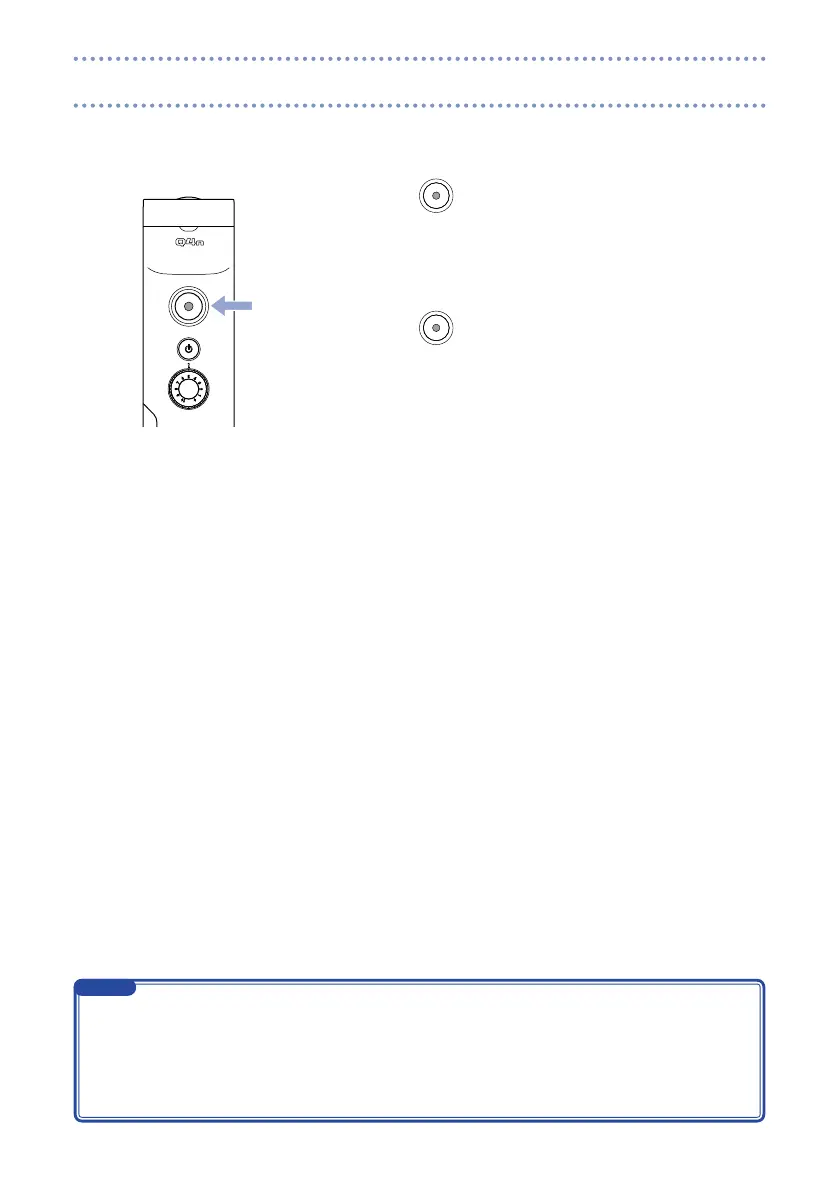
Recording can be started by pushing one button when the Main screen is open.
1. Press
.
This starts video recording.
During video recording, the REC LED above the lens lights
red.
2. Press
again to stop video recording.
If the transfer speed to the card is not fast enough during video recording, “Low Speed Card!” ap-
•
pears on the screen and recording might stop. To avoid this, we recommend using cards that are Class
10 or faster. Information about SD cards that can be used with this unit is provided at www.zoom.
co.jp.
Use the RECORDING MODE menu to make specific video recording settings. (See "Recording mode
•
settings" on page 25.)
NOTE
Recording


 To Next Page