Confidential and Proprietary Information of ZTE CORPORATION
heck the label on your device to get the default SSID
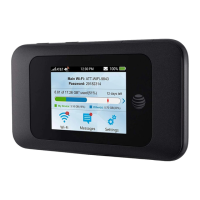
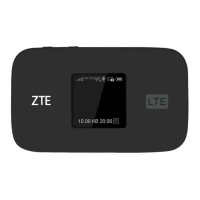
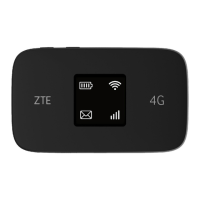
default SSID and password on the LCD screen.
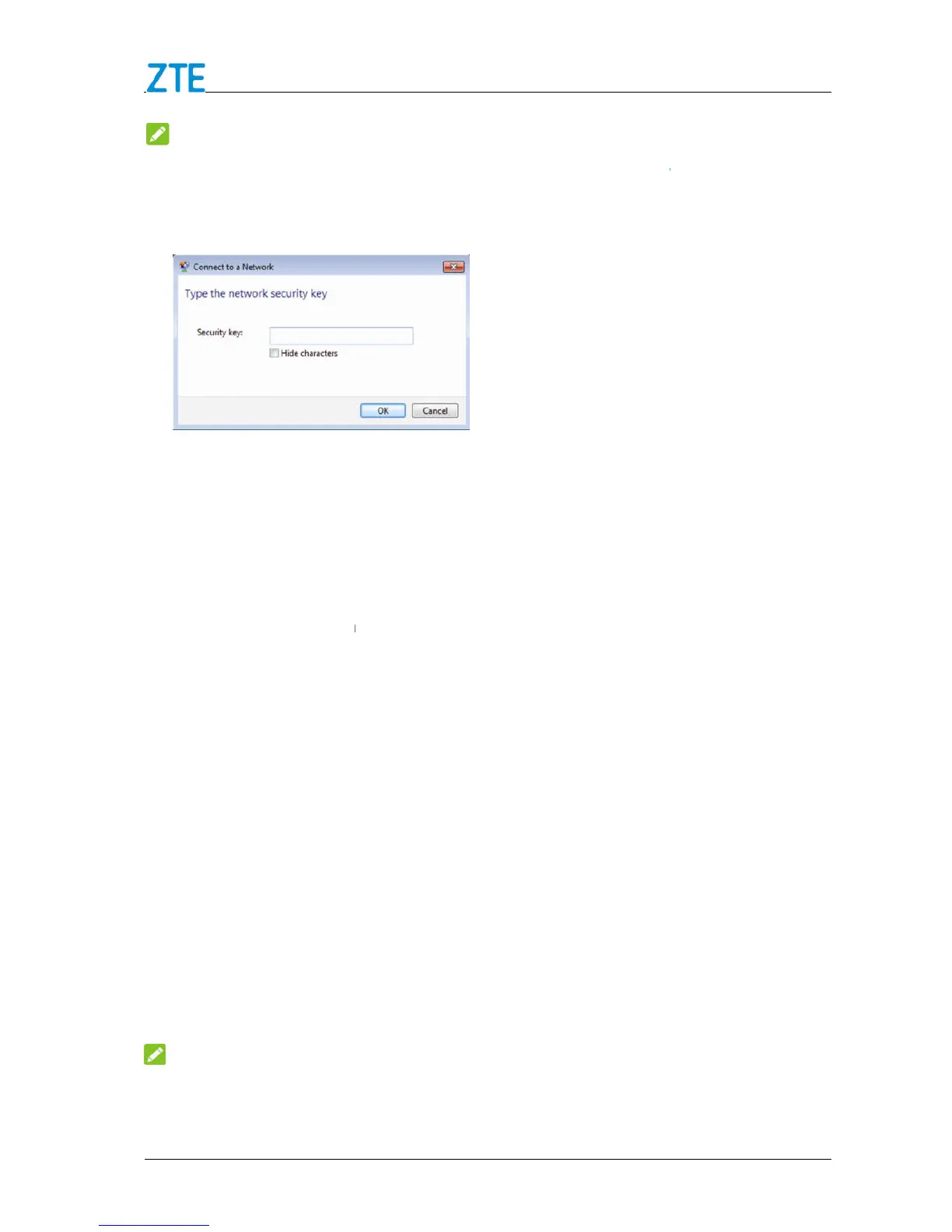
Input the password, and then click
Wait a moment, and then the client will connect to your device successfully.
If you want to use WPS function to enable a Wi
Enable the WPS function. Please check the
configuration page.
3. Press and hold the
Enable the WPS function on your client to respond to this authentication process.
Follow the system prompts on your client to finish the connection.
Accessing the Internet
1. Switch on the device.
2. Connec
t the client to your device.
connected to your device successfully, you can access
Disconnecting from the Internet
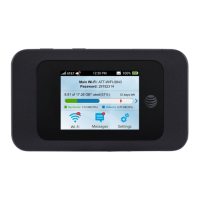
4G Mobile Hotspot
Settings > Data Settings
From the touch screen, touch
off the device can also terminate the
Confidential and Proprietary Information of ZTE CORPORATION
heck the label on your device to get the default SSID
and password
default SSID and password on the LCD screen.
Input the password, and then click
Wait a moment, and then the client will connect to your device successfully.
If you want to use WPS function to enable a Wi
Fi connection, please:
and enable the Wi
Fi function on your device.
Enable the WPS function. Please check the
Key on your device and touch
Pair with Main Wi
to start Wi
Fi Protected Setup authentication process.
Enable the WPS function on your client to respond to this authentication process.
Follow the system prompts on your client to finish the connection.
Accessing the Internet
t the client to your device.
connected to your device successfully, you can access
Disconnecting from the Internet
configuration page, and click the
(network type)
Settings > Data Settings
From the touch screen, touch
Settings > Allow Mobile Data.
Standard Data to OFF position.
off the device can also terminate the
Wait a moment, and then the client will connect to your device successfully.
Fi function on your device.
Fi Protected Setup authentication process.
Enable the WPS function on your client to respond to this authentication process.
Follow the system prompts on your client to finish the connection.
connected to your device successfully, you can access


 To Next Page