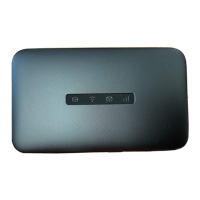
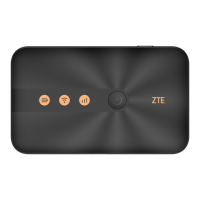
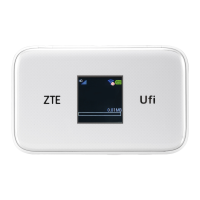
MF985U User Manual
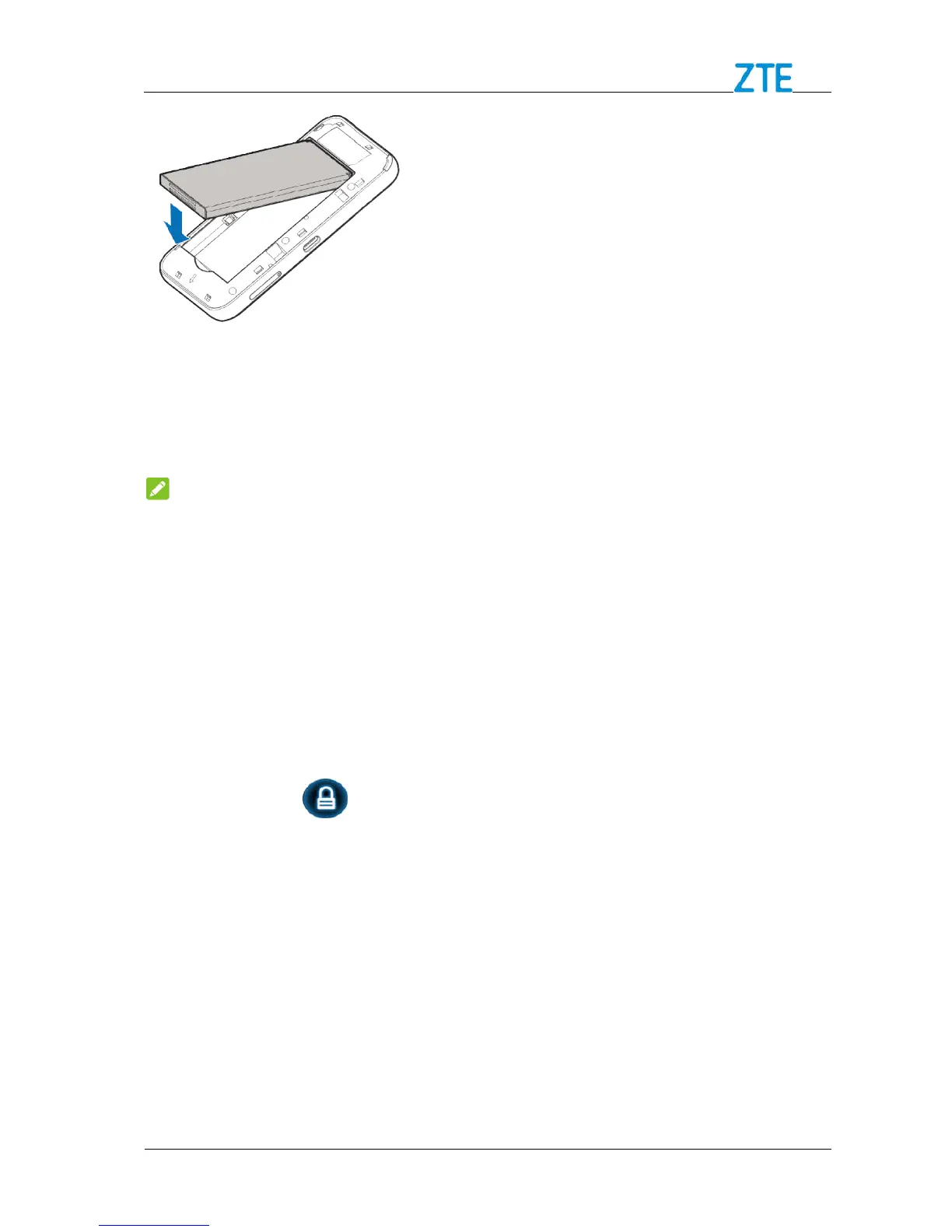
3. Replace
the back cover.
Powering On/Off Your Device
The device is powered on when the
Locking/Unlocking the Screen
allows you to quickly lock the screen when not in use and to turn the screen
back on and unlock it when you need it.
To quickly turn the screen off, press the
To unlock the screen:
1. Press the Power Key
Sleep Mode
When you enable the Wi-
Fi function and use the battery to supply
once no user connects to the device w
screen will be turned off. In the sleep mode, the Wi
disabled. Press the Power
the LCD
screen will be turned on.
Charging Your Device
You can charge your device by using the USB cable or adapter.
cable to connect your device and PC directly.
Confidential and Proprietary Information of ZTE CORPORATION
Powering On/Off Your Device
ey to turn on or off your device.
The device is powered on when the
Locking/Unlocking the Screen
allows you to quickly lock the screen when not in use and to turn the screen
back on and unlock it when you need it.
To quickly turn the screen off, press the
Fi function and use the battery to supply
once no user connects to the device w
, the device will
screen will be turned off. In the sleep mode, the Wi
Key to wake up the device
and enable the Wi
screen will be turned on.
You can charge your device by using the USB cable or adapter.
cable to connect your device and PC directly.
Confidential and Proprietary Information of ZTE CORPORATION
allows you to quickly lock the screen when not in use and to turn the screen
Fi function and use the battery to supply
screen will be turned off. In the sleep mode, the Wi
cable to connect your device and PC directly.


 To Next Page