1) Click [QC] to enter the QC interface;
2) Select items to be canceled in [Item List],
3) Select the controls to be deleted in the [QC List];
4) Click [Cancel Request];
5) Confirm box of QC request cancel information will pop up;
6) Click [OK] - [Request] - [Sample List] to confirm QC request was deleted.
⚫ Method 2:
1) Click [Request] to enter the sample request interface;
2) Select the sample request to be deleted in the [Sample List];
3) Click [Delete], the “Delete” prompt will pop up;
4) Click [OK], QC request test delete succeed.
3.11.1.4. QC data
There are two ways to check the QC data:
1) The first one is by item, to select the QC test results under the corresponding QC
item;
2) The second one is by time, to search the trend chart of QC test results corresponding
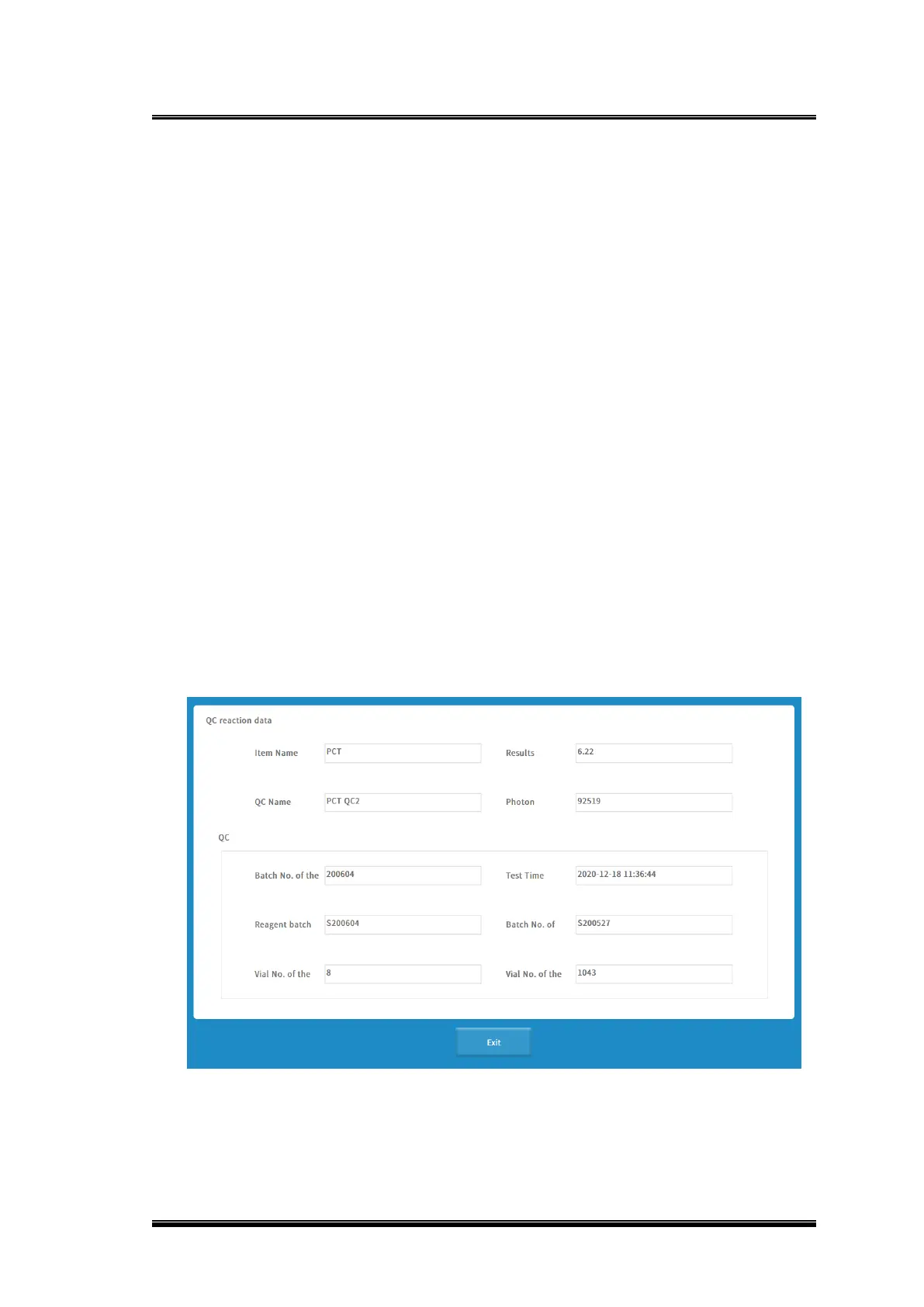
to the item within a period of time, click the trend chart data point to check the QC data.
Figure 0-5 QC data
Basic parameter explanation


 To Next Page