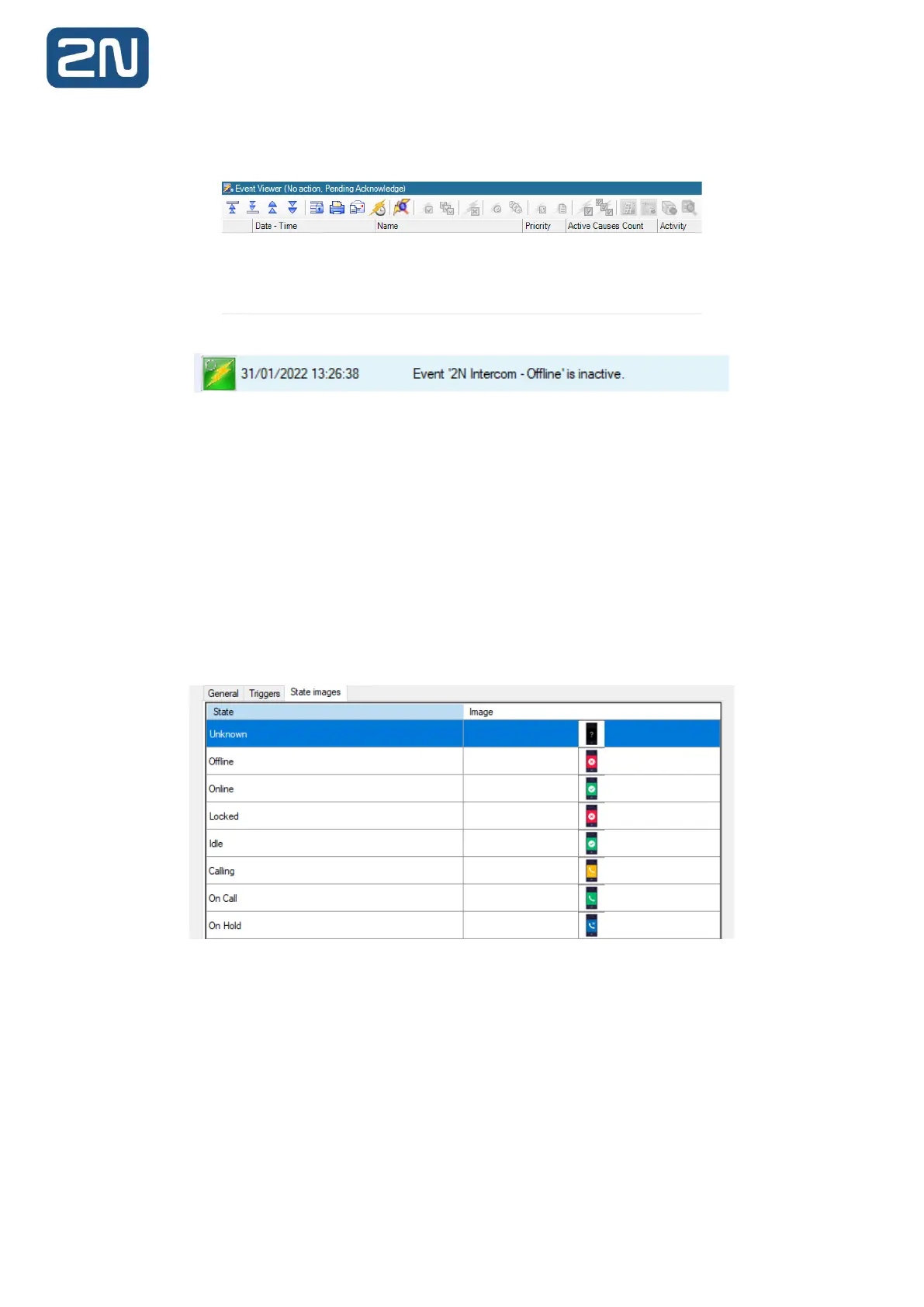
If configured as a self-clearing event as described above, once the event becomes Inactive (the intercom
comes back online in this example) – the event will close:
Similar to the event’s activation, the journal will now also log the event’s deactivation:
6.7 State Images Tab
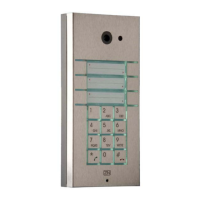
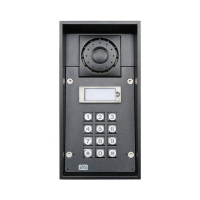
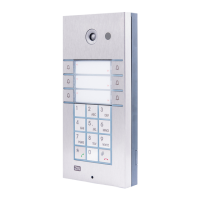
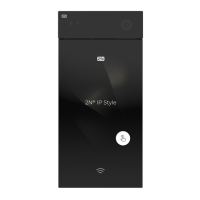
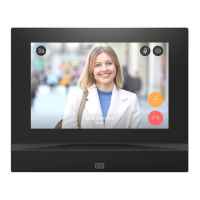
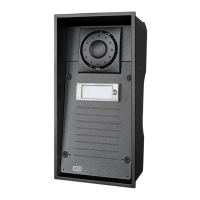
The State Images tab shows the default images for different hardware states for 2N Intercoms. These
images can be customized with any .JPG file.
6.7.1 Customizing State Images
1. Double-click the existing image. A Windows Open dialog box appears, allowing you to browse
for a folder in which you have placed replacement images.
2. When you locate the replacement image, select it and click Open to replace the default image
with this image.
3. When you are done editing the device, click Save and Close to save the configuration.
6.7.2 Restore a Default State Image
You can restore the default state image for any of the states of a server object.
To Restore the Default State Image:
1. From the State Images tab, select an existing image.
2. Right-click the image and select Restore Default.
3. Click Save and Close to save the configuration.



 To Next Page