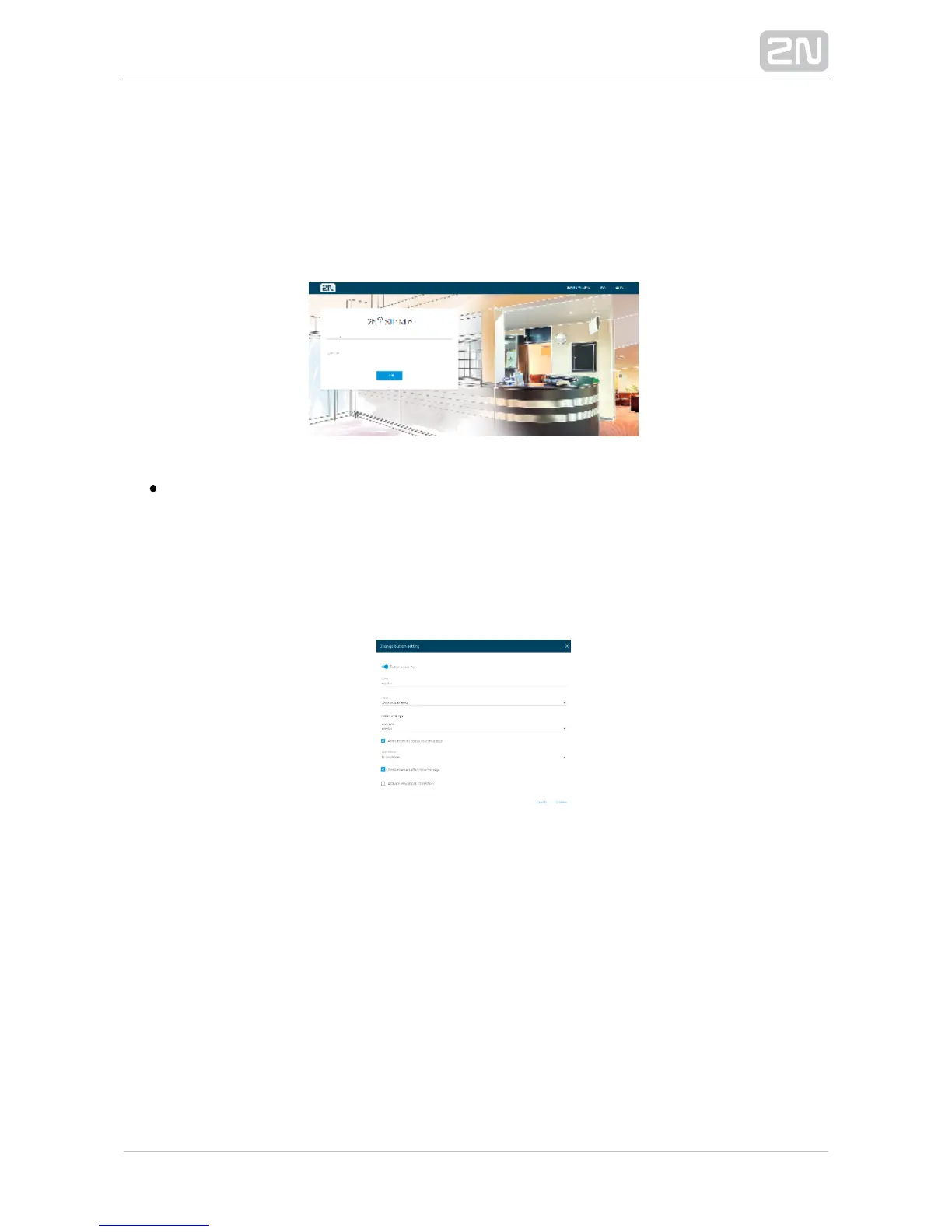
Having found the IP address, open any web browser on a PC connected to the same
network.
Enter http://found_IP_address/ into the address row.
Confirm your selection. If is connected in the right network, its 2N
®
SIP Mic
configuration web page opens up.
Log in using the user name and password.Admin 2n
Step 2: Button Setting
Configure multicast announcing for a button. Go to the Buttons menu to display the
button and logic input list. Choose one of the 12 system buttons, press the switch to
activate it and click the pencil symbol. The following dialogue window opens up:
Enter a button name into the Name field. The description will be displayed in the
menu. Go to Action and select Announce to zone. The menu will change according to
the action selected. Select a zone in Action settings. Always choose the first zone
even it lacks description. Enable Announcement before/after voice message if
necessary. Select Microphone as the Audio source.
Click Change to save the settings.
Step 3: Zone Setting
To execute the action via the set button, set the zone to be announced in the Zones
menu. There is a list of 12 zones in the menu. Activate zone 1, which you selected while
setting the button. Click Edit to open the following dialogue:


 To Next Page